Help a customer who can’t open, sign or pay
Related guides
- The customer portalCustomers and portal · 5 min
- How customers sign and pay onlineCustomers and portal · 5 min
- Set up portal access and message alertsCustomers and portal · 4 min
- Handle a customer's change requestQuotes and orders · 5 min
- Get a quote signedPayments and signatures · 5 min
Your customer says the link doesn't work, they can't sign, or there's no Pay button. Start with the exact message on their page, then match it to the checks below.
A link, a signature, and a payment can be blocked for different reasons. Fix the cause shown before sending another request.
Check these first
Ask the customer for the message word for word. Confirm they opened the complete link from the latest email for that quote or order.
On the order page, check questions and change requests, Being priced, Shopify sync, payment availability, and the remaining balance. Check Portal access if the portal itself won't open.
Avoid asking them to repeat a payment when nothing remains due. A missing button can be the correct result for a paid order.
The link won't open
Step 1: Match the access message
Read the customer's message and use the corresponding action. The link may be incomplete, disabled, restricted to another record, or temporarily blocked after repeated attempts.
Message Action This page is not available. Contact the store. Check whether the portal is off. Enable it or send the signing link. This link doesn't work or This link has expired Use Email me a new link, or send a fresh email from the order. This link opens one quote or order. Use the link from its email. Open that record's email or an account link. Too many links were tried from here Wait a few minutes before retrying. 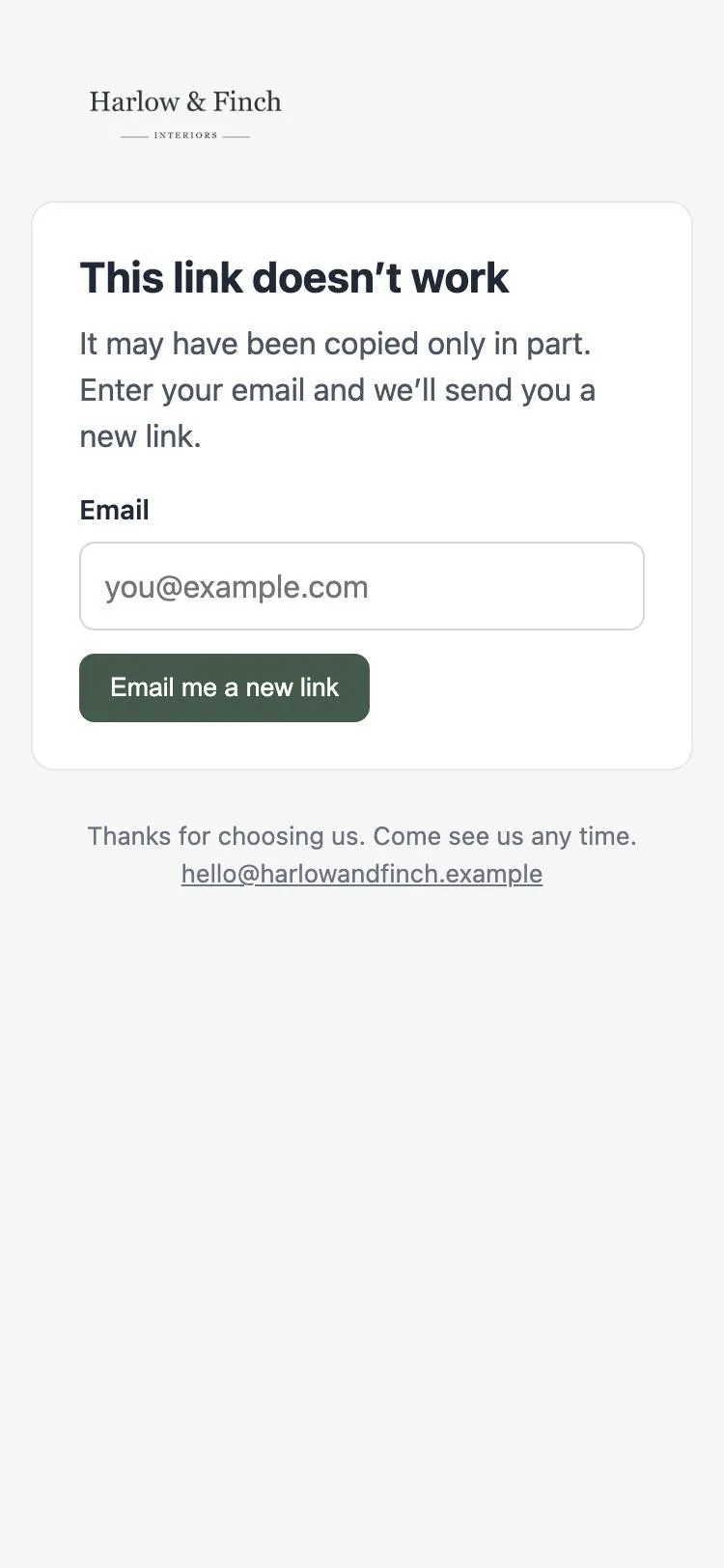
This link doesn't work with Email me a new link. Step 2: Recover the PIN when needed
Ask the customer to use Email my PIN. It sends to the address on file. After 5 wrong attempts, access locks for 15 minutes and a new PIN is emailed.
Email me a new link also sends only to the address on file. Check the customer's details when they cannot receive either email.
Questions or pricing hold signing and paying
Step 1: Resolve the open request
If the page says Not ready to sign yet, open the conversation and customer change requests. Answer or close the unresolved question or request so the customer can continue.
Step 2: Finish pricing the quote
If the quote is Being priced, complete the online request and send the quote or copy its sign link. The customer can then review the priced document.
A quote without a customer cannot be signed. A rejected quote shows This Quote has been rejected and can no longer be signed. Correct the record's underlying issue before arranging approval.
The sign link no longer signs
Step 1: Send a current signature request
For This link can no longer be used to sign. Ask the store to send you a new link., send another signature request. The new request gives the customer a current signing link.
Step 2: Ask the customer to review changes
For This quote changed since you signed it., have the customer review and sign the updated quote. For This quote was updated. Reload to see the current totals before signing., reload first.
Step 3: Check the total and saved signature
The store is updating this Quote means the total is still settling. The total couldn't be confirmed needs a Shopify sync check. Resolve that before asking the customer to sign.
If signing asks them to reload, reload and tick the agreement again. If it says Order has already been signed, check the order's signature. Retry a signed-copy save error before escalating it.
There is no Pay button
Step 1: Read the payment message
Sign first, then pay means the customer must sign. A pay link can take them to signing for the same reason.
Thanks. We'll let you know when this is ready for payment. means payment is being held. Use Collect a payment to enable payment or send the appropriate request.
Step 2: Check checkout and outstanding requests
For Contact store to pay, check Shopify sync and use Retry Shopify Sync when needed. Send the link again after the checkout is available.
For Preparing your payment. Refresh shortly., refresh after the checkout finishes preparing. An older unpaid request must be paid or cancelled before a conflicting request can continue.
If Copy Invoice Link is greyed out, hover to read the reason. Nothing is left to pay on this quote. needs no new request. A deleted Shopify draft order requires Retry Shopify Sync.
The page says something is temporarily unavailable
Customer pages can show neutral messages when the store's subscription has lapsed or the order's location isn't billed. Examples include Signing is temporarily unavailable and Orders are temporarily unavailable.
Step 1: Check the subscription and location
Ask someone with Manage billing to check Subscription. Confirm the store has active access and the order's location is covered. Documents can remain readable while checkout is unavailable.
This page is temporarily unavailable. Please try again shortly. can also mean the subscription could not be checked. Retry shortly and escalate if the message remains.
If it still fails
Copy the signing link and check it in a private window, or send a fresh email from the order. Keep the record and error message together when asking for support.
Use showroom signing or the supported paper-signature process when appropriate. For another payment method, follow Collect a payment and record what was actually received.
Was this guide helpful?
Thanks. Tell us what was missing at support@meetorderpilot.com.