Change a locked order, or a line already on a purchase order
Related guides
- Edit a quote or orderQuotes and orders · 5 min
- The quote and order pageQuotes and orders · 6 min
- See what changed and restore an earlier versionGet started · 4 min
- Set up your statuses and customer groupsStatuses and workflow · 6 min
- How order statuses workStatuses and workflow · 6 min
Use Force Edit for an authorized change to an order locked by its status. Use the line's separate edit confirmation when changing a purchased line's options or removing it.
These controls address different restrictions. Enabling Force Edit does not remove every other limit on the sale.
Before you start
Check the normal route
Use Edit a quote or order for an editable record.
Have both permissions
You need Create and edit quotes and orders and Force Edit locked orders for a status-locked edit.
Check purchasing
Read any purchase-order link before changing the line. The customer order and purchase order can need separate follow-up.
A status locks editing when Disable Edit is on and the order is committed: signed, paid in any amount or placed in Shopify.
Comments remain available through a status lock. Use a staff comment when you need to record information without changing the sale.
Force edit a locked order
Step 1: Read the lock message
Open the order and read Editing disabled. The message names the status responsible for the lock.
Check whether the proposed change affects the customer's agreement or vendor instructions. The banner still allows staff comments below.

The banner identifies the status causing the lock. Step 2: Enable the exception
Click Force Edit. Read Force edit this locked order?, then click Enable Force Edit if the change is authorized.
The page shows Force Edit enabled. The confirmation warns about signatures, previously sent quotes and purchase-order follow-up.
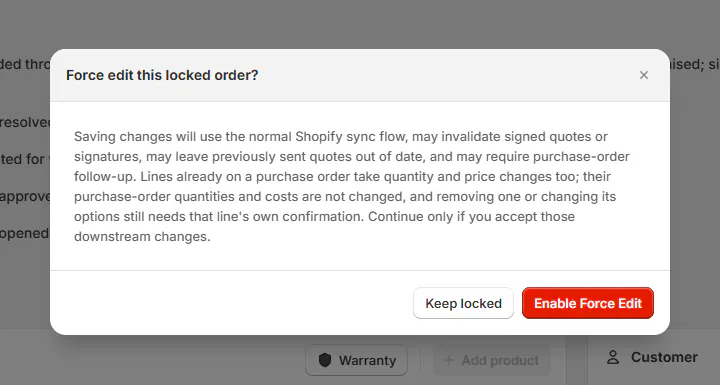
Read the consequences before enabling the edit. Step 3: Save or keep the lock
Make the intended change, review it and click Save. The update syncs to Shopify and is recorded in Activity.
To stop, choose Keep Locked in the enabled banner. This also discards unsaved changes.
Change a purchased line
Step 1: Open the line's confirmation
Find the line showing its purchase-order number. Click Enable edit, or choose Enable Edit from the line menu.
Edit PO-linked item? opens. Read the consequences for the line and its reserved stock.
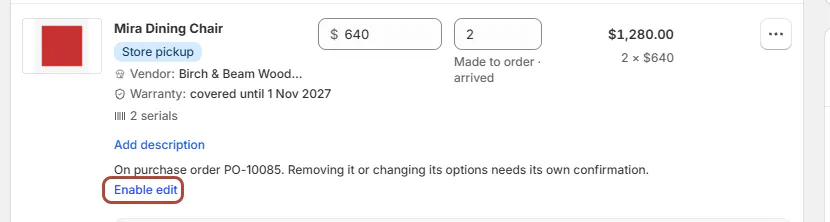
A purchased line has its own edit confirmation. Step 2: Enable and change the line
Click Yes, enable editing. Change the intended options or remove the line, then review the sale before saving.
Choose Lock to lock the line again. Removing a purchased line requires this line-specific confirmation even when Force Edit is already enabled.
Step 3: Check the purchase order separately
After saving, open the linked purchase order and compare its quantities and costs with the revised sale.
Follow Edit or cancel a purchase order for the required vendor-side change. The customer-order edit leaves the purchase order's quantities and costs unchanged.
What happens next
Force Edit applies for the session. Activity marks a forced save with Forcibly edited the order in a locked state.
A customer-facing change can require another signature. Check the current agreement before sending it or continuing the sale.
Removing a purchased line returns its reserved units and their cost to stock. Changing the customer order does not by itself revise the vendor's purchase order.
Example: Olivia's late change
Example · Harlow & Finch Interiors
Check both sides of the sale
Olivia Bennett's paid Linden Sofa order is in Sent to Vendor and linked to Atelier Homeworks on PO-10001.
- Nora Ellis reviews the requested delivery-note correction.
- Nora enables Force Edit and saves the correction.
- For a separate line change, Nora checks the line's own edit restriction.
- Nora reviews PO-10001 and arranges the required vendor follow-up.
- Nora checks whether Olivia must sign the revised agreement.
Important notes and tips
Default status locks
The default locking statuses include Order, Partially Sent to Vendor, Sent to Vendor, Ready to Ship, Partially Ready to Ship and In Production.
Quality Check, Partially Shipped, Shipped, Partially Delivered, Delivered, Reorder needed, Ready for pickup, Picked up and Cancelled also start with editing disabled.
Draft, Pending Review, Quote, Rejected and Changes Requested start without that setting. The committed-order condition still determines whether a configured status lock applies.
Use Set up your statuses to inspect your store's settings.
Force Edit permits quantity and price changes on purchased lines. Removing them or changing their options still needs the line's own confirmation.
Payment terms and tax remain locked after Shopify placement. Force Edit does not reopen those choices.
If something goes wrong
Force Edit is unavailable
Check both edit permissions and read the hover reason.
Removing the line is refused
Use Enable Edit on that specific purchase-order-linked line.
A restore cannot remove the line
An older version cannot bypass the purchased-line restriction.
Payment terms or tax stay locked
The sale is already placed in Shopify.
The badge now says Re-Sign
Review the changed agreement and request the customer's new signature.
Was this guide helpful?
Thanks. Tell us what was missing at support@meetorderpilot.com.