Quote faster: Sidekick, auto-save, barcodes and stock checks
Where are you working?
Related guides
- Create a quote or orderQuotes and orders · 6 min
- Order a new unit or sell from stockInventory and costs · 6 min
- Quotes & orders settingsSettings and integrations · 4 min
- Stock: what receiving and custom pieces do in ShopifyInventory and costs · 5 min
- Find quotes and ordersQuotes and orders · 5 min
Use Sidekick to prepare a quote, auto-save to keep eligible edits, and POS scanning to find stocked products. Check location stock before promising availability.
Each tool serves a different part of quoting. Start with Create a quote or order if you have not created a sale yet.
Before you start
Sidekick
It must be available in your Shopify admin. You still review and save the quote yourself.
Auto-save
Changing the setting needs Manage order and quote settings. New quotes need an initial manual save.
Scanning
Shopify variants need a matching barcode or SKU. The product must be active and available on POS.
Draft with Sidekick
Step 1: Describe the sale
Open Sidekick in Shopify admin. Ask it to prepare Olivia Bennett's Linden Sofa quote, naming her chosen fabric and delivery requirements.
Follow the OrderPilot link it returns. A prefilled create form opens for your review.
Step 2: Review and create
Check the customer, location, products, options and extras. Correct anything missing, then click Create Quote when the form is ready.
Sidekick itself saves nothing. The saved quote comes from your confirmation on the create form.
You can also ask Sidekick about an order or a purchase order, then follow its link to the record. Use the record to verify the answer.
Turn on auto-save
Step 1: Enable quote auto-save
Go to SettingsQuotes & ordersDefaultsQuotes. Under Saving quotes, tick Auto-save quotes after the first save.
The setting is off by default. Click Save in the Unsaved changes bar at the top.
Step 2: Watch a saved quote
Open an unsigned, unpaid quote or draft that has not become a Shopify order. Change a field and stop typing for 3 seconds.
The indicator under the title moves through Saving… to Saved with a time. Check that confirmation before leaving. The Activity timeline lists the edit as Auto-saved with a new version.

The saved time confirms the latest eligible edit. Auto-save never changes status or sends email. It skips signed records, records with payments and records already placed as Shopify orders.
Scan a product
Step 1: Open the picker
Tap Add product / fee. For the camera, tap Scan at the end of the filter row.
A Bluetooth or built-in scanner can scan while the picker is open. The picker displays Looking up barcode during the lookup.
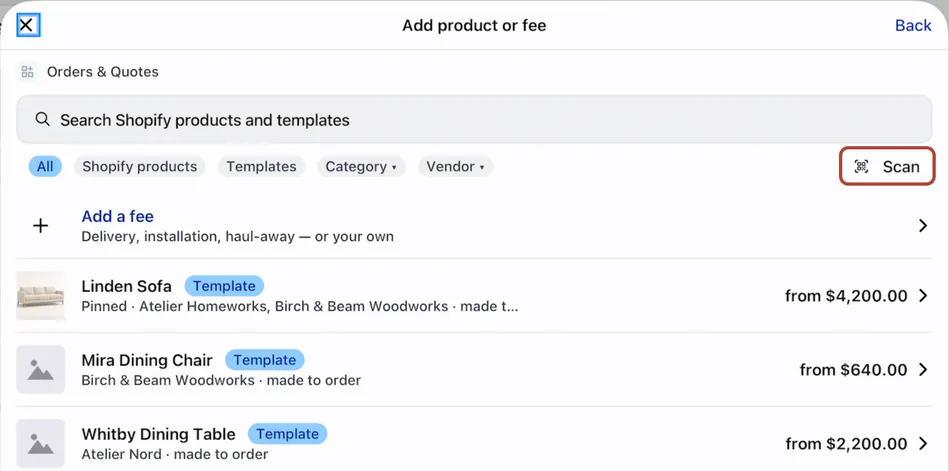
Scan from the open product picker. Step 2: Choose the match
One matching variant opens its item screen. When several products share the value, choose the intended product from the matching results.
The lookup matches barcode first, then SKU, exactly. Configure the item and add it as you would any other product.
Check stock before selling
Step 1: Read stock at the register
Read the product row's stock here and elsewhere. Orange indicates no stock here; red indicates none anywhere.
Open the item and read Stock Source: This location with its count, and Other location with how many units other locations hold. Untracked products do not show this stock section.
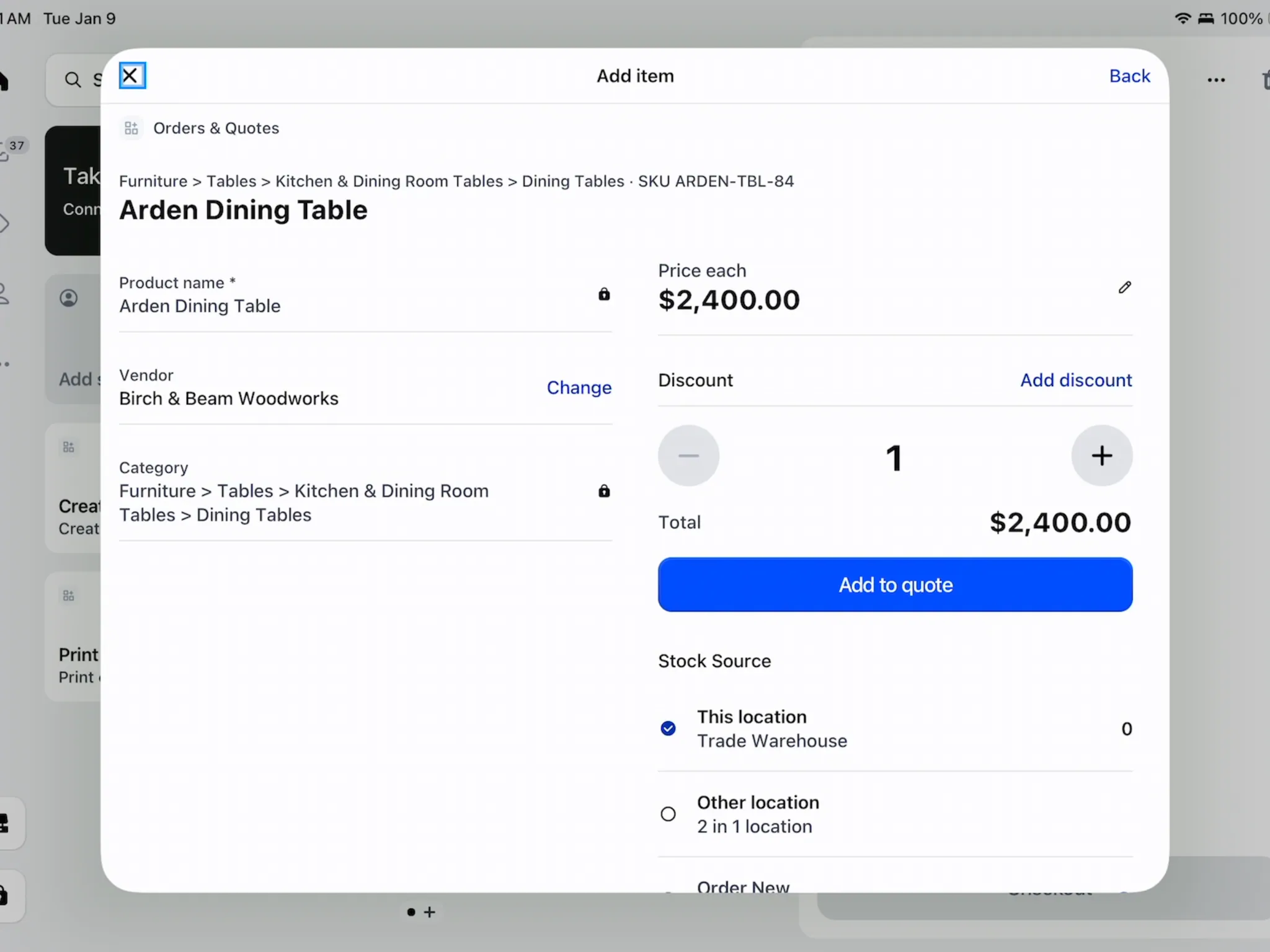
Read local stock before promising the item. Step 2: Inspect the other locations
Tap See all locations. Stock by Location shows the variant's location details.
Follow Order New and floor stock before selecting another source or a made-to-order location. A stock count alone is not a sourcing choice.
Hide out-of-stock products on POS hides products with no stock at the register's location. It starts off and is under Delivery & stock settings.
What happens next
A created Sidekick quote is a normal quote. Auto-saved edits update its Shopify draft, and a scanned item becomes a normal product line.
Example: a busy showroom visit
Example · Harlow & Finch Interiors
Check the prepared work
Sam Ortiz uses these tools across separate customer conversations.
- Sam asks Sidekick to prepare Olivia's sofa quote and checks every field before saving.
- Sam edits Priya's eligible quote and waits for Saved.
- On POS, Sam scans a Mira Dining Chair for Marcus Reed.
- Sam checks local and warehouse stock before discussing the remaining quantity.
If something goes wrong
Couldn't save · Retry
Read any reason and retry. Not saved or Auto-save stopped means the edit has not received a saved confirmation.
Auto-save does nothing
Check the first manual save, signature, payment and placed-order state.
No product found for barcode
Check the exact barcode or SKU and the product's POS availability, or search by name.
Already on this order
Change the existing line's quantity.
The item is hidden by POS settings
It has no stock at the register's location and out-of-stock hiding is enabled.
The last scan is still loading
Wait for it to finish before scanning again.
The barcode lookup failed
Retry once the message clears, or search instead.
Was this guide helpful?
Thanks. Tell us what was missing at support@meetorderpilot.com.