How templates sync to Shopify products
Related guides
- Create a product templateCatalog · 6 min
- Manage product templatesCatalog · 5 min
- Set template locations, tax categories and servicesCatalog · 5 min
- How OrderPilot syncs with ShopifyGet started · 6 min
- How the catalog fits togetherCatalog · 6 min
OrderPilot supports both product templates and regular Shopify products. We recommend templates when setting up your catalog in OrderPilot because they offer more configuration and room to expand.
- Use product templates when a product needs a variety of customer selections or specifications. Templates support more than three options, different input types, conditional choices, pricing and lead times per choice, and flexible presentation on your online product page. The product does not need to be made to order.
- Use regular Shopify products for simple items with a limited range of predefined versions that you already manage in Shopify. Shopify’s standard product setup supports up to three options per product, with each available combination represented by a variant. If you later need a fourth option or more advanced configuration, use a template.
Templates still work through Shopify. Activating a template creates a corresponding Shopify product that OrderPilot keeps updated, while you manage its choices in OrderPilot. You can use templates throughout your OrderPilot catalog or mix them with regular Shopify products.
Before you start
Only active templates sync. A draft writes nothing to Shopify; activate it when ready through Manage product templates.
Starting or retrying a sync needs Manage the catalog. View-only staff can read the state and ask a catalog manager to act.
How it works
- 1Active templateYou save a product ready for staff to sell.
- 2Shopify productOrderPilot creates or updates the template product.
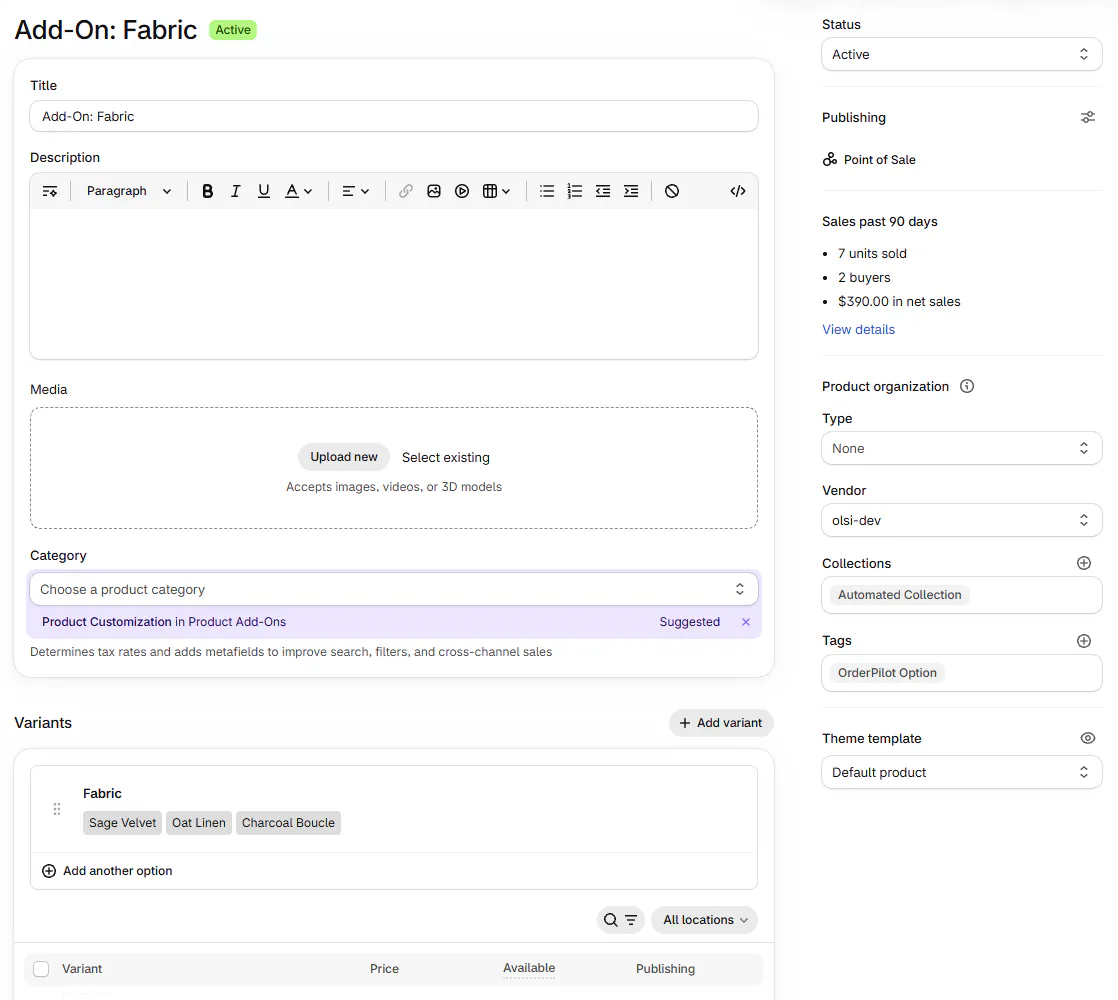
- 3Tracked optionsSeparate add-on products represent independently stocked choices.
- 4Configured saleThe sale uses the template variant and any tracked-option lines.
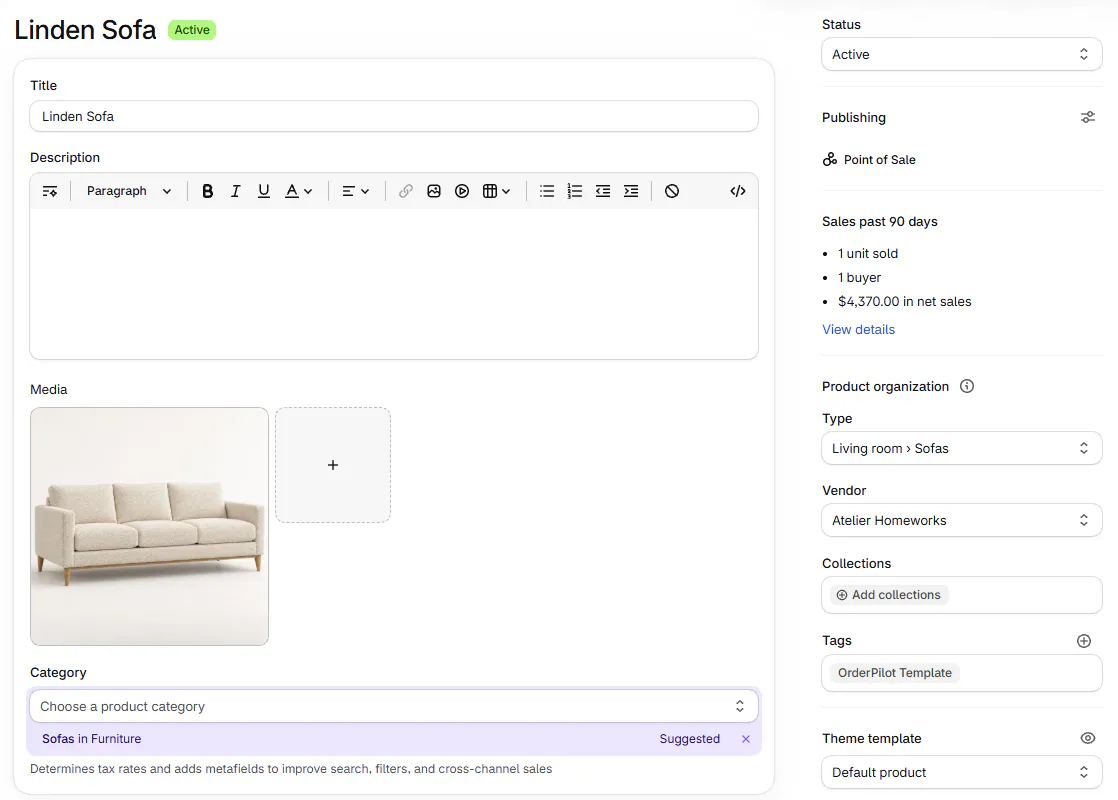
The template product carries the OrderPilot Template tag and 1 made-to-order variant. That variant's inventory is not tracked. Received stock adds a variant per configuration under a Stock unit option; see Stock and Shopify inventory.
Each tracked option has an OrderPilot Option product. Dropdown and Swatch values get variants; a Number option gets a unit variant.
The add-on name uses your Product defaults prefix, initially Add-On:. Add-on products are published to Point of Sale only.
What the Shopify product receives
| Field | Source in OrderPilot |
|---|---|
| Price | Template base price. |
| SKU | SKU prefix. |
| Vendor | First template vendor by name. |
| Product type | Full category label, such as Living room > Sofas. |
| Category | The template's Tax category, when set. |
| Featured image | First template image. |
| Remaining media | Template images in order, followed by media added in Shopify. |
| Channels | Point of Sale; Online Store when template mode and store settings allow. |
Tax category is written separately. A refusal can leave the title and price synced while the category still needs attention.
Template images that are Shopify Files attach without creating duplicate files. External image links supplied through CSV do not transfer to the Shopify product.
When syncing happens
Activating a template starts its first sync. Saving an active template, including its options, queues another one.
Active templates also sync after imports, category renames and a manual Sync to Shopify or Retry sync action. Add-on prefix changes rename add-on products within a few minutes.
A daily check retries failed syncs up to 3 times. After that, another edit or manual retry is needed.
Deactivation archives the template's Shopify product rather than deleting it. Existing orders, purchase orders and stock still need its variant; shared option products remain untouched.
Where you'll see the state
The Products list shows Draft, Syncing, Live, Sync failed or Not synced. Needs sync appears while an active template needs attention.
Its banner offers Show them and Retry sync for all, with up to 500 templates in a batch.
The template page shows Syncing, Sync failed or Not synced beside its active state when relevant. After success, hover Active for Last synced.
Once published, More actions > View in Shopify admin opens the product. The header's eye opens its online product page.
The choices you have
| State | What to do |
|---|---|
| Draft | Save it, then activate when ready. Drafts cannot sync. |
| Sync failed | Read the red banner, fix the cause, then choose Retry sync. |
| Not synced | Choose Sync to Shopify to start its first sync. |
| Several templates need attention | Review Needs sync, then use the list's retry action. |
| Still failed after daily retries | Fix the cause and manually retry or save an edit. |
For a rejected tax category, choose another valid category or correct the Shopify value. Read the field's red note separately from the overall sync badge.
Why images can be missing while the list reads Live
A picture failure does not fail the whole sync. Save the active template to queue another sync, or use a retry action when shown. A Shopify File still being prepared waits until a later sync.
Example: Linden Sofa reaches Shopify
Harlow & Finch Interiors activates Linden Sofa. The page shows Syncing, then the product list shows Live.
In Shopify, the product carries the template tag, Atelier Homeworks as vendor and Living room > Sofas as product type.
Its first template photo becomes the featured image. Tracked Fabric appears separately as Add-On: Fabric, including the Sage Velvet variant.
Do it
Create a template, then manage its activation and edits. Use Put a template online for customer-facing publication.
Warning
Editing a template's managed product fields directly in Shopify does not preserve those changes against the next template sync. Update its price, product type and option data in OrderPilot.
Clearing a template description does not send an empty replacement to Shopify. Check the Shopify description separately if old wording remains.
There is no pre-uninstall button that removes OrderPilot's Shopify data. See Data, reset and uninstall.
If syncing still fails, contact support with the template name and exact error. Do not repeatedly change unrelated fields to clear the badge.
Was this guide helpful?
Thanks. Tell us what was missing at support@meetorderpilot.com.