Manage product templates
Related guides
- Create a product templateCatalog · 6 min
- Set template locations, tax categories and servicesCatalog · 5 min
- How templates sync to Shopify productsCatalog · 5 min
- Import and export templates with a CSVCatalog · 7 min
- Group options into bundlesCatalog · 6 min
Find a template, update its details and decide whether staff can sell it. You can also copy a template, pin it in pickers or hold back bundle changes.
Use the Products list for the catalog overview. Open a template when you need its prices, options, media and selling rules.
Before you start
Start with a template
Follow Create a product template if the product does not exist yet.
Check your access
View quotes and orders, Manage the catalog or Change catalog selling prices opens the list. Template changes need Manage the catalog.
Finish current edits
Save or discard page changes before activating or deactivating a template.
A view-only template page explains the access restriction in a banner. Summary rows use View and Close instead of Edit and Done.
Find the template
Step 1: Choose a list view
Open Products. Choose All, Active, Draft or Locked to narrow the list.
Needs sync appears while a template requires attention. Counts show how many templates belong in each view.
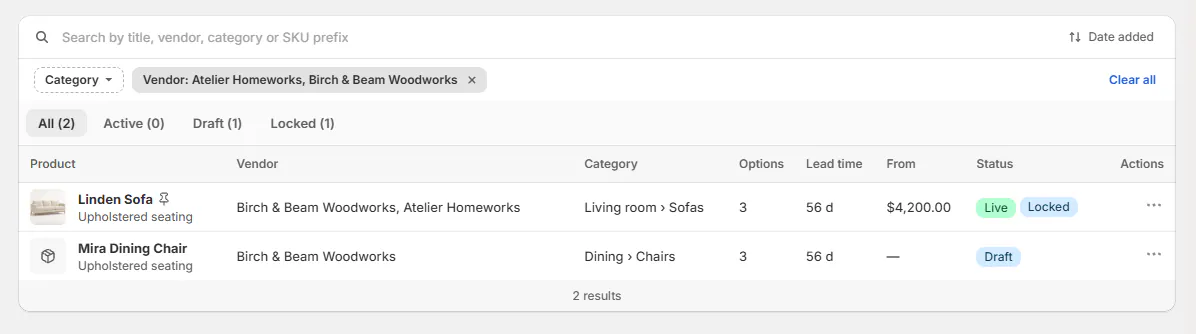
Products list with tabs, Category and Vendor chips and templates in mixed states (Live, Draft, Locked, a pinned one) Step 2: Search and filter
Search by title, vendor, category or SKU prefix. Use Category and Vendor chips to narrow further.
Sort by Date added, Product, Last updated or Price. Click the matching row to open the template.
The list shows its vendor, category, option count, lead time, starting price and status. An asterisk identifies option differences made on that template.
A pin marks a template shown first in search. No bundles means it does not currently follow a bundle.
Edit details and bundle behavior
Step 1: Change the template
Edit a field directly or open a summary row with Edit. Click Done to close that row.
Unsaved marks values waiting for the Save bar. Click Save for Template saved, or Discard to abandon page edits.
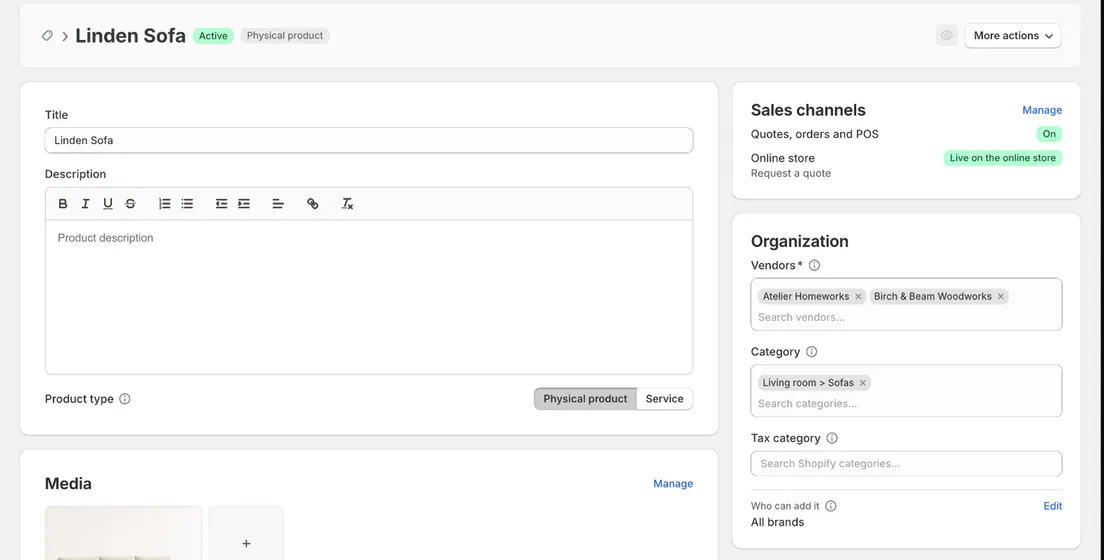
Linden Sofa template header and the Organization summary Commission code and Warranty save when changed. They do not wait for the page's Save bar.
Find the right part of the page
The main column holds title, description, product type, media, pricing, options, import handle and activity. The right column holds draft setup, sales channels, organization and placement requirements. Use Template special cases for locations, tax categories and services.
Step 2: Manage product images
In Media, choose Upload new or Select existing. With images present, use Manage to open Media for this template.
Choose up to 10 images, each up to 10 MB. Save the page; the first image is the thumbnail.
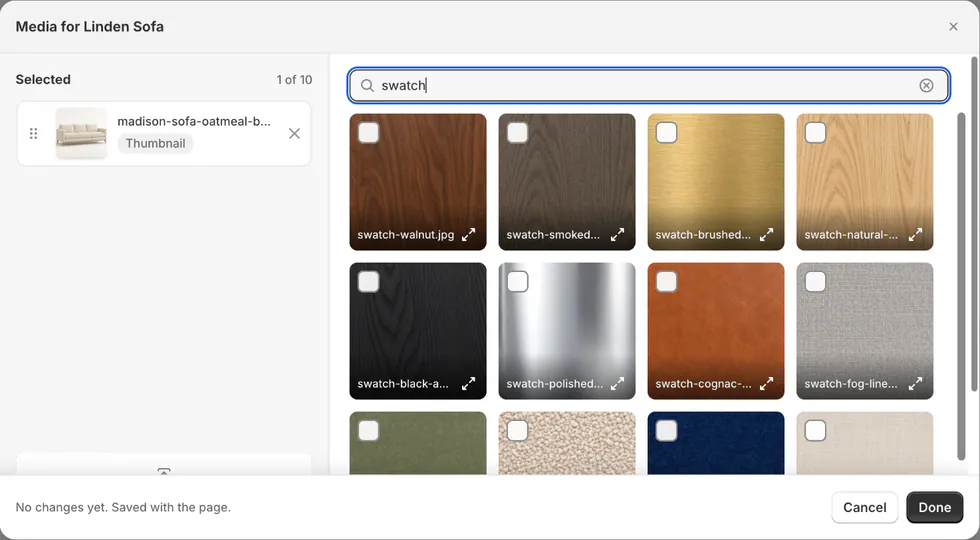
Selected images on the left (the first is the thumbnail), the shop's Shopify files on the right. Images reach the Shopify product on its next sync in the chosen order. The first becomes Shopify's featured image.
Step 3: Hold one option unchanged
Open an option row's menu and choose Keep what is here. Confirm Lock option.
The option stops following bundle changes. Use Follow the bundle again when it should resume following.
Match bundle copies bundle settings but preserves prices, costs, lead times and the starting value. It does not unlock the option.
Step 4: Hold the whole template unchanged
Choose More actions > Hold back bundle changes, then confirm Lock template.
The template shows Locked and an explanation. Every option stays as it is while the bundle changes.
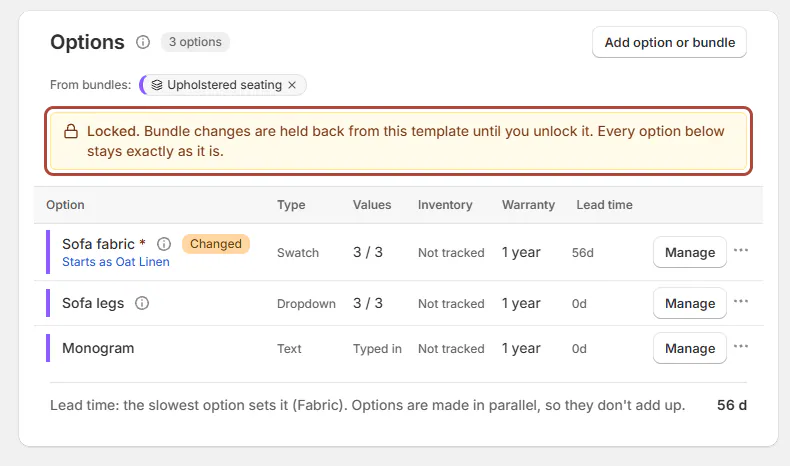
Options card with the Locked notice Use Follow bundles again to resume following. For the shared relationship, read Bundles.
Manage availability and copies
Step 1: Activate or deactivate
On a draft, click Activate in the header or row menu. The template becomes Active, and Quotes, orders and POS reads On.
For an active template, choose More actions > Deactivate or the list's Set to draft. It stops being offered on new quotes and orders.

Header of a draft template with Draft and Physical product badges and Activate Both actions save immediately without a confirmation. Deactivation archives the Shopify product; it does not delete it or change shared option products.
Step 2: Duplicate the template
Choose Duplicate template from the row menu or More actions. A new draft opens with (copy) after the title.
The copy keeps options, prices, bundles, locks, vendors, terms and requirements. It also retains commission and tax category, with a fresh import handle.
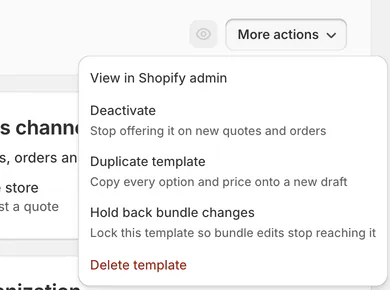
More actions open on an active template: View in Shopify admin, Deactivate, Duplicate template, Hold back bundle changes, Delete template The copy stays hidden from the online store. Review its title and product differences before activating it.
Step 3: Pin the template
From the Products row menu, choose Pin to top; Template pinned to the top confirms it. The template leads app, POS and purchase-order pickers in pin order.
Choose Unpin to remove that priority. Pins do not sync to Shopify or appear in the template CSV.
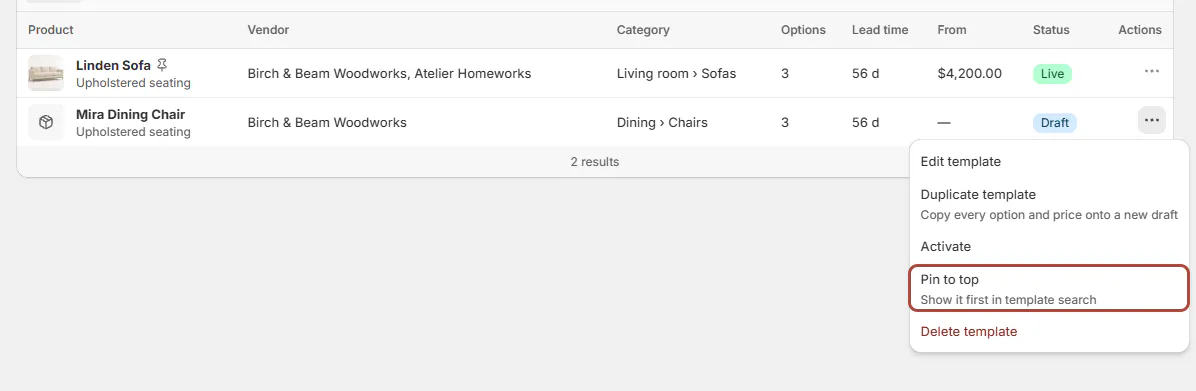
Products row menu with Duplicate template, Pin to top and Delete template Step 4: Delete an unused template
Choose Delete template, read the confirmation, and confirm only if the template should be removed.
Staff can no longer add it to orders. Existing sold lines retain their own wording and prices, and shared options remain in the shop.
Warning
A template used by stock or purchasing records cannot be deleted. Deactivate it instead.
What happens next
An activated template syncs to Shopify. The template page shows Syncing, then normally shows Active with Last synced on hover.
The list uses Live for a synced template. Sync failed or Not synced needs attention; see Templates and Shopify products.
The list's sync banner offers Retry sync for all and Show them. Review affected templates before retrying.
Example: tidy the showroom catalog
Example · Harlow & Finch Interiors
Keep the catalog ready for staff
Nora Ellis reviews Harlow & Finch Interiors' templates.
- Pin Linden Sofa so staff can find it first.
- Duplicate Mira Dining Chair to prepare a related version.
- Hold back bundle changes on Linden Sofa during a shared-option revision.
- Try to remove an unused Arden Dining Table template.
- Deactivate it when purchasing history prevents deletion.
Current selling choices stay clear without removing historical records.
If something goes wrong
Activate is greyed out
Save or discard changes first.
The page is read-only
Ask an administrator for the necessary catalog permission.
A template is missing
Clear search and filters, then check its draft status and location availability.
Match bundle did not unlock it
Matching and unlocking are separate. Choose Follow the bundle again.
Leaving asks about unsaved changes
Save first, or deliberately choose Discard and leave.
Was this guide helpful?
Thanks. Tell us what was missing at support@meetorderpilot.com.