Add fees, shipping and discounts
Where are you working?
Related guides
- Create a quote or orderQuotes and orders · 6 min
- Create order fields and save feesCatalog · 5 min
- Quotes & orders settingsSettings and integrations · 4 min
- Choose pickup or delivery and hand items overQuotes and orders · 5 min
- Download and print quote and order PDFsPayments and signatures · 5 min
Add named fees, delivery charges and discounts to the sale, then check the summary before saving. Choose the correct place for each amount so the customer can understand it.
A fee, shipping charge and discount have separate controls. Their permissions and treatment on documents also differ.
Before you start
Have a sale open
Start with Create a quote or order.
Check price access
Custom fee amounts, custom shipping and new or increased discounts need Override prices and give discounts.
Check saved fees
Saved fees use their configured prices. They can be added without entering a custom amount.
An order discount defaults to products and fees in the app. POS always applies it to products and fees, excluding warranty plans.
Add a fee
Step 1: Choose a saved or custom fee
In Fees, click Add fee. Choose White Glove Delivery under Predefined fee, or enter a one-off fee.
For a custom fee, enter Fee name, choose Fixed amount, % of subtotal or % of total, and enter the amount or percentage.
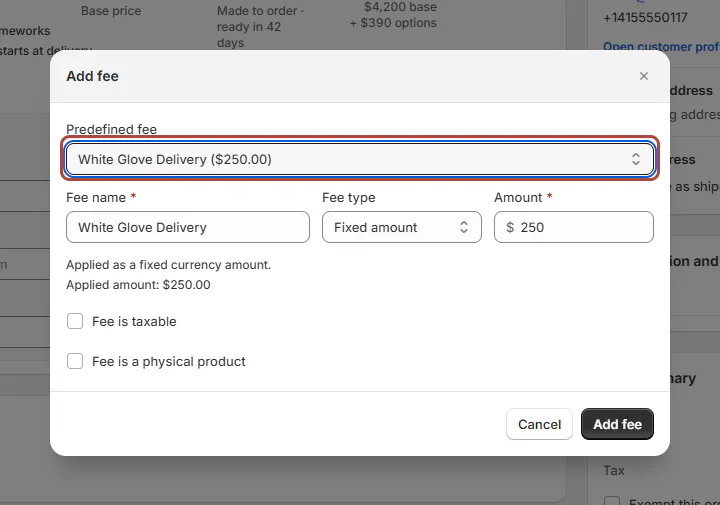
Use the saved fee's configured amount. Step 2: Check the fee's treatment
Review Fee is taxable and Fee is a physical product. Both start off for a new custom fee.
Click Add fee. The fee appears in the sale; you can edit it inline or use its menu to remove it.
Step 3: Add the POS fee
Tap Add product / fee, then Add a fee. Under Saved fees · tap to add, add White Glove Delivery.
For a one-off fee, enter its name, type and amount. Review Taxable and Physical item (ships), then tap Add fee.
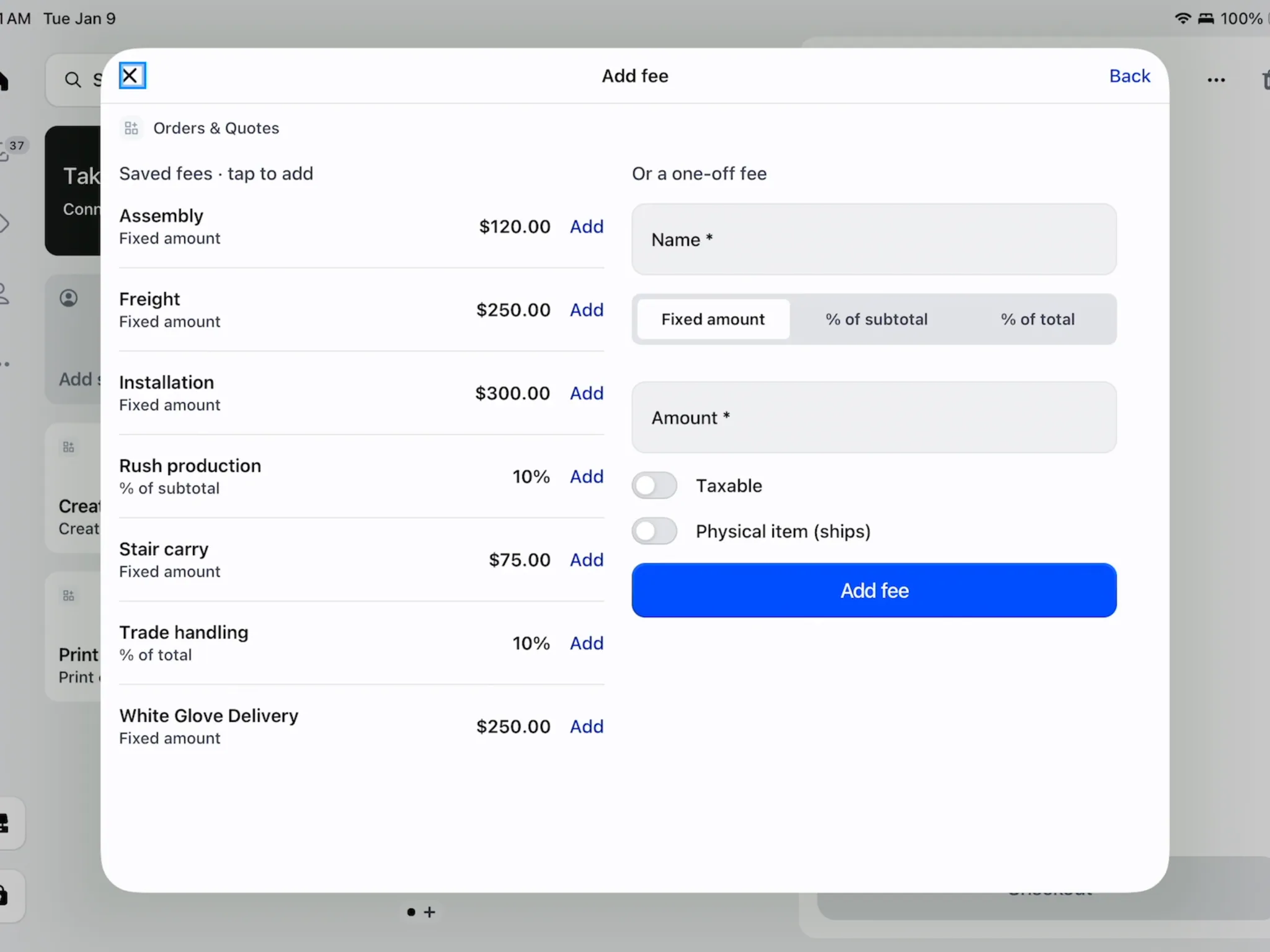
Saved fees and one-off fees share this screen. Step 4: Review the added fee
Find the fee after the products under Custom fees. Tap it to open Edit fee if it needs changing.
Use Save fee to keep changes, or remove it. Fee discounts are read-only on POS, and warranty plan fees cannot be added or discounted there.
Add shipping
Step 1: Enter the shipping charge
In the summary, click Add shipping or delivery. Choose an offered option, or Custom shipping.
Enter the name and price, then click Done. The summary shows the charge; use Edit shipping or delivery to change it.
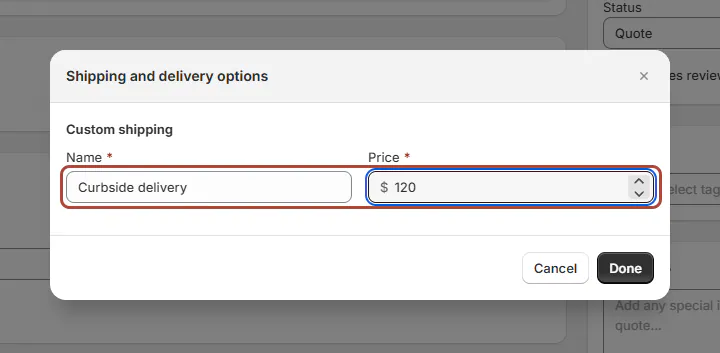
Give the delivery charge a customer-readable name. Step 2: Apply delivery on POS
Beside Shipping & delivery, tap Add. In Custom shipping, check the name and enter the agreed price.
Tap Apply delivery. The charge appears in the summary.
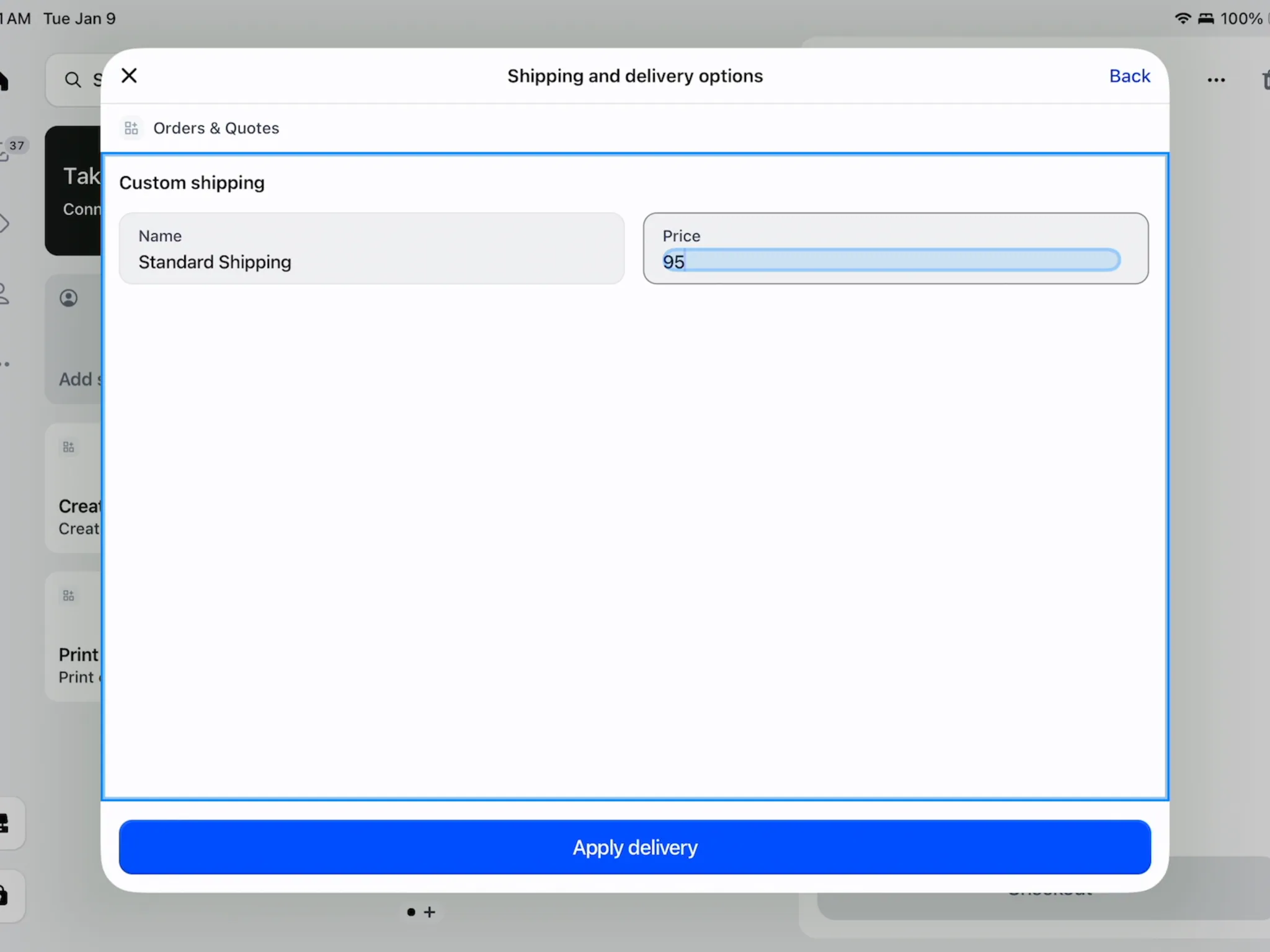
Apply delivery after entering its name and price. Step 3: Check whether anything ships
Review each item's pickup or delivery choice. All-pickup orders show no shipping, and service-only orders need none unless a fee ships.
On POS, an existing shipping charge comes off when an all-pickup order is saved. Read that explanation before saving the record.
Give a discount
Step 1: Discount the order in the app
Click Add discount in the summary. Choose Amount or Percentage, enter Value, and choose Products only or Products and fees.
Enter Reason for discount, then click Done. The reason is required and allows up to 250 characters.
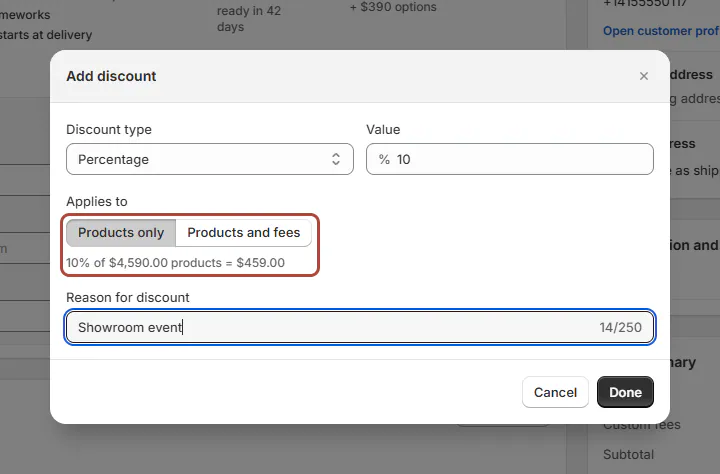
Check the discount scope before applying it. Step 2: Discount an item or fee
For an item, choose Add discount from its menu. Enter the per-unit discount, check Visible to customer, and click Done.
For a fee, use its Add discount action. Its reason is visible only to your team; the discount appears in the sale's discount breakdown.
Step 3: Discount the order on POS
Beside Discount, tap Add. Choose Fixed Amount or Percentage (%), then enter the value and reason.
Tap Apply. POS requires an order-discount reason every time.
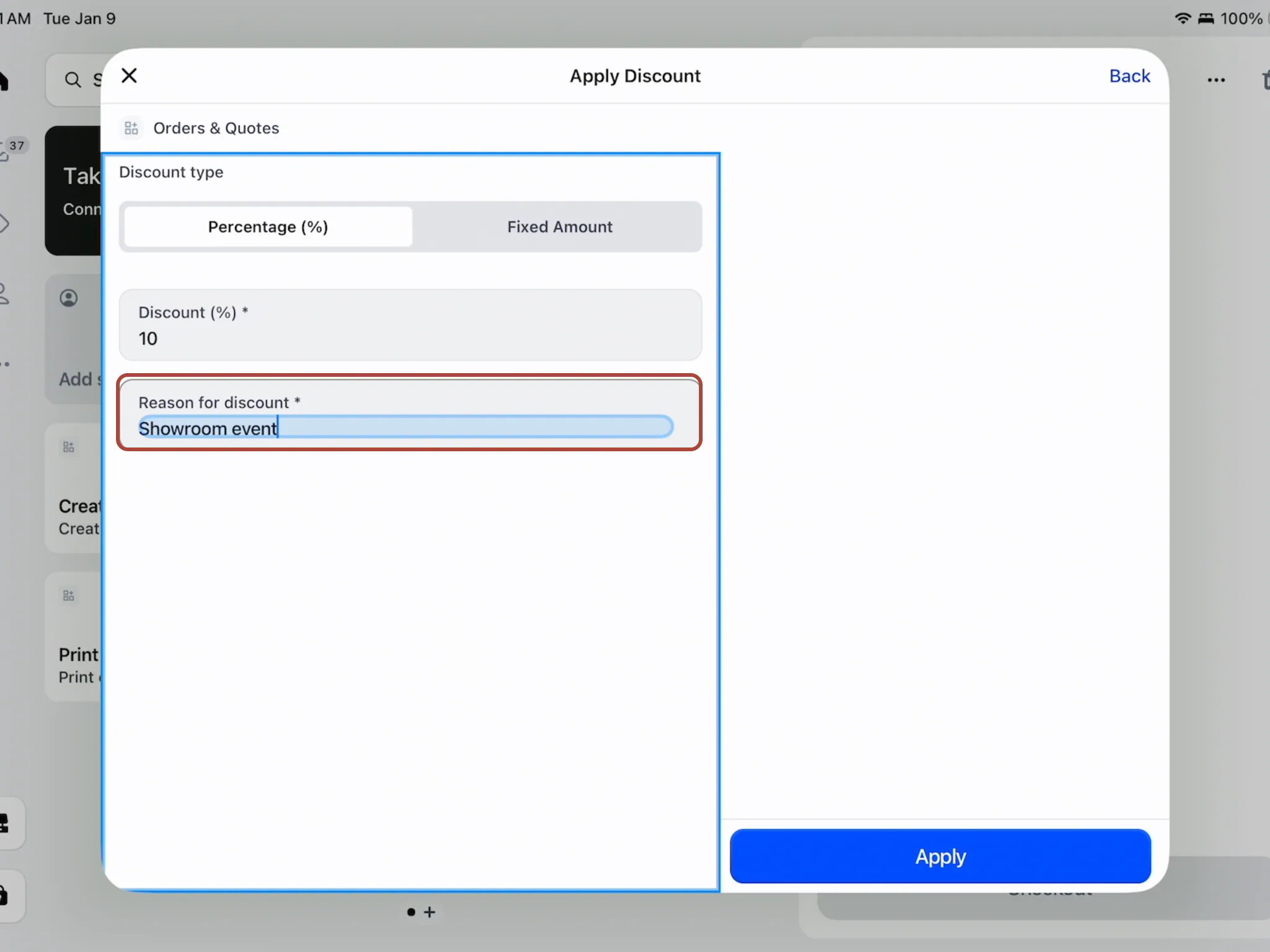
A POS order discount always needs a reason. Step 4: Discount a POS item
Open the item, then tap Add discount. Enter the discount and check Item total.
Enter a reason when required, tap Apply, then Update item. The order discount applies afterward to the remaining amount.
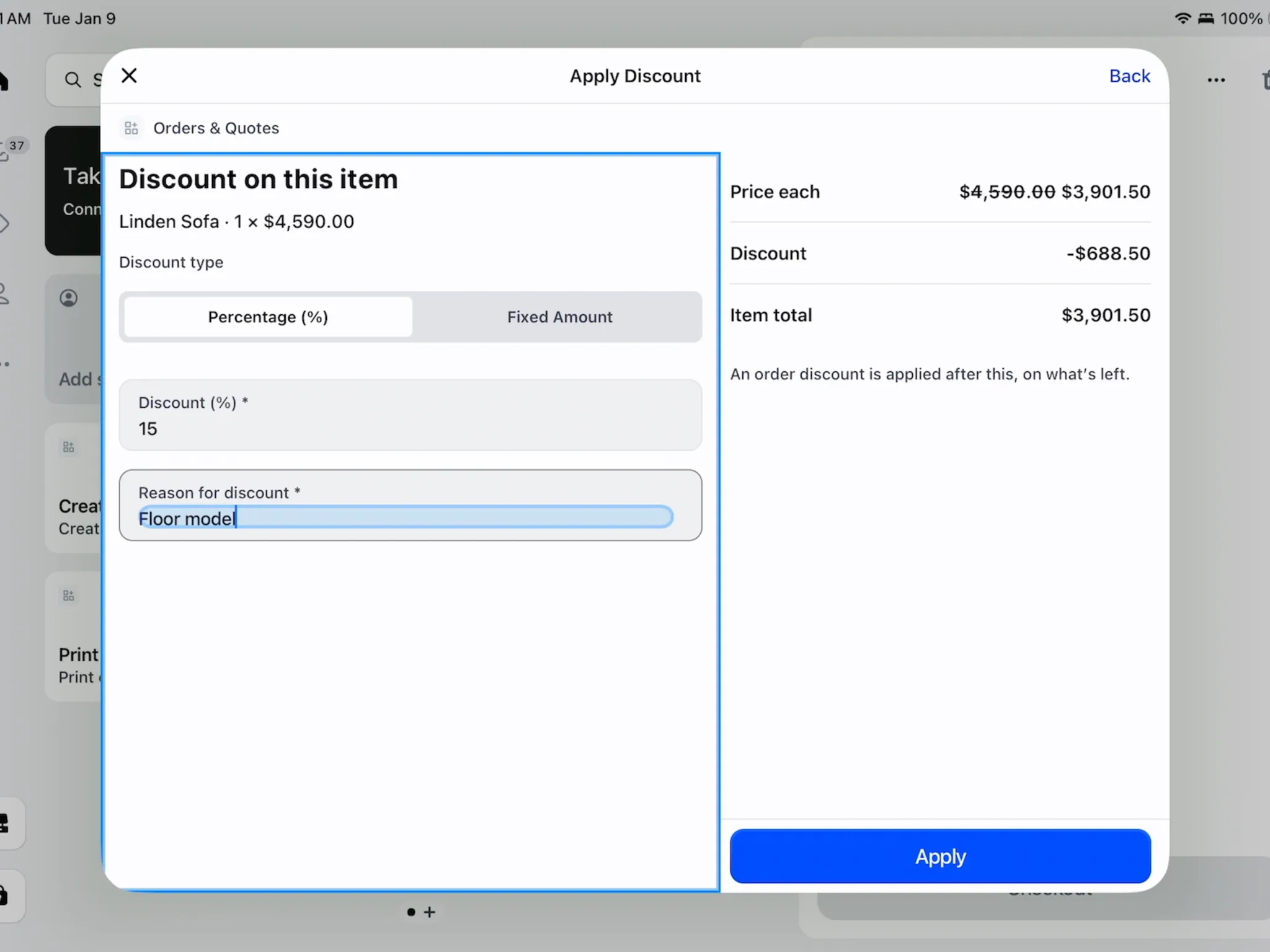
Check the item total after the per-item discount.
What happens next
Save the sale and check its updated total. Quote and order PDFs show each fee as a named row and shipping as delivery.
Documents separate line discounts, fee discounts and the order discount. A fee remains shown at its full amount, with its reduction included in Fee Discounts.
POS displays the subtotal before item discounts and a separate Item Discounts row. Item discounts also reach the matching Shopify lines.
Example: Olivia's delivery and discount
Example · Harlow & Finch Interiors
Keep the delivery fee outside the discount
Olivia Bennett's Linden Sofa qualifies for a showroom event offer.
- Sam Ortiz adds the saved White Glove Delivery fee.
- Sam chooses a 10% order discount.
- Sam sets Applies to to Products only.
- Sam enters “Showroom event” and checks the resulting summary.
Example: Marcus's floor-model chairs
Example · Harlow & Finch Interiors
Discount the selected items
Marcus Reed chooses 4 Mira Dining Chairs from the showroom.
- Sam Ortiz opens the chairs' item screen.
- Sam adds a 15% item discount with “Floor model” as the reason.
- Sam checks Item total and updates the item.
- Sam reviews the sale's Item Discounts row before saving.
Important notes and tips
Without price-override access, you can reduce or remove an existing discount. Increasing it, or changing its type or reason, needs that permission.
Item-discount reasons are optional in the app. On POS, Require a reason for item discounts starts on, and the reason prints for the customer.
If something goes wrong
Custom amounts are unavailable
Use a saved fee or shipping option, or ask someone with price-override access.
Another fee cannot be added
Orders allow 50 fees. Remove an unwanted fee before adding another.
The amount is refused
Enter a valid value. Percentage discounts cannot exceed 100%; an amount discount cannot exceed its allowed product or order amount.
Shipping will not apply
Supply a name and a nonnegative price with up to 2 decimal places. On POS, wait for the pickup-or-delivery check to finish.
A discount needs a reason
Add the required reason before applying it.
The item price is fixed
Use an item discount where allowed instead of changing a placed Shopify item's base price.
Was this guide helpful?
Thanks. Tell us what was missing at support@meetorderpilot.com.