Delete a quote or cancel an order
Where are you working?
Related guides
- The quote and order pageQuotes and orders · 6 min
- Edit a quote or orderQuotes and orders · 5 min
- Review payments and invoices, and refund a paymentPayments and signatures · 5 min
- Change an order’s statusStatuses and workflow · 5 min
- How OrderPilot syncs with ShopifyGet started · 6 min
Delete an eligible quote when you no longer need it, or cancel a placed order in Shopify. For a quote you need to retain, change its status instead.
Check the record's signature, payment and purchasing history before choosing a route. The presence of a draft number does not prove that deletion is allowed.
Before you start
Have delete access
Quote deletion needs Delete quotes and draft orders.
Check eligibility
A deletable quote has no signature, placed Shopify order, payment or refund history, or purchase-order link.
Check the alternative
Orders have no Delete action in OrderPilot. Placed orders are cancelled through Shopify.
An eligible quote is either an unsent OrderPilot draft or a quote with an active Shopify draft. The quote and order page helps you inspect its current state.
A signed quote keeps its agreement on file. Changing it to a closed status retains that history, while deletion would remove the record entirely.
Delete a quote in the app
Step 1: Open the delete action
Open the quote and choose •••, then Delete Quote. You can also use the Quotes list row menu.
The Delete quote confirmation opens. It doesn't name the quote or customer, so check the page behind it first.
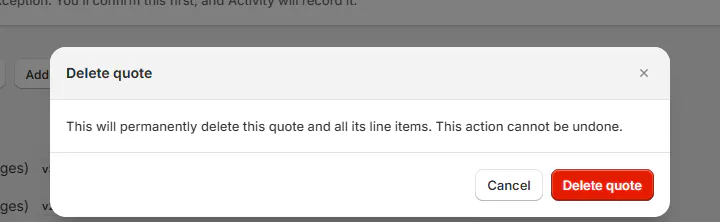
The confirmation identifies what will be permanently removed. Step 2: Read what will be removed
Read whether the confirmation includes the Shopify draft order. It always says the quote and all its line items are deleted permanently.
For a split quote, deletion also removes its delivery part. Split orders explains why the parts belong to the same sale.
Step 3: Confirm the intended deletion
Click Delete quote only when this is the record you intend to remove. Use Cancel to keep it.
Quote deleted confirms completion, and you return to the list. The removed quote is no longer available there.
Warning
Deletion permanently removes the quote, its lines and any matching Shopify draft included in the action. It cannot be undone.
Delete a quote on POS
Step 1: Open the quote's delete control
Open the quote through Orders & Quotes and scroll to Delete quote. The action appears only for quotes you can change.
Tap it to open the confirmation. Check the number before taking the next action.
Step 2: Choose whether to keep it
Read the warning that its Shopify draft is deleted too. Tap Keep quote if you want to leave the record unchanged.
Tap Delete quote to confirm the permanent action. Quote deleted appears and the list reopens.
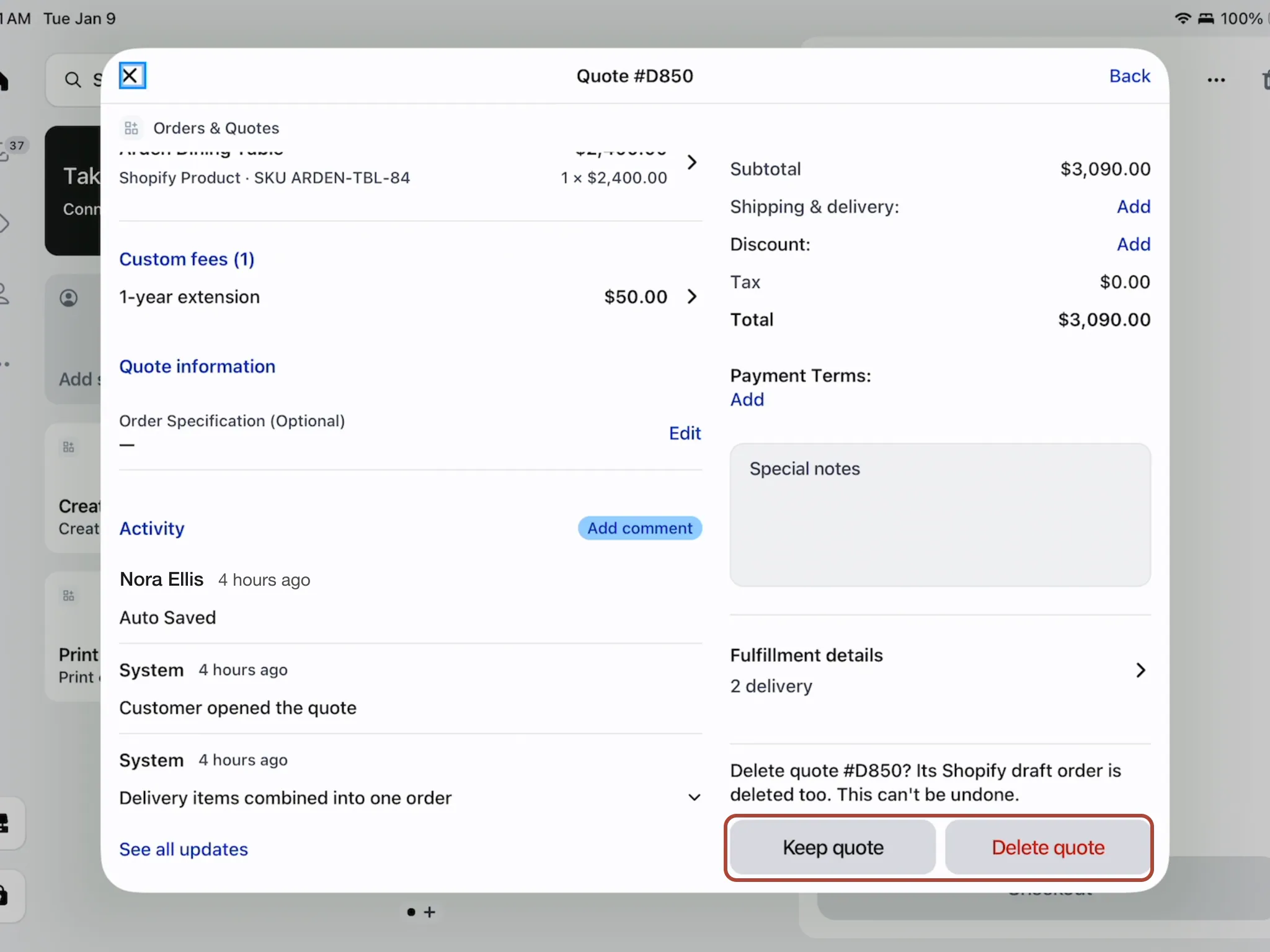
Keep quote closes the confirmation without deleting. A greyed action can reflect active sync or payments. Wait for sync to finish, but do not assume a refund makes the record deletable.
The server also checks refund history and linked purchase orders, including the split delivery part. Those records still require a route that retains their history.
Cancel or close the sale
Step 1: Open a placed order in Shopify
For a placed order, use the header eye icon labeled Open the order in Shopify.
The Shopify record opens in a new tab. Check its customer and number against the OrderPilot sale.
Step 2: Cancel the order in Shopify
Use Shopify's cancellation controls and choose the appropriate reason. Review any refund decision as part of that action.
Return to OrderPilot and check for the cancellation update. Refunds and payment history explains where to inspect recorded money movements.
Step 3: Close a quote without deletion
If a quote will not proceed but needs to remain on file, change its status to Rejected, where appropriate.
The record remains available with its history. This is the route for a signed quote that cannot be deleted.
What happens next
OrderPilot records Shopify's cancellation date and reason. The supported reasons include Customer, Declined, Fraud, Inventory, Staff and Other.
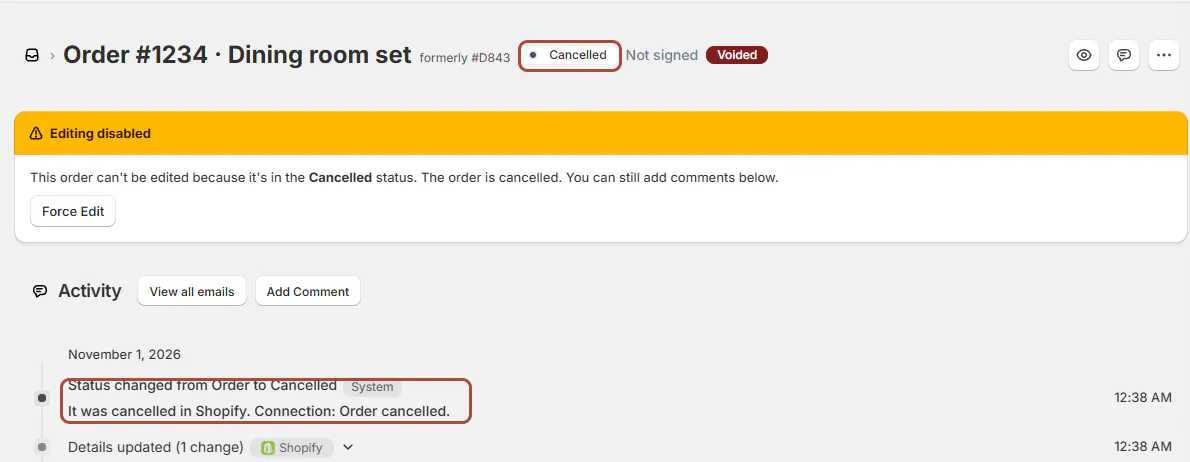
The status system responds to the Shopify cancellation by moving the order to Cancelled. Activity shows Status changed from Order to Cancelled with It was cancelled in Shopify. That status has editing disabled by default, so the page shows Editing disabled with Force Edit. A pending payment that Shopify voided shows Voided in the header.
A cancellation found during a later sync does not send an email. Do not infer a customer notification from the status change alone.
Example: clear 3 different records
Example · Harlow & Finch Interiors
Choose by the record's history
Nora Ellis reviews sales that will not proceed.
- Nora checks Priya Shah's unsent draft and deletes it after confirming that nothing must be retained.
- Nora sees Marcus Reed's signature on his quote and changes its status to Rejected.
- Nora opens Olivia Bennett's placed order in Shopify to cancel it.
- Nora returns to OrderPilot and checks the cancellation and payment history.
If something goes wrong
The quote has a signature on file
Change its status instead of deleting it.
The quote has payment or refund history
Retain the record and handle its outstanding financial action separately.
The quote is linked to a purchase order
Deletion is refused; review the sale and purchasing records together.
This is the delivery part of a split quote
Open the main quote for the deletion check.
POS says to refund payments first
Refunding does not erase payment or refund history. The server can still refuse deletion.
Delete Quote is missing
Check the record type, your permission and whether the record is view only.
Shopify is still syncing
Wait before retrying an eligible action.
Was this guide helpful?
Thanks. Tell us what was missing at support@meetorderpilot.com.