Email blocks and merge fields
Related guides
- Edit and publish your email designsEmails and messages · 5 min
- Create email templates and assign brand designsEmails and messages · 4 min
- The customer portalCustomers and portal · 5 min
- My orders and order trackingCustomers and portal · 5 min
A block is a section of an email, such as a heading, product list, totals or button. You arrange blocks to build the message.
A merge field inserts information from the actual customer or sale, such as the customer’s name or document number. This lets one reusable email design contain the correct details for each recipient.
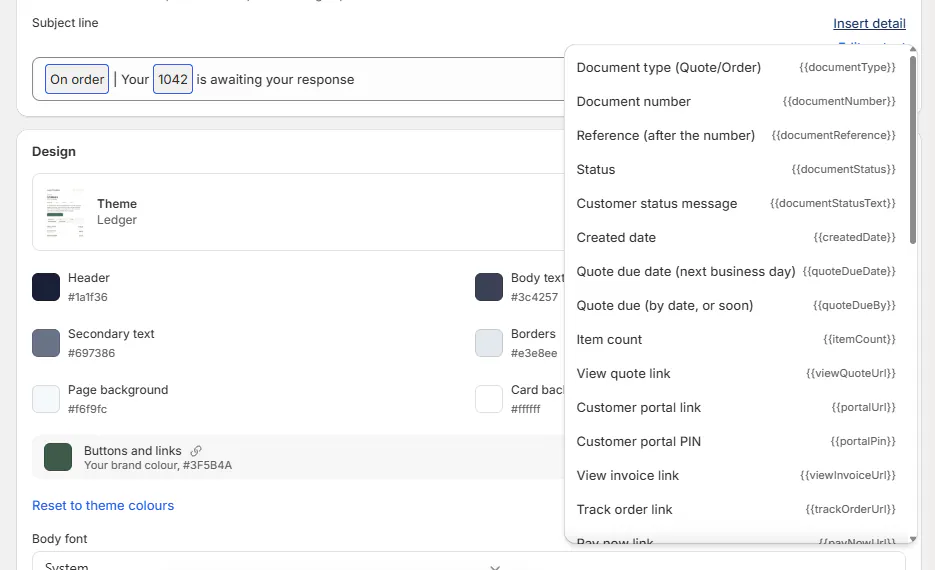
Use the editor’s Insert detail picker to add supported fields. The reference below explains the available blocks and details.
Before you start
Open the editor
Follow Edit and publish your email designs to open a template.
Insert supported details
Type a slash or use Insert detail instead of guessing a field name.
Structure blocks
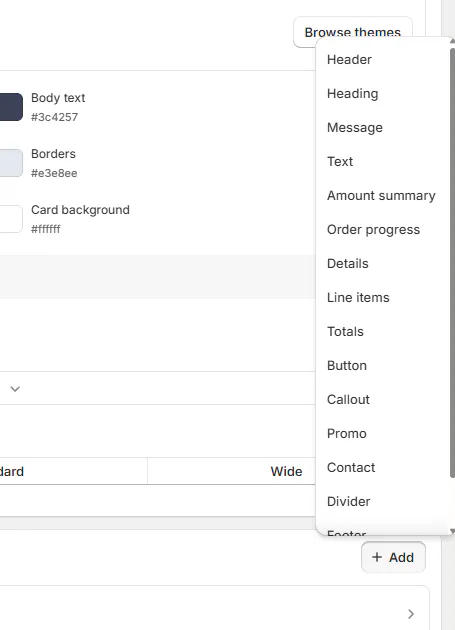
| Block | Purpose |
|---|---|
| Header | Places the logo at the top of the email. |
| Heading | Adds a heading to organize the message. |
| Text | Adds written content and supported order details. |
| Divider | Separates parts of the email. |
| Footer | Provides the closing area. |
Keep the structure short enough for the customer to find the required action. Preview the design on both desktop and mobile before publishing.
Order blocks
| Block | Purpose |
|---|---|
| Message | Shows the message staff enter when sending. Each template must have exactly one. |
| Amount summary | Highlights the payment summary. When fully paid controls the paid wording instead of a zero balance request. |
| Order progress | Shows the order's progress. |
| Details | Presents order information together. |
| Line items | Lists items. Show each item's choices adds their options and starts off. |
| Totals | Shows the order totals. |
For a Linden Sofa quote, item choices can explain Sage Velvet and Feather Blend. Check the result on Olivia Bennett's quote before deciding how much item detail the email needs.
Action and extra blocks
| Block | Purpose |
|---|---|
| Button | Adds an action for the recipient. |
| Callout | Highlights supporting information. |
| Promo | Adds promotional content and raises a promotional-content warning. |
| Contact | Displays contact information. |
| Custom HTML | Accepts content through its Code field and remains subject to the editor's checks. |
The unsubscribe link, portal PIN beside a portal link, What changed in quote emails, and one-click unsubscribe headers are added when sending. They cannot be removed from the template.
Merge fields: Document
The Document group contains the following picker labels.
| Detail | Information inserted |
|---|---|
| Document type (Quote/Order) | The type of document. |
| Document number | Its identifying number. |
| Reference (after the number) | The reference associated with the document. |
| Status | The record's status. |
| Customer status message | The status wording intended for the customer. |
| Created date | When the document was created. |
| Quote due date (next business day) | The expected quote date. |
| Quote due (by date, or soon) | A due phrase, or soon when a date isn't available. |
| Item count | The number of items. |
| View quote link | A link to view the quote. |
| Customer portal link | The customer's portal route when available. |
| Customer portal PIN | The PIN accompanying portal access. |
| View invoice link | A link to the invoice. |
| Track order link | The public tracking link. |
| Pay now link | The available payment route. |
| Call-to-action label | The action's label. |
Use My orders and tracking to understand the tracking destination. Use The customer portal for portal access and PIN behavior.
Merge fields: Customer and Store
| Detail | Information inserted |
|---|---|
| Customer name | The customer's name. |
| Customer first name | Their first name. |
| Thanks, first name | A greeting that falls back to Thanks without a first name. |
| Company name | The store's company name. |
| Consultant name | The consultant's name. |
| Consultant first name | Their first name. |
| Company address | The store's company address. |
| First item category | The first item's category. |
Merge fields: Totals and Purchase order
| Detail | Information inserted |
|---|---|
| Subtotal | The subtotal. |
| Discount amount | The discount amount. |
| Shipping amount | The shipping charge. |
| Tax amount | The tax amount. |
| Tax rate | The tax rate. |
| Deposit amount | The deposit amount. |
| Deposit rate | The deposit percentage. |
| Total | The total. |
| Total incl. tax | The total including tax. |
| Balance due | The outstanding balance. |
| Currency code | The currency identifier. |
| Store currency note | The store-currency note. |
| Vendor name | The vendor in a purchase-order email; empty in a customer email. |
Unknown plain fields print empty. Loops, conditionals, partials, and triple-brace expressions are refused before publication. Use the picker for ordinary order details instead of adding template logic.
Example: acknowledge Olivia's request
Thanks, first name produces “Thanks, Olivia” for Olivia Bennett. Without a first name, it produces “Thanks.” Quote due (by date, or soon) supplies a due-date phrase or “soon.”
Those details fit the acknowledgment for Olivia's Linden Sofa request. They don't turn an unpriced request into a priced quote.
If something goes wrong
A detail is empty
Check whether the order has that value and whether the field belongs in this email type.
Publication is refused
Check for unsupported merge syntax and make sure there is exactly one Message block.
The unsubscribe link remains
It is added when sending and cannot be removed from the design.
Was this guide helpful?
Thanks. Tell us what was missing at support@meetorderpilot.com.