The quote and order page
Where are you working?
Related guides
- Create a quote or orderQuotes and orders · 6 min
- Edit a quote or orderQuotes and orders · 5 min
- Find quotes and ordersQuotes and orders · 5 min
- Change status or tags on many orders at onceQuotes and orders · 3 min
- See what changed and restore an earlier versionGet started · 4 min
Use the quote or order page to check the sale, its payment and signature state, and what your team can do next. The available actions depend on the record and your role.
Open a record from Find quotes and orders. Viewing needs View quotes and orders; changing it needs the relevant action permissions.
Header and badges
| Header item | Meaning |
|---|---|
| Quote or Order | The title shows the record type and number. A reference can appear after the number. |
| Deleted | The matching Shopify draft was deleted. |
| Signed | The current agreement has a signature. |
| Re-Sign | The quote needs another signature. |
| Not signed | No current signature has been completed. |
| No signature | The record was force-converted without one. |
| Legal hold | Signature evidence is being retained under a hold. |
| Payment badge | Paid, Partially Paid, Unpaid, Authorized, Refunded, Partially Refunded or Voided describes the payment state. |
The sent/viewed line records when the customer viewed the quote and which version was sent. It also shows the quote's validity information.
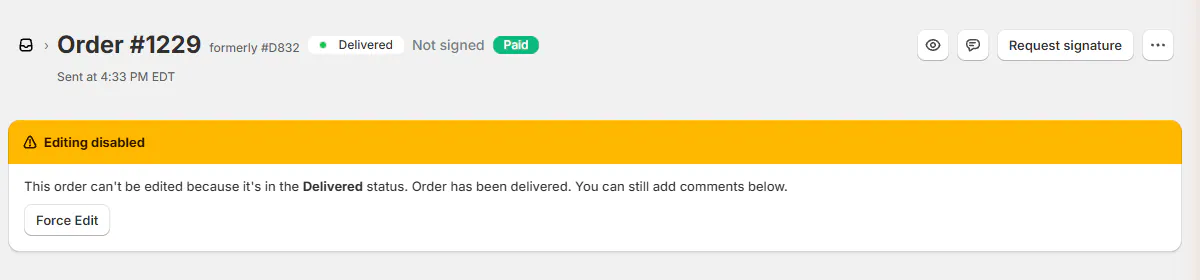
The eye icon opens the order or draft in Shopify. Before a Shopify draft exists, Save as draft and Create Quote or Create Order remain available.
The header then offers eligible fulfillment or purchasing actions, Conversation, signature or payment requests, •••, and Next status.
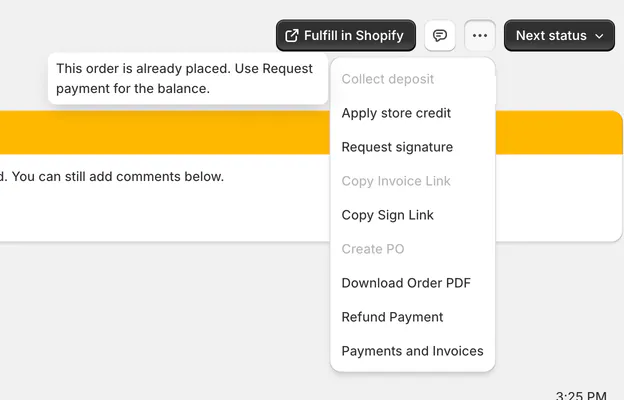
The options menu
The menu leaves out actions your role can never use. Actions blocked only on this record remain greyed out, with the reason on hover.
| Menu group | Actions |
|---|---|
| Customer contact | Send follow-up or Send email, Email signed copy, Request signature, and Request payment. |
| Signature evidence | Signature history and Legal hold. |
| Taking payment | Collect payment, Mark as paid, Create order (pay later), Collect deposit, and Apply store credit, when eligible. |
| Customer links | Copy Invoice Link, Copy Pay Link for a split order, and Copy Sign Link. |
| Exceptions and sync | Force Convert to Order and Retry Shopify Sync. |
| Purchasing and documents | Create PO, Download Quote PDF or Download Order PDF. |
| Payment records and deletion | Refund Payment, Payments and Invoices, and Delete Quote. |
There is no Duplicate, Print, Cancel order or Convert to order menu action. Follow Delete or cancel for the correct cancellation route.
Banners, products and summary
| Area | What to look for |
|---|---|
| Editing disabled | The order cannot be edited normally. Force Edit enabled identifies an authorized exception. |
| Changes Requested | Review feedback needs attention. |
| Ready to send | The quote is ready for its customer-facing next step. |
| Missing before order placement | Signature or deposit requirements remain. |
| Being priced | An online quote request is waiting for staff pricing. |
| Shopify sync failed | Read the reason and use the retry route. |
| Location subscription required | The location is view only until its billing or eligible move is resolved. |
| Products | Lines can be grouped as Waiting for pickup, Waiting for delivery, Taken and On order. |
The summary separates products, custom fees, warranty plans, discounts, tax and shipping. Its total is distinct from the amount already paid.
Paid, Refunded and Net payment explain recorded money movements. Refund Owed means payments exceed the current total; Balance Due shows what remains.
How payments work explains these amounts. A signature badge or order status does not replace the payment summary.
Customer and side cards
| Card | Purpose |
|---|---|
| Customer | Contact details, addresses and the selected customer's information. |
| Location and delivery | The selling location and delivery details. |
| Delivery promise | The calculated or overridden promise; on the edit page it sits beneath Customer. |
| Quote settings or Order settings | Status, quote type, review requirement and reference. |
| Quote information or Order information | Your shop's configured order fields. |
| Salespeople | Assignment, sales credit and the commission-related controls your role can use. |
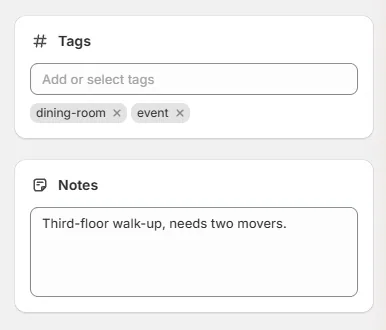
| Notes and Tags | Sale notes and labels for organizing records. |
| Taxed in two parts | The pickup and delivery parts of a split sale. |
Below 1,200 px, the layout becomes one column: Customer, Products, then Summary. The delivery promise follows Summary in that layout.
See The delivery promise, Credit salespeople, and Split orders for those cards' tasks.
References, tags and notes
| Field | Use and limit |
|---|---|
| Reference | Enable Show a reference after the quote/order number in Numbering settings. The configured field name allows 30 characters; each record's reference allows 60. |
| Add or select tags | Pick or create tags, up to 40 characters each and 250 tags. |
| Notes | Enter up to 5,000 characters. Treat these as customer-facing document content. |
| Order fields | Fill required fields; use Add field for optional ones. Required fields cannot be removed. |
Double-clicking the title takes you to the reference field. A reference changes the displayed title, without changing Shopify, the invoice version or signature requirements.
References appear on lists, documents, signing pages, email headers and the portal. Email subjects keep the bare number; list searches match references only while the setting is on.

Order fields sync onto real Shopify orders when edited. Use Change many orders at once for batch tagging.
Activity and comments
| Control | Use |
|---|---|
| Add Comment | Open the composer, enter the comment and click Post, or press Ctrl+Enter. |
| @ | Reference items, customer details or order details in the comment. |
| Load older activity | Read earlier entries. |
| View all emails | Inspect the email history. |
| vN | Open the saved state associated with a version. |
Comments are staff-only. They work through a status lock, but require access within your role's change scope.
The author or store owner can edit or delete a comment. History and restore explains versions and restores.
Activity includes status triggers, edits, restores, review decisions and signature events. To communicate with the customer, use the Inbox.
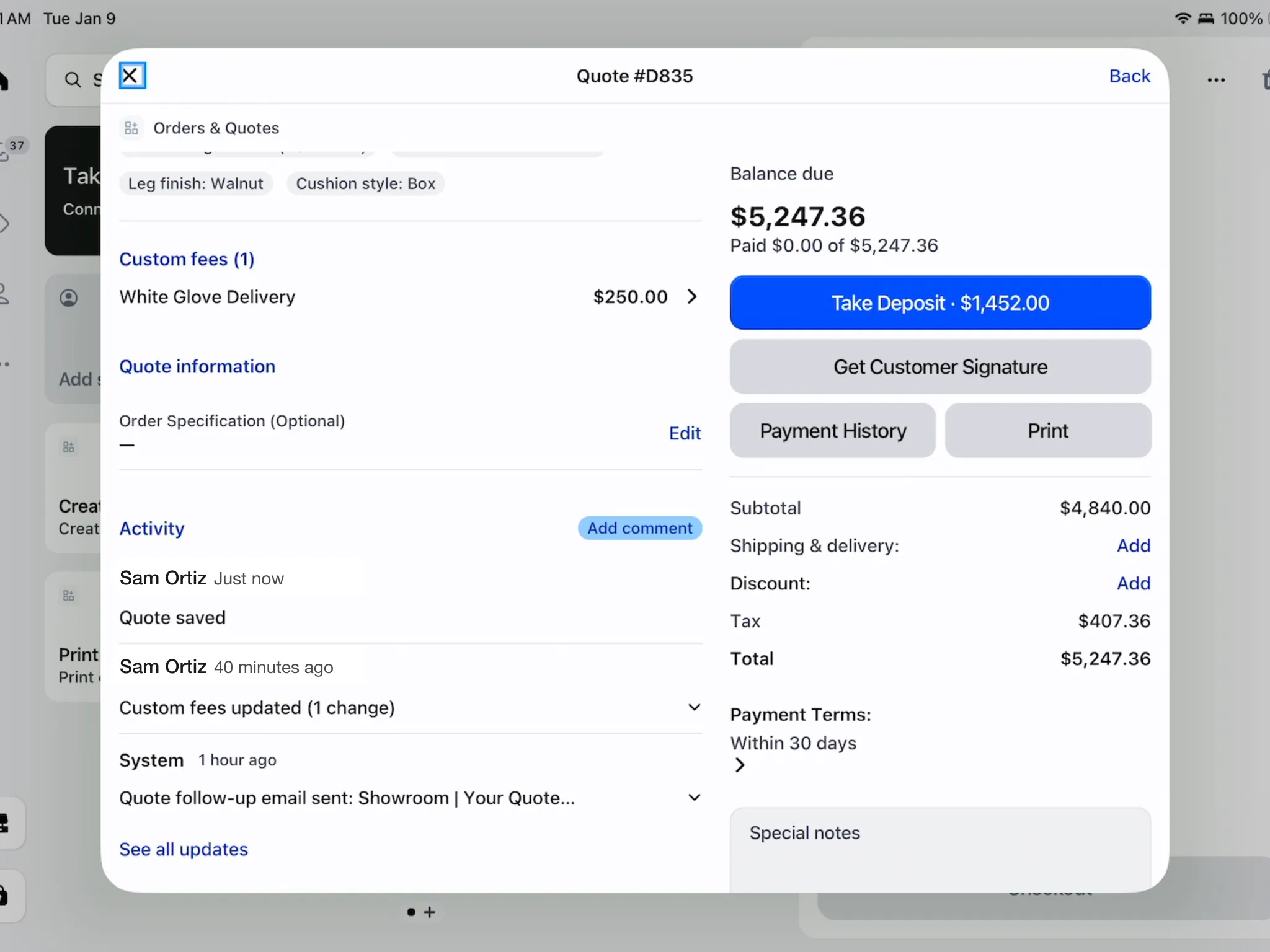
Activity on the register
| Control | Use |
|---|---|
| Activity | Shows the latest 3 entries. An entry's arrow opens its changes. |
| See all updates | Opens the full activity screen, 10 entries at a time. |
| Older activity | Loads earlier entries. |
| Add comment | Opens Comment; enter the text and save. |
| Edit comment | Save your change or use Delete comment, where permitted. |
With roles on, staff can edit their own comments; the store owner can edit others. Comments entered on POS belong to the device account.
Restrictions and missing actions
| What you see | What to check |
|---|---|
| A greyed menu action | Hover over it in the app for its record-specific reason |
| No fulfillment button | Shopify order, eligible readiness status and status-change permission |
| No header purchasing action | Payment state and purchasing permission |
| An unbilled location | Move to a billed location where offered, or resolve billing |
| PDF download unavailable | Fresh documents require the owning location to be billed |
| Reference missing | The reference display setting must be on |
Stored signed copies stay readable at an unbilled location. Fresh PDFs, invoices and specification sheets require a billed location.
Was this guide helpful?
Thanks. Tell us what was missing at support@meetorderpilot.com.