Take a deposit
Where are you working?
Related guides
- How payments workPayments and signatures · 5 min
- Collect a paymentPayments and signatures · 6 min
- Set payment terms and place pay-later ordersPayments and signatures · 5 min
- Set signature and minimum-deposit requirementsPayments and signatures · 5 min
- Review payments and invoices, and refund a paymentPayments and signatures · 5 min
Take part of the sale up front, then collect the remaining balance later. Choose between an app deposit order and a native Shopify deposit.
Separate deposit orders work on any Shopify plan. Native percentage deposits in payment terms and Take Deposit on POS require Shopify Plus.
Before you start
Choose the route
How payments work compares separate deposit orders and native deposits.
Check the app record
Deposit orders need a created, unplaced Shopify draft and cannot be used on a two-part split sale.
Check permission
A link needs Request payment; recording received money needs Record payment and Mark as paid.
Check the customer
Emailing the deposit link needs the customer's email on the sale.
On POS, set an eligible deposit percentage in Payment terms before placing the order.
Enable deposit orders
Step 1: Open the deposit setting
Go to SettingsQuotes & ordersDefaultsDelivery & stock. Find Deposit orders.
The setting starts off. Changing it requires the appropriate order-settings permission.
Step 2: Choose the deposit title
Turn on Deposit orders and review Deposit line title. The starting title identifies the deposit using the sale's number.
Click Save in the save bar at the top of Shopify admin; the change doesn't apply until you do.
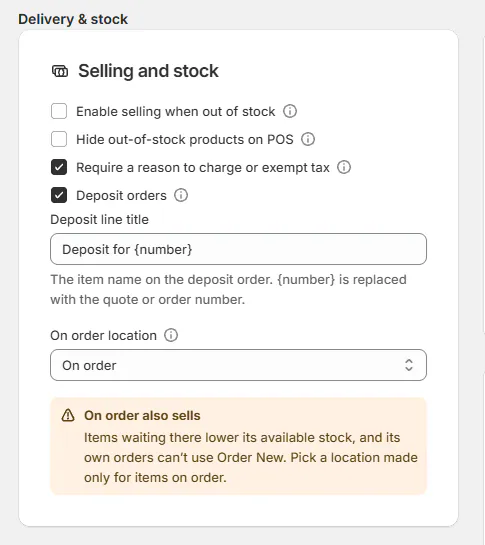
Separate deposit orders are enabled in delivery and stock settings. The separate order makes the deposit identifiable in Shopify. Use a title that your team and customer can connect to the main sale.
Request or record the deposit
Step 1: Open the deposit dialog
On the sale, choose •••, then Collect deposit. It opens Collect payment with A deposit already chosen; you can also open Collect payment yourself and choose A deposit.
The dialog offers part of the balance now, with the rest left for later. Check that you opened the correct customer sale.
Step 2: Enter the requested amount
Under A deposit, choose Percentage or Amount. Enter the agreed value and read Deposit (tax included).
The deposit must be greater than zero and less than the balance due. Tax rounding can make it a cent higher or lower.
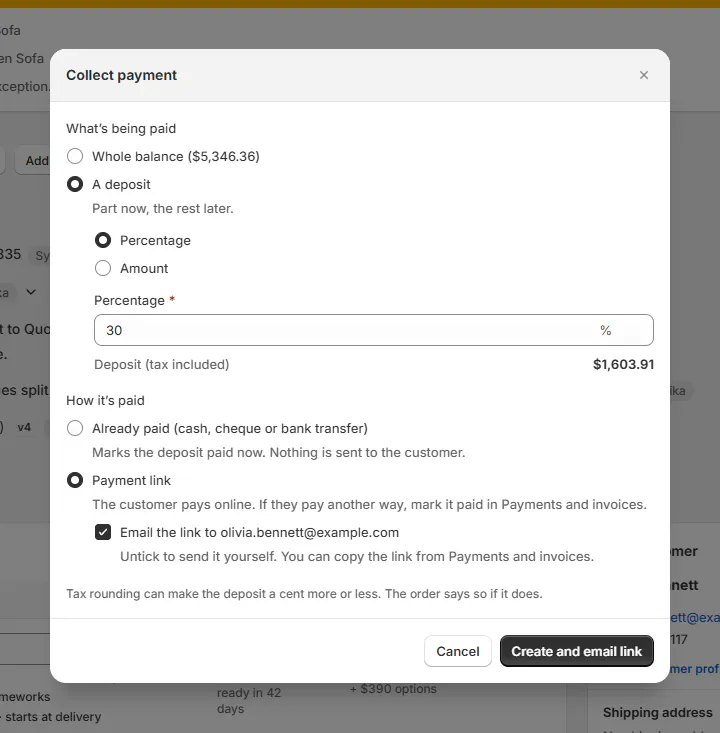
Review the tax-inclusive amount before creating the deposit. Step 3: Choose how it is paid
For money already received, choose Already paid and enter How was it paid?. Confirm Record deposit only after checking the receipt.
For customer checkout, choose Payment link. Leave Email the link to ticked to use Create and email link with the customer's address, or untick it for Create link when you will share it separately.
Step 4: Check the deposit result
Read the confirmation and inspect Payments. A created link is still awaiting payment until Shopify reports the customer paid.
When you create without emailing, copy the link from Payments. The deposit email uses Shopify's invoice email, not an OrderPilot email template.
Take a deposit at the register
Step 1: Set the native deposit terms
Open Payment Terms before Shopify placement. Choose payment due later and the agreed deposit percentage, then save the sale.
The payment action reflects the due amount. It reads Take Deposit when only the deposit is due now.
Step 2: Check what leaves today
Tap Take Deposit. On Pickup or Delivery?, check the methods and Due now.
If items leave today in full, the action can read Take Payment instead. Split orders explains that combined amount.
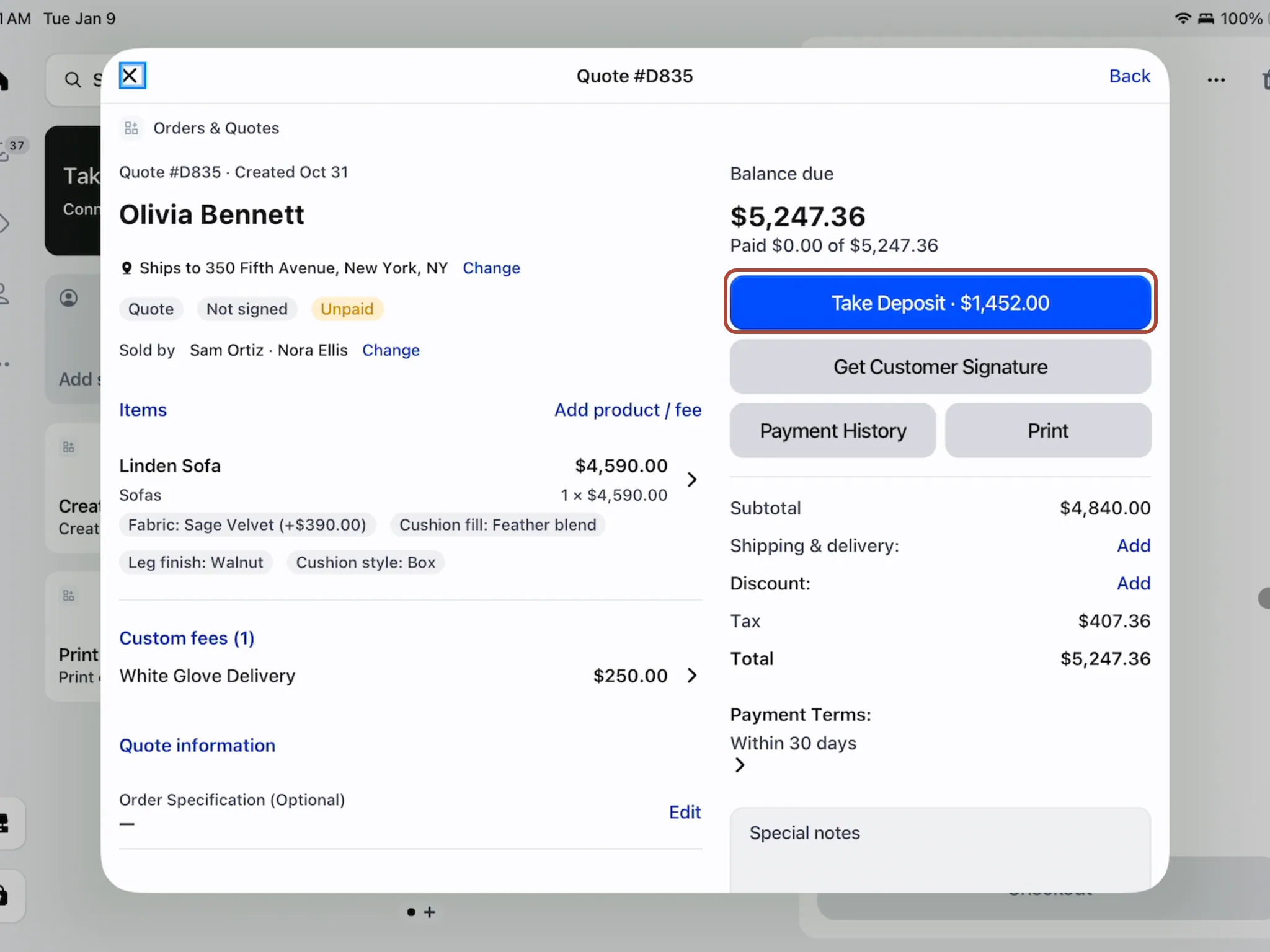
The button shows the native deposit due now. Step 3: Complete signature and payment
Tap Continue to Payment. Complete the required customer signature if prompted, then continue to Shopify collection.
Check the amount actually collected when returning to OrderPilot. The checkout can still accept less than the required deposit.
Shopify Plus
This POS route uses Shopify's native percentage deposit. Separate deposit-order links work on any plan, but are created in the app.
Step 4: Collect the balance later
Open the order and use Take Payment when the remaining payment is due. Check Due now and the current balance again.
Confirm full payment before customer handover. Do not read an earlier deposit confirmation as payment of the entire sale.
What happens next
The app route creates a separate taxable Shopify order for the deposit. Once paid, it appears as a deposit payment and counts in Paid.
The paid deposit is credited against the main draft as a discount so its remaining checkout balance and tax stay aligned. The main sale retains its full total.
The POS route places the main Shopify order with payment pending before collection. Its payment terms and deposit percentage then lock.
Activity records the POS deposit request. Read payment history to establish what was actually received.
Example: Olivia pays part up front
Example · Harlow & Finch Interiors
Request the deposit from the app
Olivia Bennett agrees to a 30% deposit on her Linden Sofa.
- Sam Ortiz opens Collect deposit.
- Sam chooses 30% and checks the displayed tax-inclusive amount.
- Sam creates the payment link for Olivia.
- After payment, Sam checks the deposit under Paid.
- Sam later uses Collect a payment for the remaining balance.
Example: Olivia pays at the register
Example · Harlow & Finch Interiors
Use the native deposit route
At a Plus-enabled Harlow & Finch showroom, Olivia pays the deposit on the iPad sale.
- Sam sets the 30% native deposit terms.
- Sam saves and taps Take Deposit.
- Sam checks Delivery and Due now.
- Olivia completes payment through Shopify.
- Sam verifies the paid amount before continuing the order.
Important notes and tips
A separate paid deposit order does not satisfy a product's minimum-deposit rule. Signature and deposit requirements checks native terms or full payment.
Refund a deposit-order payment on its own Shopify order. Refunds and payment history explains the distinction from cash refunds.
If something goes wrong
Deposits are turned off
Enable Deposit orders using the settings trail above.
The sale is already placed
Use Request payment for its remaining balance.
The sale is not ready
Create it first and wait for Shopify to finish syncing.
The sale is split into two parts
Use its per-part payment route instead of a separate deposit order.
A request is already waiting
Review the existing unpaid request before creating another.
The deposit equals the balance
Use the whole-balance payment route.
Deposit too low on POS
Increase the native percentage in Payment Terms before placement.
The button waits on tax
Allow Shopify's tax calculation to finish.
Was this guide helpful?
Thanks. Tell us what was missing at support@meetorderpilot.com.