Set up commission
Related guides
- Credit salespeople on a quote or orderTeam and permissions · 5 min
- Hand over an order and choose who’s in the salesperson listTeam and permissions · 4 min
- Profit, commission and configuration reportsReports · 6 min
- Create a product templateCatalog · 6 min
- Set up categoriesCatalog · 5 min
Set when commission is earned, what amount it uses and which rate applies to each salesperson. Use commission codes when a product, category or vendor needs a named rate.
Before you start
Is sales credit set up?
Credit the salespeople before interpreting commission shares.
Can you change the shop rules?
The Commissions tab needs Manage order and quote settings, although it sits under Purchasing & accounting.
Can you set staff rates?
You need Assign roles and locations. Staff also need commission-viewing permission to see their results.
Quotes and drafts never earn commission. Earned commission is fixed per line, subject to the shop's explicit rate-recalculation setting.
How commission is calculated
- 1EarnReach the shop's placed, fully paid or fully delivered trigger.
- 2SplitApply each salesperson's share of the item.
- 3Choose the rateUse an item code or item-split rate before the person's own rate.
- 4Apply the basisCalculate against net merchandise or gross profit.
- 5Handle refundsTake commission back or show refunds only, according to the rule.
Net merchandise means the product amount after discounts, excluding tax, shipping and fees. Gross profit is net merchandise less the items' cost.
A rate is applied to the salesperson's share, not automatically to the entire order. Check both the split and rate when a commission amount differs from your expectation.
Set the shop's commission rules
Step 1: Open Commissions
Go to SettingsPurchasing & accountingCommissions. The tab has four parts: Sales credit, Earning, Staff rates and Commission codes.
Changes anywhere on the tab wait for one Save in the bar at the top. Discard drops them. Commission settings saved confirms the save.
Step 2: Choose credit and document defaults
Under Sales credit, set When a salesperson is added or removed to Split equally or All to the primary salesperson.
Set Names on customer documents to Primary salesperson, All salespeople or None.
Quick picks on POS holds up to 5 splits, such as 100% to the primary, 75 / 25 and 50 / 50. Remove one with its ×, or add one with Add split. Staff can always type a custom split on the register as well.
Step 3: Choose earning and refund behavior
Review each choice under Earning, then save.
Setting Recommended default Alternative Earned when The order is placed The order is fully paid, or the order is fully delivered Paid on Net merchandise Gross profit Refunds Take commission back Only show them When a rate changes Apply to new commission only Recalculate earned commission too The saved rules decide when an order's commission moves from not earned to earned. Read the rate-change choice before you change rates for existing staff.
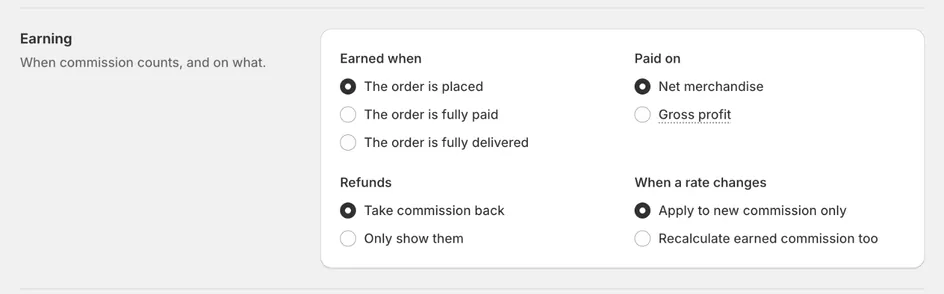
The earning trigger, basis and refund rule work together.
Give a salesperson their rate
Step 1: Find the person in Staff rates
On the same tab, go to Staff rates. It lists everyone with their role and Commission rate.
Type a name or role in the search box, or click No rate to list only the people without a rate. A person's staff page in SettingsStaff & rolesStaff shows their rate too, with Change in Commissions to come back here.
People with View all commission and profit or Assign roles and locations can see staff rates. View own commission shows a person their own rate.
Step 2: Enter the rate and save
Type the rate in Commission rate, from 0 to 100 with at most two decimals. Leave it empty when no personal rate should apply.
Click Save in the bar at the top. Changing rates needs Assign roles and locations.
A commission code takes precedence over this personal rate. The When a rate changes choice decides whether a new rate also recalculates commission already earned.
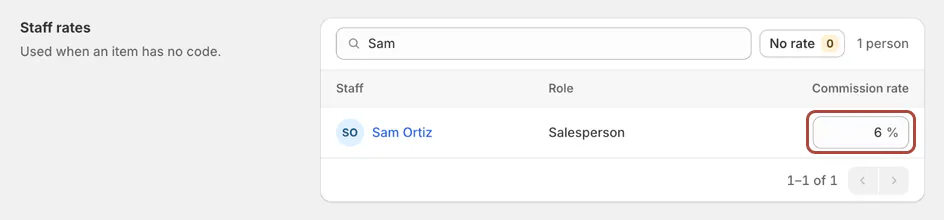
A personal rate applies when no item-specific rate takes precedence. Only the owner can set the owner's own rate. Other staff cannot use assignment permission to change their own rate.
Create commission codes
Step 1: Add a named rate
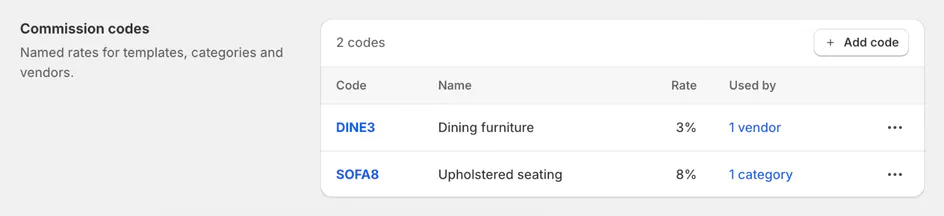
In Commission codes, click Add code. Enter Code, such as SOFA8, an optional Name, such as Upholstered seating, and Rate. Click Add code, then Save the tab.
The code appears in the list with its name, rate and Used by.
Step 2: Put the code on products
Choose the code where it should apply. Each picker is labelled Commission code and saves as soon as you choose:
- A template: the template page's Commission code card. See templates.
- A category: Edit Category in SettingsProductsCategories. Subcategories without their own code use it too. See categories.
- A vendor: Edit Vendor in SettingsPurchasing & accountingVendors. See vendors.
- One item: the item's code on an order's Sales credit card when it is split by item.
The most specific code wins: the item's own, then its template's, then its category's, then its vendor's. Only with no code at all does the person's own rate apply.
Step 3: Maintain existing codes
Used by counts the templates, categories and vendors using each code. Click the count to see their names.
Open a code's ⋯ menu for Edit code or Delete code. A code in use asks first: it comes off everything it is on when you save.
Commission not earned yet then takes the next rate that applies, often the staff rate. Commission already earned keeps the rate it earned at.
Keep a code in place while you're unsure where it is used.
Screen reference
What happens next
The order's Sales credit card reads Not earned yet, then Earned with the date. Commission reporting lists the resulting entries.
Starter-role defaults do not automatically provide commission viewing. Give salespeople View own commission when they should see their report.
Example: a personal and product rate
Example · Harlow & Finch Interiors
Sam's sofa and dining sales use different rates
Sam Ortiz has a 6% personal commission rate at Harlow & Finch Interiors.
- Set Earned when to the order is placed and Paid on to net merchandise.
- Add code SOFA8 (Upholstered seating, 8%) and put it on the Sofas category.
- Credit Sam on Olivia Bennett's Linden Sofa order.
- Confirm the sofa earns 8% rather than Sam's personal 6%.
- Apply the saved refund rule if the sale is later refunded.
If something goes wrong
Sales credit, Earning and Commission codes are view only
Check Manage order and quote settings. Staff rates need Assign roles and locations instead.
The rate cannot be saved
Check Assign roles and locations, self-edit restrictions and the 0–100 range.
The Commission report is missing
Grant the appropriate own or all commission viewing permission.
There are no POS quick picks
Add up to 5 under Quick picks on POS; staff can still type a custom split.
An earned amount keeps its old rate
Check When a rate changes before expecting a recalculation.
Was this guide helpful?
Thanks. Tell us what was missing at support@meetorderpilot.com.