How OrderPilot works on your online store
Related guides
- Set up your theme for OrderPilotOnline store · 6 min
- Put a product template on your online storeOnline store · 6 min
- Fine-tune how options look and behave onlineOnline store · 6 min
- Price and send an online quote requestOnline store · 5 min
- Let shoppers quote your Shopify productsOnline store · 4 min
Offer configurable furniture on your Shopify product pages, then receive shoppers' selections as quotes in OrderPilot. Each template controls whether customers can explore, request a quote or use an ordering route.
Your theme, template mode and store settings work together. Setting one product online does not replace the theme setup.
How it works
- 1TemplateYou choose the product's options and online mode.
- 2Shopify productCatalog sync sends the product and its choices to Shopify.
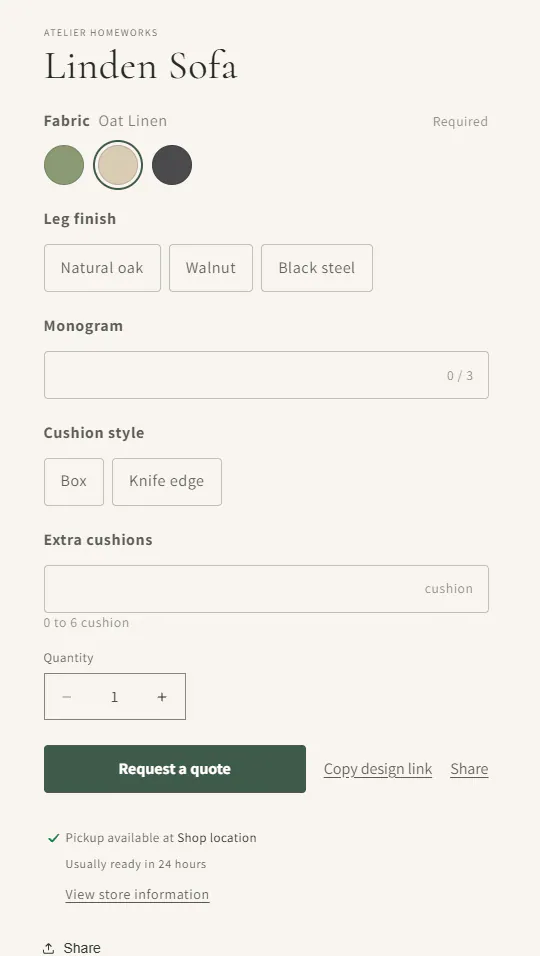
- 3Product pageThe OrderPilot options block presents the configuration.
- 4Quote cartThe shopper collects pieces on their device.
- 5Quote requestSending creates a quote for your team to price.
The product page reads the option data already stored in Shopify. Opening the page does not ask OrderPilot to rebuild it.
Catalog changes reach the page after sync and Shopify's storefront caching. That can take minutes or hours; the app cannot shorten Shopify's cache.
Submission checks and recalculates the request. An old product page does not determine the final saved price.
Where you manage it
Use SettingsOnline storeSelling on the online store for the store-wide behavior. Individual templates use Sales channels and Online options.
Shopify's theme editor holds the app block, embed and quote-cart blocks. The resulting request appears on the order page with Being priced when pricing is still needed.
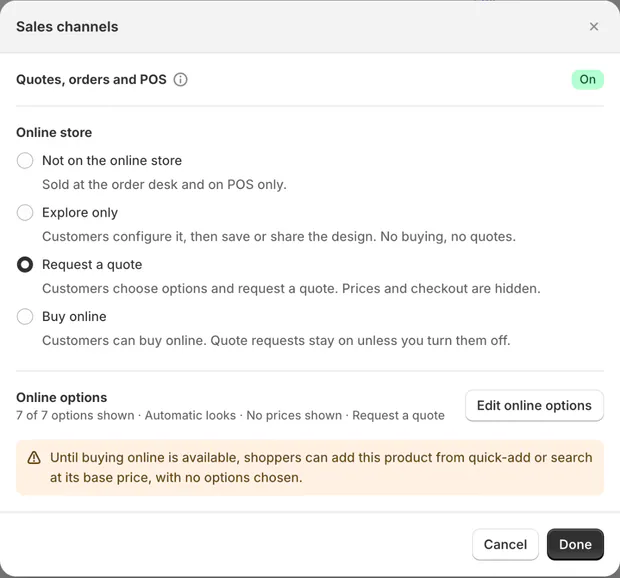
The template can show Not on the online store, Not published or Live on the online store. A draft or disabled store-wide setup prevents publication.
A duplicated template starts hidden online, even though it copies its Online options.
What shoppers see
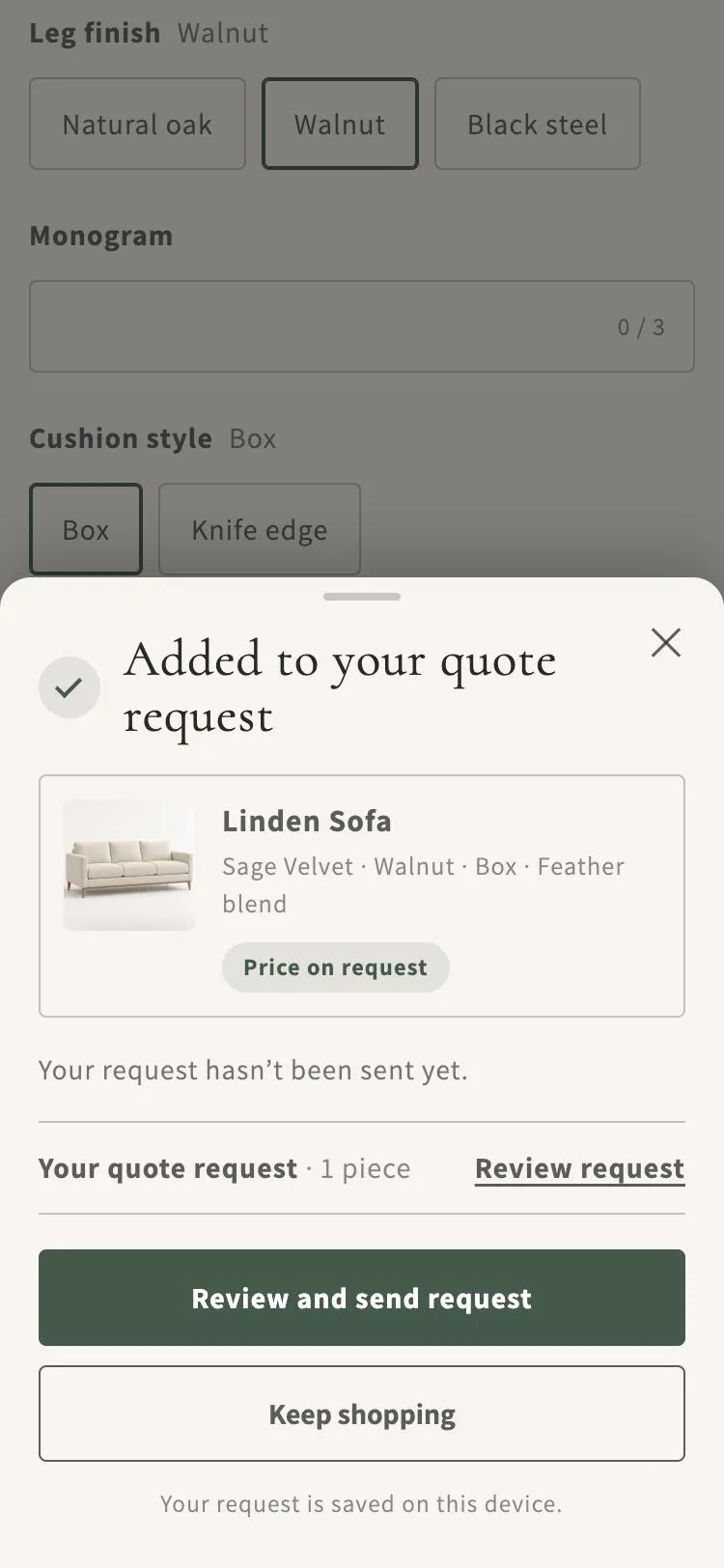
Choosing Request a quote adds the configured piece to a cart saved on that device. Nothing has been sent to your team yet.
The pop-up shows Added to your quote request with the piece and its choices, Your quote request with Review request, Review and send request and Keep shopping. On narrow screens, it becomes a bottom sheet.
The quote request page lists items, choices and quantities. Customers can Remove an item, Edit choices, or Finish choices when a required selection is missing.
Your details collects contact information. Signed-in details are read-only, with Not you? Sign out for the customer who needs another account.
Customers supply addresses, can tick Billing address is the same, and can complete Anything we should know? (optional) and available order fields.
The page shows Priced so far when some prices are available. Unpriced lines and an entirely unpriced request read Price on request, not a zero amount.
There is no separate line-note field. Customers change product choices by returning to the product page through Edit choices.
The online modes
| Mode | What shoppers can do |
|---|---|
| Not on the online store | Staff sell it at the order desk or on POS. |
| Explore only | Configure, see the price, and use Copy design link or Share. No quote request or purchase. |
| Request a quote | Choose options without visible prices, then add the piece to the quote cart. |
| Buy online | Use the available ordering route; the product page falls back to quote requests while Shopify-cart buying is unavailable. |
Copy design link and Share appear in every offered mode. They are the main actions for Explore only and secondary links beside other buttons.
Explore-only templates are refused if someone tries to submit them as a quote request. Their purpose is to save or share a configuration.
For ordinary Shopify products, use Quote Shopify products online.
Theme blocks and their jobs
| Theme element | Purpose |
|---|---|
| OrderPilot options | Configures a template on its product page. |
| OrderPilot configurator | App embed supporting buttons and quote-only price treatment. |
| Add to Quote | Adds eligible regular Shopify products to a quote. |
| Quote Template Catalog | Shows a catalog of online templates. |
| Quote Cart Drawer | Provides access to the shopper's quote cart. |
| Quote Cart Badge | Shows quote-cart quantity and access. |
Place OrderPilot options above the theme's Add to cart area. The theme editor points back to OrderPilot for options, prices and button wording.
Prices and ordering
A request containing a Request a quote template or regular Shopify product begins Being priced. Regular Shopify product lines initially have no quoted price.
The customer sees no money in the portal, automatic emails or PDFs and cannot sign or pay until you release pricing.
Sending the quote, copying its sign link or taking an in-store signature ends that pricing hold. Price every line before using those actions.
Where quote-only prices are hidden
The product page and quote cart hide prices. The app embed also hides prices on covered product cards, covering about the newest 180 products. Shopify still retains variant prices in other product data, structured data and feeds.
Buy online and Place order
While Shopify-cart buying is unavailable, Buy online product pages show Request a quote and hide the theme's Add to cart button. The separate quote cart can still offer Place order when every line is an order-enabled template.
That route requires sign-in while the sign-in rule is on. Required signatures send the customer to signing first; otherwise checkout is prepared. If preparation takes too long, the page offers View your order.
After a request is sent
Request sent shows the request number, expected quote timing, item details and your thank-you message. It offers See your request and Back to the store.
A copy is in your email appears only after the customer email is queued or sent. A new request starts unassigned and does not name a staff contact.
If confirmation is lost, the page asks the customer to check email before sending again. Avoid creating a duplicate request without checking the first submission.
The quote and confirmation pages use your customer-page branding and can sit inside the store's header and footer.
Example: 3 ways to offer furniture
Harlow & Finch Interiors sets Linden Sofa to Request a quote and Mira Dining Chair to Explore only.
Priya Shah chooses Sage Velvet on the sofa and submits her request. She can explore and share the chair without requesting a quote for it.
Arden Dining Table uses Buy online. Marcus Reed can use Place order from a quote cart containing only order-enabled templates.
Do it
Set up the theme, put a template online, then fine-tune its options.
Use Handle online quote requests for staff pricing and sending. Online store problems covers missing blocks, prices and incomplete buying routes.
For the whole customer journey, follow Online request to delivery.
Was this guide helpful?
Thanks. Tell us what was missing at support@meetorderpilot.com.