Edit a quote or order
Where are you working?
Related guides
- Change a locked order, or a line already on a purchase orderQuotes and orders · 4 min
- See what changed and restore an earlier versionGet started · 4 min
- The quote and order pageQuotes and orders · 6 min
- Find quotes and ordersQuotes and orders · 5 min
- Email a quote or orderQuotes and orders · 5 min
Change a saved quote or order, then check its saved state and Shopify sync. If the customer has signed, a customer-facing change can require another signature.
Open the sale from Find quotes and orders. Make sure you are changing the intended record before editing its details.
Before you start
Check access
Your role needs Create and edit quotes and orders, within its allowed records and locations.
Check locks
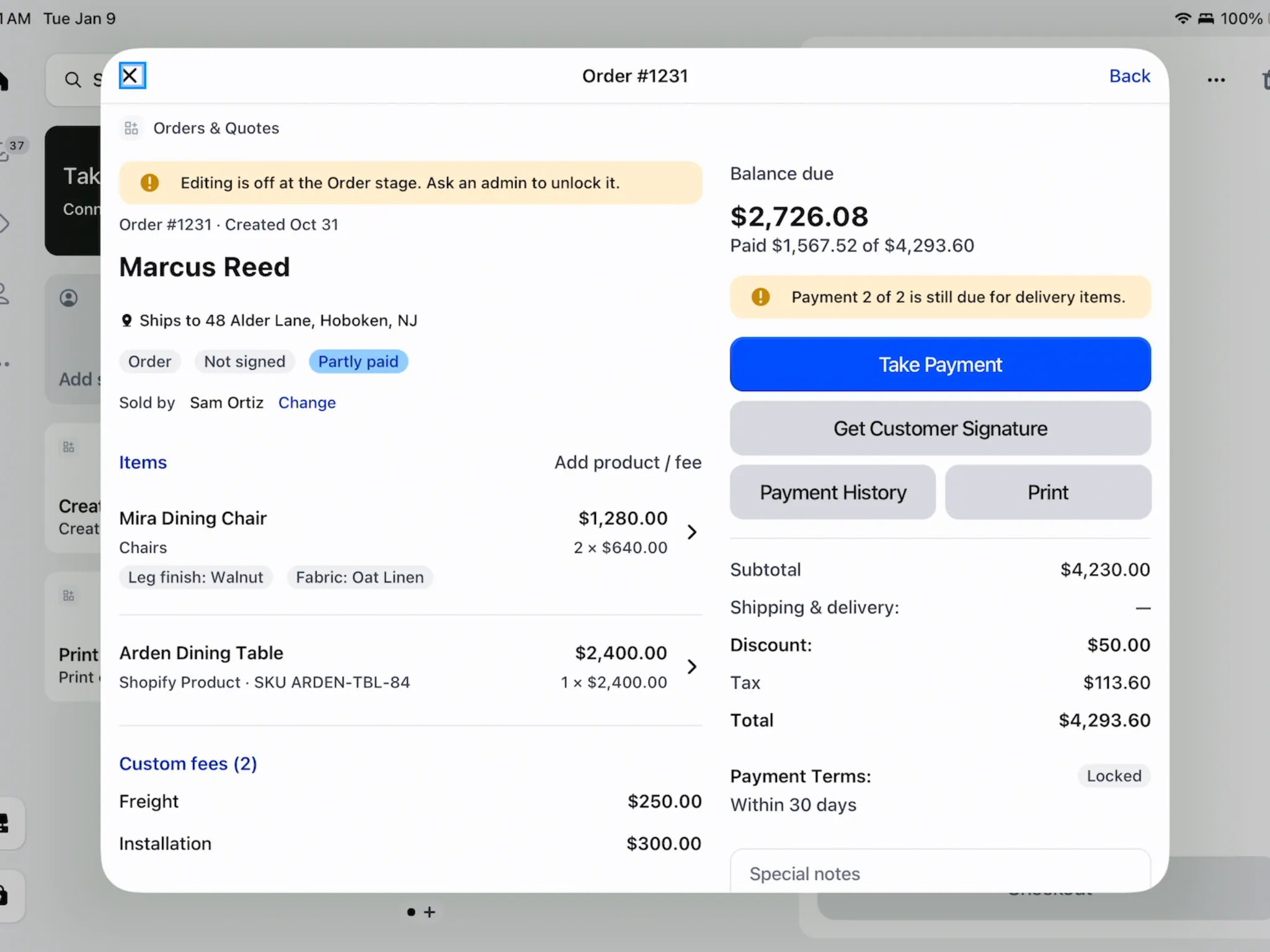
For a locked sale or a purchased line, use Edit locked and ordered orders.
Check sync and billing
Wait for active Shopify syncs. A record at an unbilled location opens view only.
Check the agreement
Note whether the customer has already signed or paid before changing what they agreed to.
Edit and save in the app
Step 1: Change the sale details
Open the record and change the required lines, options, customer, fees, shipping, order fields, notes or tags.
For a stage change, use Change an order's status. The save bar (Unsaved changes, Discard, Save) appears at the top of Shopify admin when the page has changes; on a draft, Save as draft in the page header saves too.
Step 2: Review and save
Check the changed details and click Save. Choose Discard if you want to abandon the unsaved changes.
The page shows Syncing with Shopify while the saved update reaches Shopify. Wait for that work before taking a dependent action.
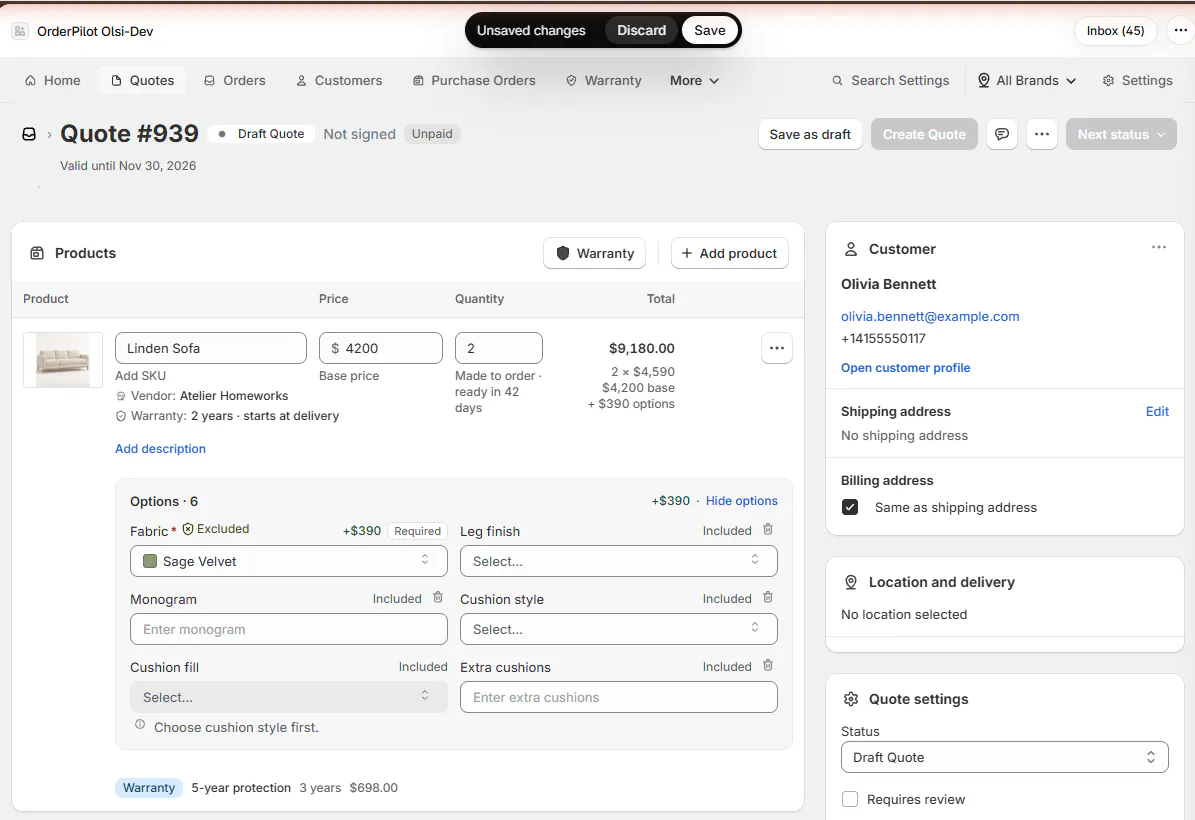
Review the changes before saving the quote. Step 3: Resolve a newer saved version
If This quote changed since your last save appears (This order… on an order), click Reload and keep my changes. Save and auto-save remain off until you reload, and the indicator under the title reads Auto-save stopped.
Read which changes were put back. If a field was also changed in the newer version, the page says Your unsaved changes were not kept and lists it under Not put back. Reconcile it with the latest version, then save or discard.
The app identifies other editors and checks for changes about every 20 seconds. If you have nothing unsaved, it can show the latest version directly.
Edit and save on POS
Step 1: Update the item or details
Open the sale from Orders & Quotes. Tap an item to change its allowed options, quantity or discount, then tap Update item.
Use Add product / fee, customer details, Ships to, Special notes or Quote information as needed. The order shows your unsaved changes.
Step 2: Save the changes
Tap Save Changes. This action appears after you change the sale.
Quote updated or Order updated confirms the save. POS preserves the order's location and the information its screen did not display.
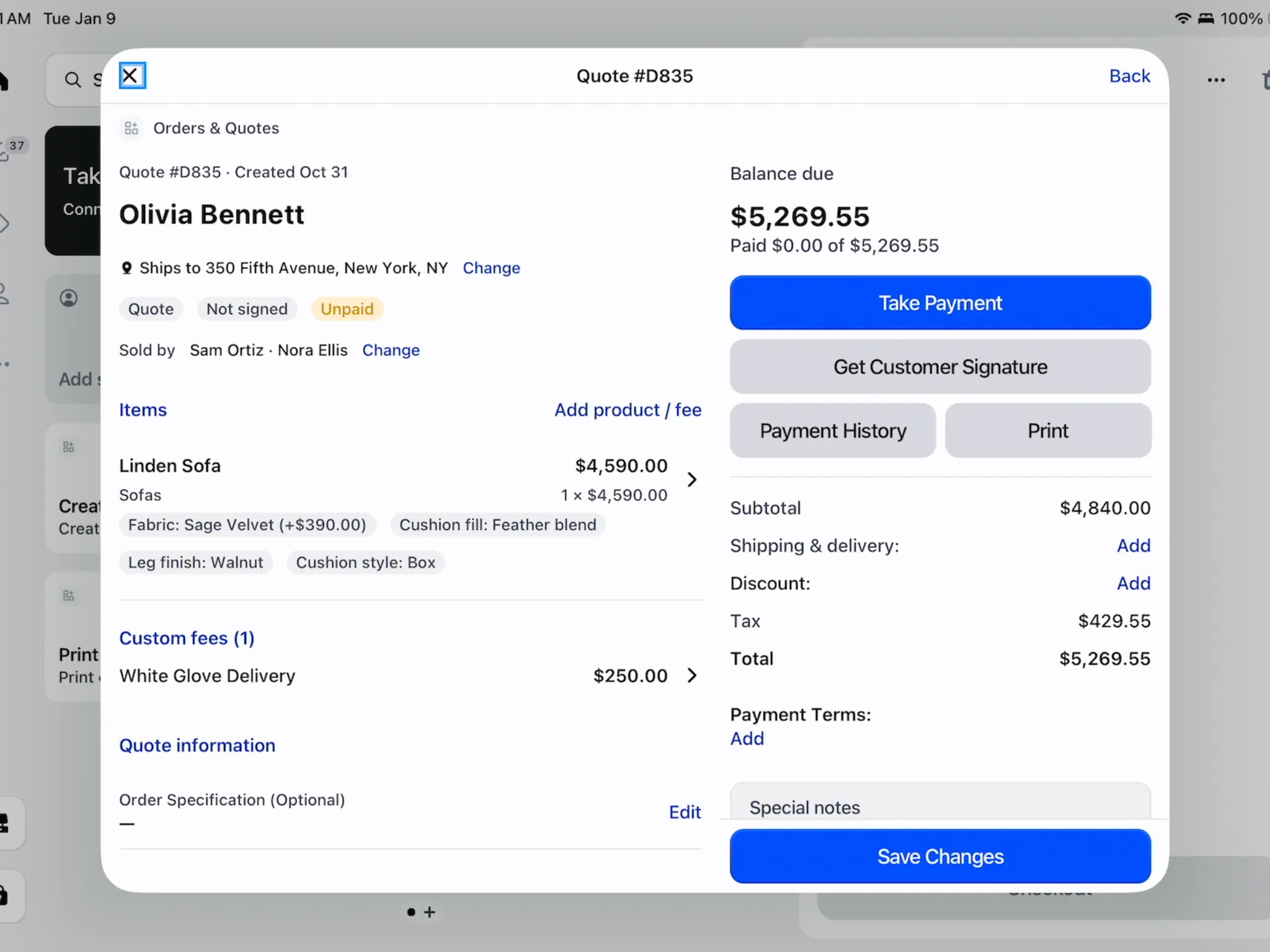
Save Changes appears after an edit. Step 3: Discard an unfinished edit
To leave without saving, tap Back. Read Discard unsaved changes?, then tap Discard if you want to abandon them.
The order closes without those edits. Return to the record if you need to make a smaller change instead.
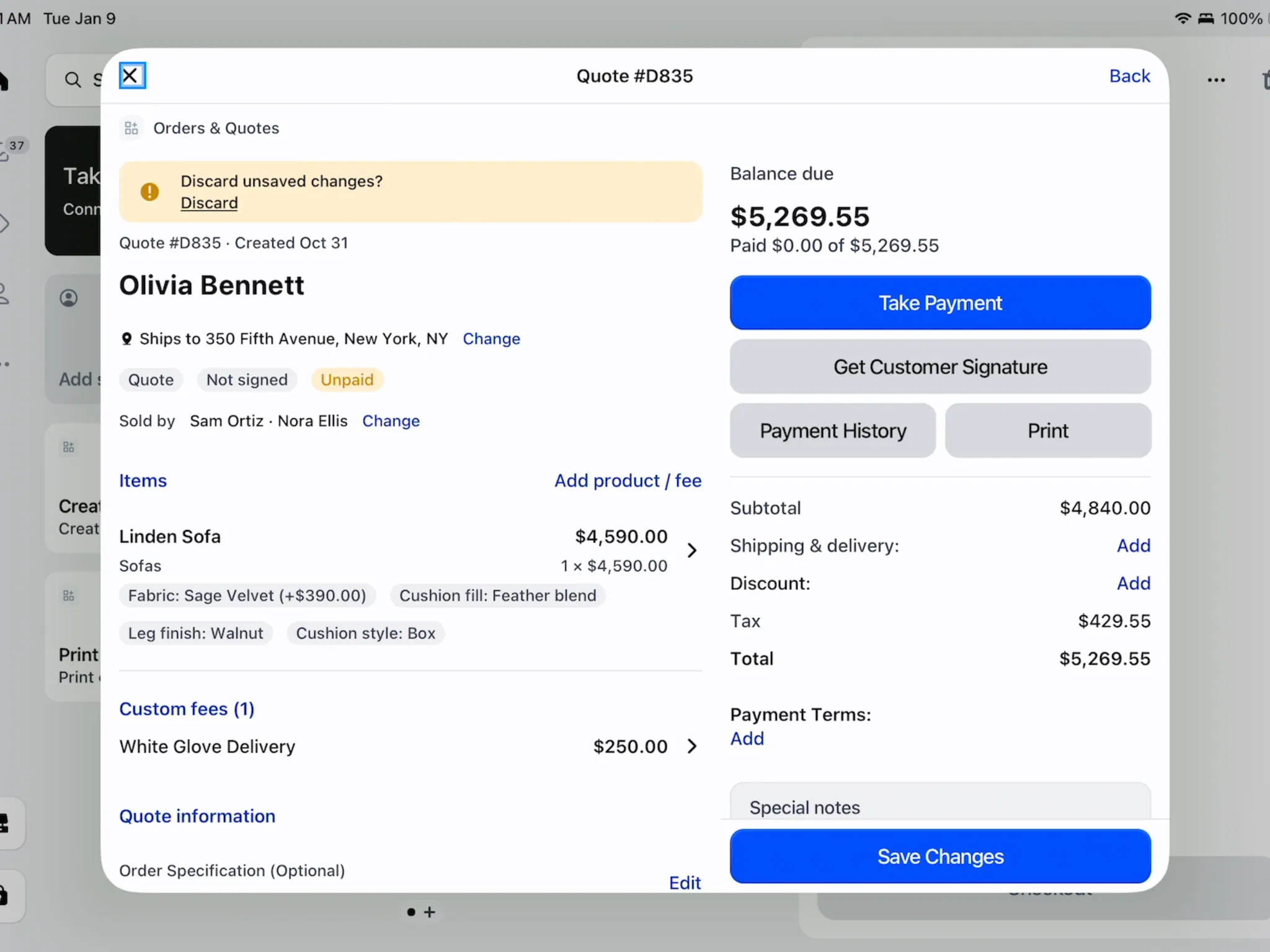
Discard removes the current unsaved changes.
Change an eligible location
Step 1: Check whether the record can move
Use a record that remains editable and has an active Shopify draft. Wait for sync to finish.
A placed Shopify order, a purchase-order link or a locking status prevents moving. The location control explains the restriction.
Step 2: Choose the intended location
Use the top-bar location picker to choose the new location. If none is selected, use No location selected and Select location.
Only your registered locations appear when your role limits locations. Check the record's location before saving the change.
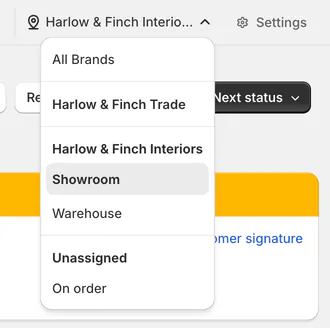
Choose an eligible location for this record. Step 3: Resolve an unbilled location
If offered, use Move to a billed location and choose an eligible destination. This move saves only the location.
Otherwise, use Manage plan to add the location, or ask the billing administrator. Once the location issue is resolved, the page can allow editing again.
What happens next
A save adds a version to Activity. Customer-facing changes can turn Signed into Re-Sign, while preserving the earlier signed copy as superseded.
Changes to lines, prices, quantities, options, warranty, fees, shipping, discounts and order fields can require signing again. An open signing page reloads after edits.
Email the updated quote, then request its signature. Check the saved version before sending the request.
Example: Olivia changes her fabric
Example · Harlow & Finch Interiors
Save and request the new agreement
Olivia Bennett calls after signing her Linden Sofa quote to change the fabric.
- Sam Ortiz checks whether editing is allowed.
- Sam changes the option and reviews the resulting sale.
- Sam saves and waits for the Shopify update.
- Sam checks Re-Sign and requests Olivia's signature again.
Example: update from the iPad
Example · Harlow & Finch Interiors
Confirm the POS save
Sam records Olivia's change from the showroom.
- Sam opens her quote and the sofa item.
- Sam selects the agreed option and taps Update item.
- Sam taps Save Changes.
- Sam checks the updated signature state before requesting a new signature.
Important notes and tips
When another person saved first
The app can restore nonconflicting unsaved groups after reloading, including Notes, Reference, Tags, Status, Salespeople and Delivery promise.
A group also changed in the newer version is listed as Not put back. Review it yourself rather than assuming every edit survived.
POS instead asks you to close and reopen the order when the back office changed it. The app's keep-my-changes recovery is not offered there.
If something goes wrong
These changes cannot be saved yet
Read the listed reason: missing customer or location, active sync or the current lock.
The location cannot change
Check placement, purchase-order links, active Shopify draft and status restrictions.
POS is view only
Read the assignment or access reason and ask the named colleague or manager.
A purchased line cannot change
Ask the back office to handle its purchase-order link.
The item price is fixed
Use an allowed discount; finished stock configuration changes need the app.
Terms and deposit are locked
The order is no longer a Shopify draft.
Was this guide helpful?
Thanks. Tell us what was missing at support@meetorderpilot.com.