Find quotes and orders
Where are you working?
Related guides
- The quote and order pageQuotes and orders · 6 min
- Edit a quote or orderQuotes and orders · 5 min
- Change status or tags on many orders at onceQuotes and orders · 3 min
- Credit salespeople on a quote or orderTeam and permissions · 5 min
- OrderPilot on Shopify POSShowroom (POS) · 6 min
Find a quote or order by its customer, number, product or other sale detail. Narrow the list, then check the result before opening it.
An empty list can mean that filters or access rules hide the record. Check those before assuming the sale is missing.
Before you start
Choose the right list
Use Quotes for quotes and Orders for orders. POS combines them under Orders & Quotes.
Check the location
The app's location picker affects which records appear.
Check your access
Your role needs View quotes and orders and determines which records you can see.
When your role includes Appear in the salesperson picker, the app initially shows your own records. Otherwise, it starts with all records you can access.
Search and filter in the app
Step 1: Search for the sale
Open Quotes or Orders. Enter a customer name, number, email, phone, company, product, SKU, purchase order number or tag.
Every search word must match somewhere on the record. The list updates to matching sales.
You can omit # and printed number prefixes such as Q-, SO- or INV-. A reference matches only while reference display is enabled.
Step 2: Check the salesperson filter
Open Salesperson and choose the staff whose sales you need. Empty the selection to show All.
Records with no salesperson do not appear under your own sales. Clearing the salesperson choice makes those records eligible to appear.
Step 3: Apply the other filters
Use Payment, Signed, Shopify sync and Tags as needed. Fulfillment appears while that filter is applied.
Values inside a filter are alternatives; separate filters must all match. For example, an unpaid filter plus Sam Ortiz shows unpaid sales credited to Sam.
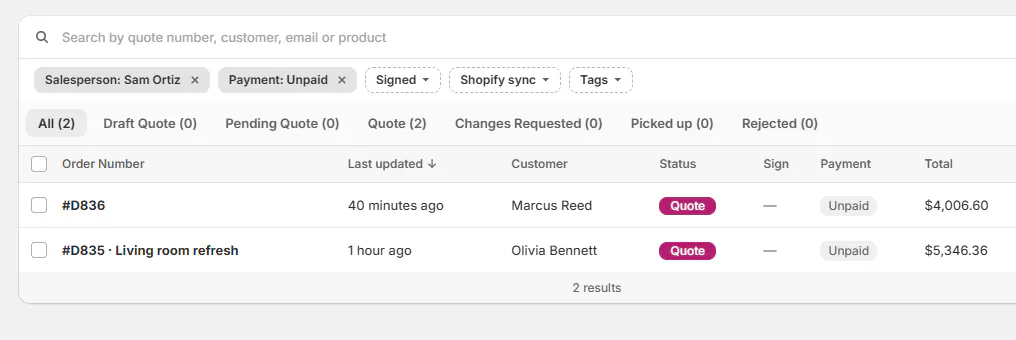
Combine filters to narrow the records you need. Step 4: Choose the status and sort
Choose All or a status tab. The app shows tabs for statuses with records; Awaiting pickup appears only on Orders.
Sort by Order number, Last updated, Customer or Total. Last updated, newest first, is the starting order.
Step 5: Open the matching record
Check the number and customer, then open the row. The quote and order page opens with the sale's details.
If several records match Olivia's name, use their product, total and update information to select the intended sale.
Tip
Filters live in the page's link. Bookmark the filtered link to return to that view; the list has no separate saved-view feature.
Read the list
| Column or badge | What it tells you |
|---|---|
| Order Number | The record's number, alongside relevant warning or source badges. |
| Last updated | When the record was most recently changed. |
| Customer | Who the sale is for. |
| Status | Its current workflow stage. |
| Sign | Whether the record has the relevant signature state. |
| Payment | Its payment state. |
| Waiting | Outstanding handover information on Orders. |
| Total | The sale total. |
| Items | The item's count for that record. |
| Revised | Changes were requested on the order. |
| Deleted | The associated Shopify draft was deleted. |
| Storefront | The record originated through the online store. |
A vendor warning identifies lines needing vendors before approval. A failed-create message identifies a Shopify sync failure, rather than a missing local record.
Use Fix a failed Shopify sync for those failures. The row menu contains eligible actions for the selected record.
Change many orders at once covers tagging or changing status across selected rows. First check the filtered set carefully.
Find the sale on POS
Step 1: Choose Mine or All
Tap Orders & Quotes. Choose Mine for orders crediting you, or All for the records your access permits.
Mine follows sales credit. It does not mean every order created on this register belongs in that view.
Step 2: Search and choose a status
Enter a name or number under Search customer or order #. The matching rules also cover product, SKU, purchase order and tag details.
Tap a status chip, or open More for additional statuses. A chosen hidden status takes the last chip slot for that session.
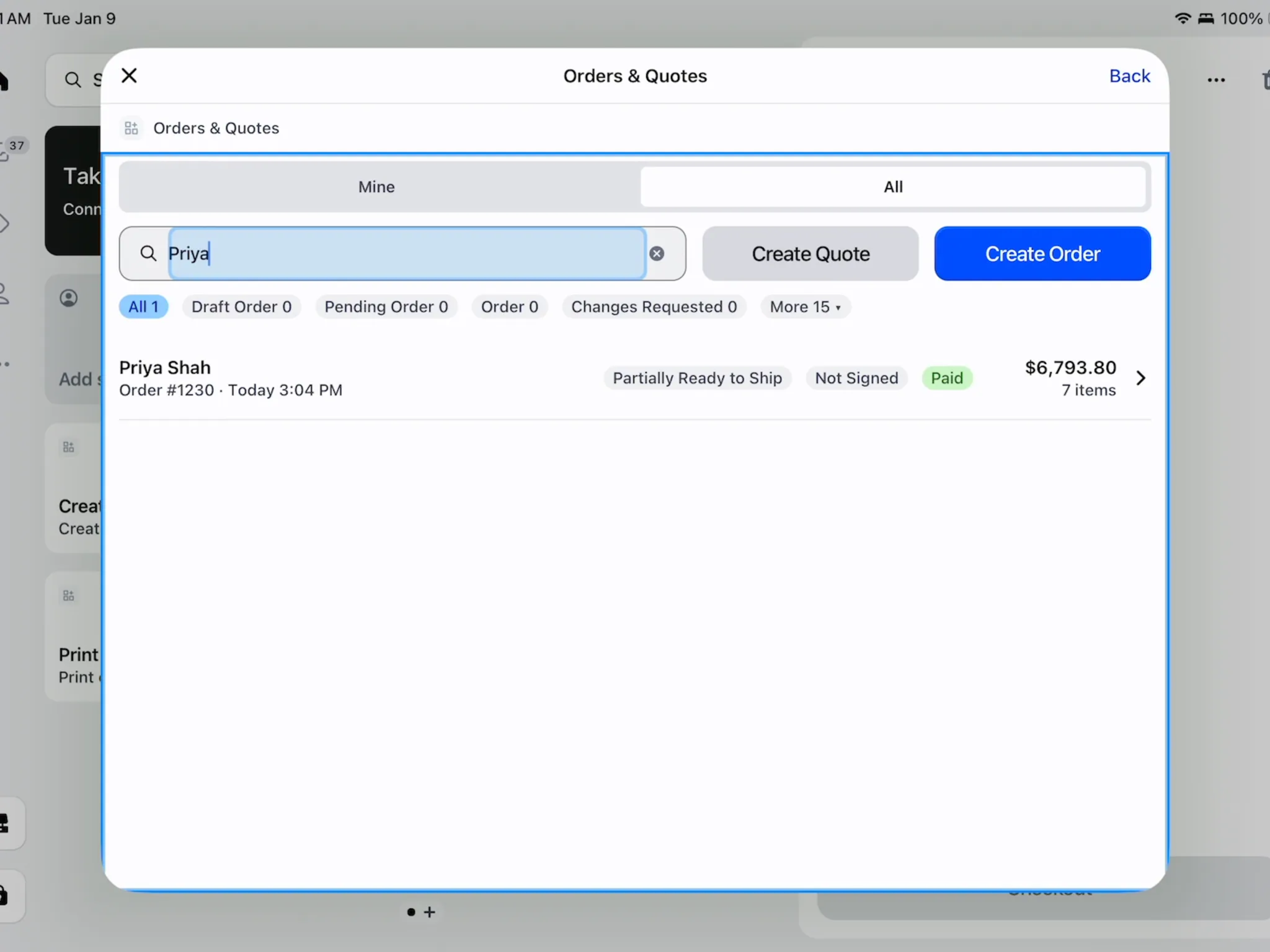
Choose All before searching another person's sale. Step 3: Open the matching row
Read the customer, number, last change, status, signature, payment, total and item count. Tap the row that matches the sale.
Use Load More Orders when needed. The selected record opens on the POS order screen.
What happens next
The record opens ready for the actions your role allows. Follow Edit a quote or order when you need to change the sale.
A filtered result is a way to locate work. Its badges still need reading before you take payment, request a signature or change status.
Example: find Priya's quote
Example · Harlow & Finch Interiors
Clear an unintended salesperson filter
Sam Ortiz searches for Priya Shah and sees no result.
- Sam checks the location.
- Sam notices Salesperson is limited to Sam.
- Sam clears that choice to All.
- Sam opens Priya's matching quote.
Example: find it on POS
Example · Harlow & Finch Interiors
Use the broader register list
Sam looks up the same quote from the showroom iPad.
- Sam opens Orders & Quotes and chooses All.
- Sam searches “Priya.”
- Sam chooses the relevant Pending Quote status.
- Sam checks the number and opens Priya Shah's row.
If something goes wrong
No quotes found
Clear search words or use Clear all, then check the status tab and location.
A colleague's sale is missing
Check salesperson selection, location and role scope.
An unassigned sale is missing from Mine
Choose All; Mine excludes records without your sales credit.
A reference does not match
Reference display must be enabled for reference search.
The POS list failed to load
Read the load error. It is different from a successfully loaded empty list.
Was this guide helpful?
Thanks. Tell us what was missing at support@meetorderpilot.com.