Choose how each item is fulfilled
Where are you working?
Related guides
- Choose pickup or delivery and hand items overQuotes and orders · 7 min
- Order a new unit or sell from stockInventory and costs · 9 min
- Take some items home and deliver the restQuotes and orders · 6 min
- The quote and order screen on the iPadShowroom (POS) · 7 min
- Collect a paymentPayments and signatures · 9 min
Choose where each physical item comes from and how it reaches the customer. An item's fulfillment pill puts its stock source beside its pickup or delivery method.
A single item can have 2 parts with different quantities and choices. These choices describe the plan; recording the hand-over records when the customer actually receives the goods.
Before you start
Choose the selling location
Stock and pickup choices depend on the order's location.
Check your access
Editing item fulfillment needs Create and edit quotes and orders. A status lock does not require Force Edit for this job.
Check the item
A purchase-order link, a hand-over or a Shopify cancellation prevents changes. The choices explain the restriction.
Check the agreement
Switching between pickup and Delivery changes tax. On a signed sale, the screen warns that the customer must sign again.
Service lines have no fulfillment pill. They need neither pickup nor delivery.
Choose fulfillment in the app
Step 1: Open the item's fulfillment
On a create page or saved quote or order, click the item's fulfillment pill. You can also choose ••• and Manage fulfillment.
Fulfillment opens for that item. The pill shows its source and method; nearby text identifies stock, the destination or what has already happened.
You may see Finished unit at a location, To the shipping street, Add a shipping address or Picked up today. A split item has one pill per part.
Step 2: Choose the stock source
Under Stock source, choose Inventory or Made to order. Inventory uses a stock unit; Made to order follows the purchasing route.
For a template, use Inventory and See all stock to choose a finished unit. The stock picker shows this location first, then Other locations.
Choosing the same unit at another location changes its source location. Choosing another variant or finished unit can change the line. A placed Shopify catalog line keeps its variant.
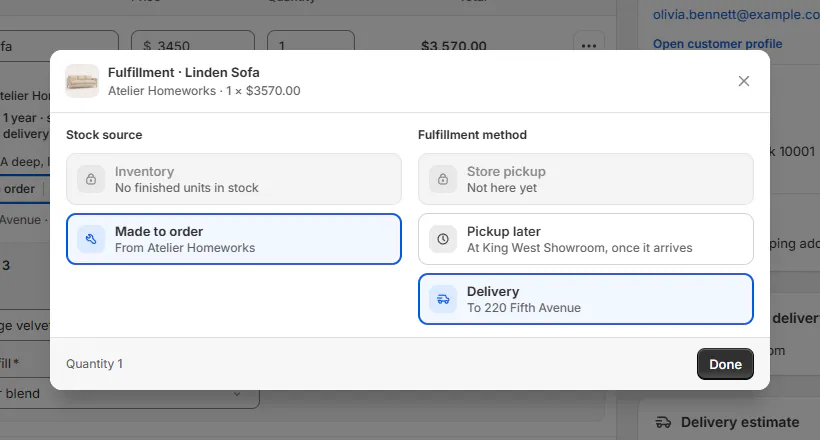
Choose the stock source and how the item reaches the customer. Step 3: Choose pickup or delivery
Under Fulfillment method, choose the customer's plan:
- Store pickup: units leave the selling location today.
- Pickup later: the customer collects another day, including after the units arrive.
- Delivery: the units go to the order's shipping address.
Made-to-order units and stock held at another location cannot leave this store today. Choosing either source changes Store pickup to Pickup later.
Step 4: Split units when needed
For an eligible item with at least 2 units, choose Split. Set each part's quantity, source and method. Undo split combines them again.
Save the order and any outstanding changes first if the control asks. Split, and switching between pickup and Delivery, stop once the order or its other tax part is placed in Shopify, even if money is still due. Permitted source and pickup-timing changes continue.
For a template, save a change between Made to order and a finished stock unit before splitting. If the screen asks you to take all units from stock or all made to order, use Undo split, choose the source, click Done, then save the order before splitting again.
Step 5: Keep the choices
Click Done. Pickup, delivery and split changes on a saved line save immediately. Switching a template between Made to order and a finished stock unit, or choosing a different finished unit, changes the form and needs the order's Save. A new line also needs an order save.
Check the saved pill after creating the order or switching a template to stock. If it shows Store pickup but the customer will collect another day, reopen it, choose Pickup later and click Done. After choosing a finished unit and saving the order, reopen its fulfillment pill and check the unit, source location and saved price. Check both pills after splitting. The order's pickup and delivery totals follow those choices.
Choose fulfillment on POS
Step 1: Open the item's page
On the order screen, tap Change beside the item's fulfillment pill. Fulfillment opens with Stock source and Fulfillment method boxes.
A box icon identifies Inventory; a tool icon identifies Made to order. The item also shows its place and status. An item without a displayed method may show Details instead.
Step 2: Choose the source and method
Choose Inventory or Made to order, then Store pickup, Pickup later or Delivery.
A template source may say Pick it on the item's page. Return to the item screen to choose its source or finished unit. Stock at another location and made-to-order units cannot use Store pickup.
Greyed choices say why, such as Not here yet, Units at another store, Not tracked in Shopify or Can't change now.
Step 3: Split and save
For an eligible item with at least 2 units, tap Split. Set Part 1 and Part 2, or choose Undo split.
POS does not offer Split on a product template line. Splitting also stops after payment or placement.
Tap Save. The order's item pill shows the saved choice. Once placed, this page also links to Fulfillment details.
Step 4: Check the choices at payment
Take Payment opens Fulfillment with one row per item part. It keeps each part's source and method, including Pickup later.
A template row can switch between Made to order and an available finished unit. Changing the stock source needs edit permission; choosing the method here needs the payment permissions.
Check Delivering to and Due now, then tap Continue to Payment, or Create Order when nothing is due now. The items leaving today must be paid in full. See Take some items home and deliver the rest.
What happens next
Payment or pay-later placement fixes which side of the sale an item belongs to. It can no longer cross between pickup and Delivery, and it cannot split.
Its stock source and Store pickup / Pickup later choice can still change until purchasing, hand-over or cancellation locks it. These rules also apply when the order's status restricts editing.
A cancelled Shopify part locks fulfillment changes across the sale. A PO or hand-over can lock the entire item, not only one of its units.
Changing a signed sale between pickup and Delivery ends the signature because tax changes. The earlier signed copy is kept; request the customer's signature on the revised sale.
Example: chairs today and another day
Example · Harlow & Finch Interiors
Split before taking payment
Marcus Reed wants 1 Mira Dining Chair today and another delivered later.
- Sam Ortiz opens the chair's fulfillment choices before payment.
- Sam splits its 2 units into 2 parts.
- Sam chooses Inventory and Store pickup for the chair leaving today.
- Sam chooses the source and Delivery for the other chair, then saves.
- Sam checks Due now and completes the required payment before handing over the first chair.
If something goes wrong
Choose a location for the order first
Set its selling location, then reopen fulfillment.
Not tracked in Shopify
Inventory sourcing needs tracked stock. Use an available purchasing route.
Made to order is unavailable
Ask the administrator to check that an active made-to-order location is configured.
No finished units in stock
Choose Made to order, or wait until a matching finished unit is available.
Store pickup is greyed out
The units are not here yet or are held at another location. Use Pickup later or Delivery.
Split is off once paid
Set the parts before payment or placement. Only one unit means there is nothing to split.
Can't change after payment: each part is already taxed.
Keep the item's pickup/delivery side; source and pickup timing may still change.
On a purchase order
, Already handed over or Canceled in Shopify The item is fixed. Read its linked purchasing or hand-over record before arranging any correction.
Was this guide helpful?
Thanks. Tell us what was missing at [email protected].