Manage customer and order addresses
Related guides
- Find and edit customersCustomers and portal · 6 min
- The quote and order pageQuotes and orders · 12 min
- Create a quote or orderQuotes and orders · 9 min
- Customer invoices, receipts and signed copiesCustomers and portal · 5 min
- Help a returning customer from the iPadShowroom (POS) · 7 min
Keep the customer’s saved addresses ready for future sales, and check the destination on each quote or order. Every saved sale keeps its own shipping and billing address.
Changing a customer’s profile does not move existing orders to the new address. A delivery for Priya Shah can name the person receiving it at her client’s site while Priya remains the customer.
Before you start
Find the right customer
Read Find and edit customers for the profile and address book.
Check editing access
You need Create and edit quotes and orders and access to the order. A greyed control explains any further restriction.
Confirm the destination
Ask which address and recipient belong on this sale, and whether they should be saved for future orders.
The customer’s saved addresses live in Shopify. The order’s own address is a separate copy used for that sale and its Shopify order or draft.
Choose the customer’s saved addresses
Step 1: Open the address book
Open the customer profile, then Edit profile. Find Addresses, where each saved entry shows its roles.
Main is the customer’s Shopify default. Shipping and Billing can point to other saved entries; both use Main until you pick another address.
Step 2: Enter the recipient and place
Use Add address or Edit on a row. Enter Company, First name, Last name, the street, city, country, and other delivery details.
An address has its own recipient, company, and phone. It does not have to name the customer. With blank names on a new profile address, Shopify uses the customer’s name.
Step 3: Set the roles and save
Choose Main, Shipping, or Billing for the appropriate entries. One address can have several roles. Use Done to close an open row or Discard to drop a new unsaved entry.
Click Save to keep the profile changes. New app orders start from Shipping and Billing; POS starts from Shopify’s default ship-to.
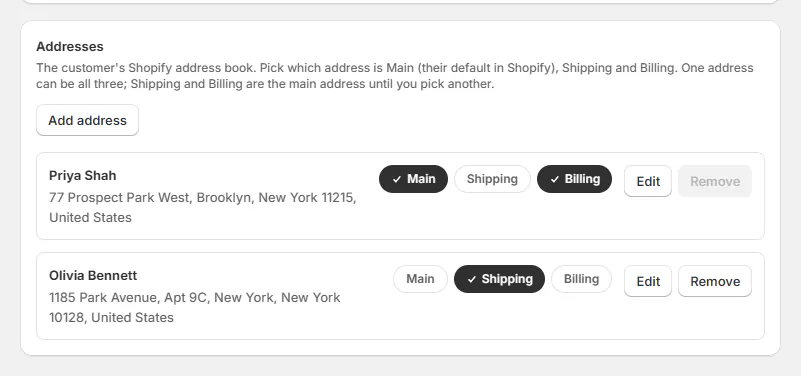
Saved address roles supply the starting addresses for new orders.
Change the address on one order
Step 1: Open Manage addresses
On the quote or order page, find Shipping address or Billing address and click Edit. Manage addresses opens with the customer’s saved addresses.
Selected identifies the current choice. When the order’s copy differs from every saved address, it has its own row badged This order’s address.
Step 2: Choose the intended address
Click the address row to use it for this sale. The dialog closes and the order shows the chosen address. Review Same as shipping address when billing should follow shipping.
If the order’s copy reads exactly like a saved address, that saved row appears selected. Matching wording does not make every order follow later profile changes.
Step 3: Edit the correct kind of row
Open Address actions on a row, then Edit. Read the notice before saving: editing This order’s address changes only this order and its Shopify address.
Editing a saved customer row explicitly updates that address in Shopify. The notice says so. That address-book action is different from changing only the order’s copy.
Step 4: Save and check the sale
Save the address form, then save any pending changes to the quote or order. If your shop auto-saves quotes, wait for the save to finish. Check the shipping and billing details again, including recipient and phone.
Review the customer PDF when the recipient matters. Its Ship to, POS order screens, and the receipt use the address’s own name and company. The email body has no ship-to block; the attached PDF carries it.
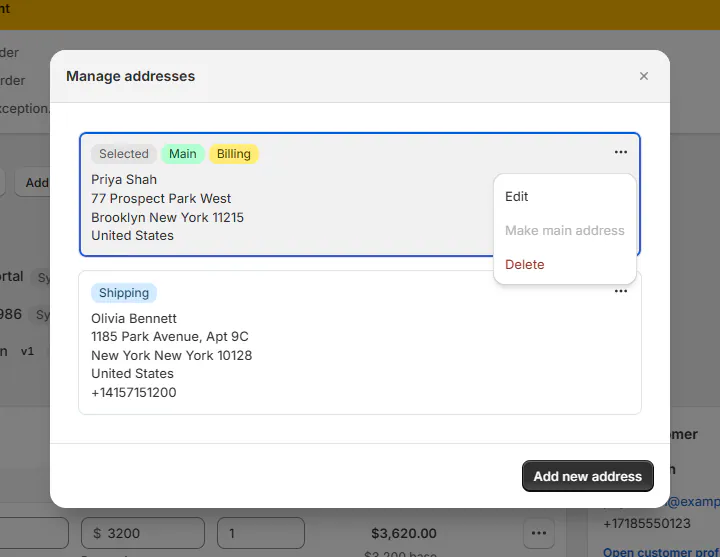
The order’s own copy can differ from the customer’s saved addresses.
Save or remove an address
Step 1: Add a reusable address
Use Add new address in Manage addresses when the destination should also belong to the customer’s Shopify address book. The form explains that it adds the address to the customer.
An order-only row cannot become Main directly. Its explanation directs you to Add new address first.
Step 2: Review the main-address choice
Use Make main address on a saved row when it should become Shopify’s default. A row already Main explains This is already the main address.
On the profile, the main address cannot be removed until another address is Main. Check Shipping and Billing too before removing an entry they use.
Step 3: Check a deletion before confirming
Delete on a saved row opens Delete address and warns that it deletes the address in Shopify too. The last saved address asks you to add another first.
The order-only row cannot be deleted from the book because it is not in the book. Pick another address for the order to replace it.
What happens next
Editing or removing a profile address leaves existing quotes and orders unchanged. Saving ordinary edits to an order does not add its address to the customer’s address book.
For a customer without any saved Shopify address, the first admin or POS order saves its ship-to as Main. A different bill-to is saved as a second address. This happens when that new order syncs.
Website quote requests and checkout imports keep their addresses on the order only. Later order edits do not put an address back after staff removed it in Shopify.
A claim replacement starts with the original order’s own shipping and billing addresses. Check the replacement order itself if the customer wants delivery elsewhere.
Example: Priya’s client receives the table
Example · Harlow & Finch Interiors
Keep this delivery separate
Priya Shah orders an Arden Dining Table for Olivia Bennett’s home.
- Sam Ortiz checks Priya’s saved Shipping and Billing addresses.
- He opens the quote’s shipping Manage addresses.
- He selects the client-site address and checks Olivia’s recipient name.
- He keeps Priya’s billing address and saves the quote.
- He checks the PDF’s Ship to before sending it.
If Priya later updates her profile for another project, this table keeps the destination Sam saved.
If something goes wrong
This order’s address cannot become Main
Use Add new address to save it to the customer first.
The order-only row cannot be deleted
Pick another address on the order to replace it.
The last saved address cannot be deleted
Add another address first.
An older order still shows the previous address
That order keeps its own copy. Change it on the order.
The wrong person prints under Ship to
Check the selected address’s own First name, Last name, and Company.
Was this guide helpful?
Thanks. Tell us what was missing at [email protected].