Refund a payment
Related guides
- Review payments and invoices, and refund a paymentPayments and signatures · 7 min
- How payments workPayments and signatures · 7 min
- Take some items home and deliver the restQuotes and orders · 6 min
- Take a depositPayments and signatures · 8 min
Send money back the way the customer paid. Refund payment returns card payments through Shopify and records refunds for manual payments such as cash or checks.
Returns, restocking and store-credit refunds stay in Shopify. Choosing items here calculates a refund amount; it does not record a return or put those items back in stock.
Before you start
Check your access
You need Refund payments and permission to change the record.
Check what remains
The customer must have paid something that is still available to refund.
Identify the sale
Check the customer, deposit and any pickup/delivery parts before starting.
There is no refund action on POS. Use the order page in the app. Payment history helps you identify the payments before making a correction.
Choose and send the refund
Step 1: Open Refund payment
Open ••• on the order, then Refund payment. You can also use the list row’s menu, except for a split order: open its order page to choose the part.
When the customer paid more than the order now costs, the next-step menu offers Refund payment after the status map’s steps. Needs attention can show Refund the payment · since [date].
Step 2: Choose what you are refunding
Under What are you refunding?, choose Refund all, Specific items, or Percentage. The dialog starts on Refund all.
- Refund all lists the items and refunds the full amount still available.
- Specific items lets you tick lines and select quantities, such as 1 of 2. It includes options, subtracts the line discount and its share of the order discount, and includes its share of tax. Multi-quantity lines show the price each.
- Percentage offers 10%, 25%, 50%, 75%, an Other field and a slider. It is calculated from the amount still available to refund.
If selected items exceed the refundable amount, the refund stops at the available maximum. If there are no items to pick, choose Percentage.
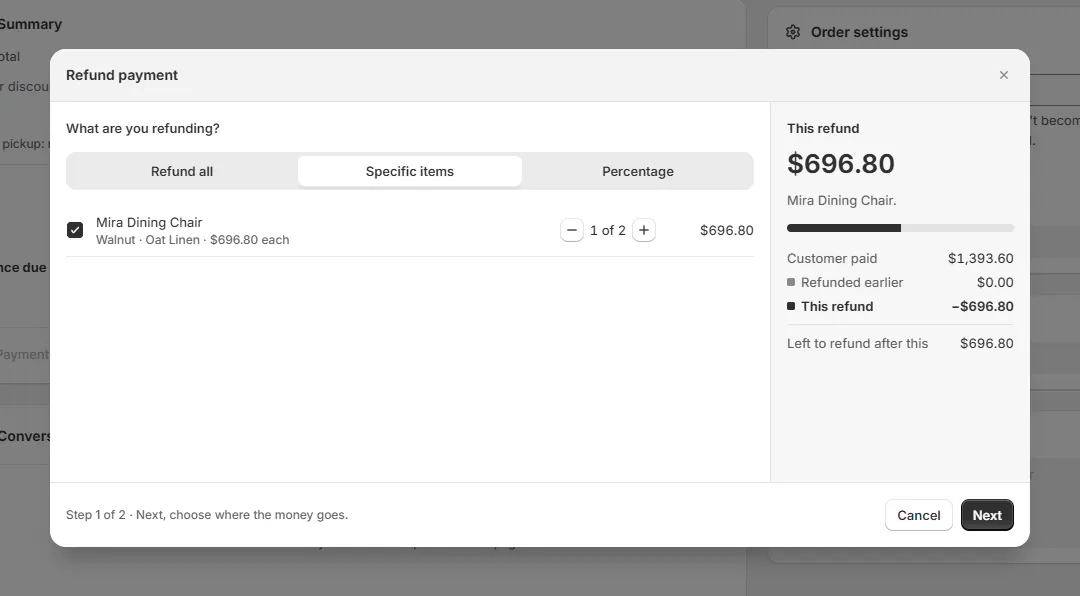
Review the item amount, its discount and tax shares, and the remaining refundable balance. Step 3: Check the receipt
Read This refund, its explanation, and the receipt rows: Customer paid, Refunded earlier, This refund, and Left to refund after this.
There is no separate amount, restock or reason field. Specific items changes the calculation only. When the amount is right, click Next.
Step 4: Review each payment method
Review refund has one row per original payment, such as Visa •••• 4242 or Recorded refund · Cash. Original-payment rows come first and recorded rows last. The refund fills those rows in order; change the allocation if needed.
Read each row’s help: Goes back to the card, Goes back to the original payment, or No money moves through Shopify, followed by its maximum.
If store credit paid any part, the first screen tells you to refund that credit in Shopify. Recording a manual refund does not restore the customer’s credit. With one recorded payment method, the review says This records the refund only. Return the money separately if you haven’t already.
A refund can use at most 4 methods. Each row must stay within its own available amount, and the total cannot exceed the refundable balance.
Step 5: Confirm and check the result
Read Total refund. Click Refund $X.XX when a selected row sends money back, or Record refund of $X.XX when every row is recorded.
A recorded refund moves no money through Shopify. Return the cash or other manual payment separately if you have not already. A refund sent through Shopify cannot be undone in OrderPilot.
The footer identifies Step 1 of 2 and Step 2 of 2; use Back to revise the amount. When money moves, the review warns You can’t undo this refund in OrderPilot.
A successful refund closes the dialog and updates the figures. A pending method says Refund sent. Shopify is still processing [method]. Check the result before trying another refund.
Refund a split part or deposit
Step 1: Choose the split part
On a split order, use Refund from to choose the pickup or delivery payment for the item being refunded. Each choice shows its Shopify order and refundable amount.
Selecting an item from the other part switches the part. Recheck the receipt and payment rows after changing it.
Step 2: Check a separate deposit payment
A paid deposit or payment request on its own Shopify order appears as a separate row in Review refund. Its help starts Deposit · or Payment request ·. The refund goes back on that payment’s Shopify order.
While the main sale is a Shopify draft, a refunded deposit goes back onto its balance. After placement, a deposit refunded here does not increase the main order’s balance.
Plus deposits refund as ordinary main-order payments. Only separate deposits have a Deposit · row.
Activity confirms Shopify balance updated after a deposit refund: [amount] due. A failed refund gets its own balance-update entry.
A deposit paid with store credit is not offered here. Refund that credit in Shopify.
What happens next
The Summary adds Refunded as a negative amount and Net payment after a refund. Refund owed appears while payments, less refunds already made, exceed the current total, followed by Balance due. Split sales paid on both parts read Paid (2 payments).
Activity shows Refund recorded: $X and Method: … for each refund method. OrderPilot sends no refund email.
Under Payments and invoices › Payments, Refunds shows Date, Method and Amount. A method says Back to original payment or Recorded only. No money was sent through OrderPilot. Older refunds may have no second line.
Ordinary quote, order and invoice PDFs print Refunded · Shopify Payments, Refunded · Cash (recorded), or Refunded for older records. Signing documents and signed copies stop at Total Amount; older frozen copies remain unchanged. A refund later reversed to zero disappears from the table and documents.
A card refund can fail after submission. Activity then shows Refund failed: $X. or Refund partially completed., identifying what returned and what failed. The refunded figure is corrected accordingly.
With QuickBooks customer orders enabled, refunds post as refund receipts; store-credit and gift-card refunds use journal entries. Check the order’s QuickBooks card. Send orders to QuickBooks explains the posting.
Example: refund one of Olivia’s chairs
Example · Harlow & Finch Interiors
Check both original payments
Olivia Bennett bought 2 Mira Dining Chairs, paying partly by card and partly in cash.
- Sam Ortiz chooses Specific items and 1 of 2 chairs.
- He checks the calculated refund and clicks Next.
- Review refund shows the card payment and Recorded refund · Cash.
- Sam checks each amount and confirms the refund.
- He returns the cash portion separately and checks the Refunds table.
Any item return or restock is handled in Shopify as a separate action.
Important notes and tips
Use Shopify for returns, restocking and store-credit refunds. If Shopify did not supply all payments, the dialog identifies the gap. Refund the missing payments there.
OrderPilot does not let you choose cash instead of the original card. Handle a different refund method through the store’s separate process and check the Shopify record.
If a deposit is refunded in Shopify after placement, Activity can show Deposit refund not reflected in Shopify’s balance. Its instruction is to use Request payment if that amount must be collected.
If a deposit refund later fails, read Failed deposit refund still in Shopify’s balance and correct that amount in Shopify before collecting the balance.
A failed checkout can show Payment rolled back by Shopify in Activity. That amount counts as neither paid nor refunded; the Refunded total counts Shopify refunds.
If something goes wrong
Refund payment is missing
Check Refund payments and whether anything paid remains refundable.
The list-row action is greyed
A split order must be refunded from its order page; other view-only reasons explain the missing access.
The payments are unavailable
Refund orders placed more than 60 days ago in Shopify. Follow Refund this order in Shopify. Its payments aren’t available here. If only some payments are missing, refund those in Shopify.
Refund payment is greyed at this location
Add the order’s location to the plan before staff refund it. History and downloads remain readable.
The amount is locked until Shopify answers
Use Try again. It checks or retries the same refund without sending a second one; the amount cannot change until confirmed.
Shopify refused one method
Read the method-specific reason and the green result lines. Parts that succeeded are shown separately.
The dialog stays open after submission
Check for partial completion or a pending method before acting again.
Activity shows Refund failed
Read the failed amount and method; that part returned no money.
Was this guide helpful?
Thanks. Tell us what was missing at [email protected].