Write signature and deposit rules
Related guides
- Set signature and deposit requirementsPayments and signatures · 10 min
- Take a depositPayments and signatures · 8 min
- Set payment terms and place pay-later ordersPayments and signatures · 7 min
- Get a quote signedPayments and signatures · 7 min
Require a signature or deposit when the sale matches conditions your store chooses. A rule can cover large orders, a customer tag, a location, or an item with a particular combination of details.
Rules add requirements. They do not cancel another rule or a product requirement, and their position in the list does not decide which wins.
Before you start
Check access
Rules need Manage order and quote settings.
Choose the requirement
Start in Customer signature or Deposit under SettingsQuotes and ordersDefaultsBefore an order is placed.
Check the device choice
Use Only the list below for the relevant device. Deposit rules can also raise an Every order minimum. Never ignores the list.
Read Set signature and deposit requirements for the device choices and product/category settings. Adding products or categories to those lists also needs Manage the catalog.
Admin includes online-store requests. The device is where the record was created, so reopening a POS quote in the admin does not change which device’s rules apply.
Write the rule
Step 1: Add and name the rule
In Products, categories and rules, choose Add, then Rule. The Add rule dialog opens.
Enter a unique Name, up to 80 characters, such as Large orders. Use a name staff can recognize when the order’s missing-requirements banner names the rule.
Step 2: Choose how conditions combine
For signatures, the sentence starts Require a signature when. Choose all of these are true to require every condition, or any of these is true to require at least one.
For deposits, enter Require a deposit of at least from 1% to 100%, then choose how the conditions combine. Another applicable requirement can raise this percentage.
Step 3: Add order conditions
Choose Add condition, then the order detail you need. Complete its comparison and value before adding the next condition.
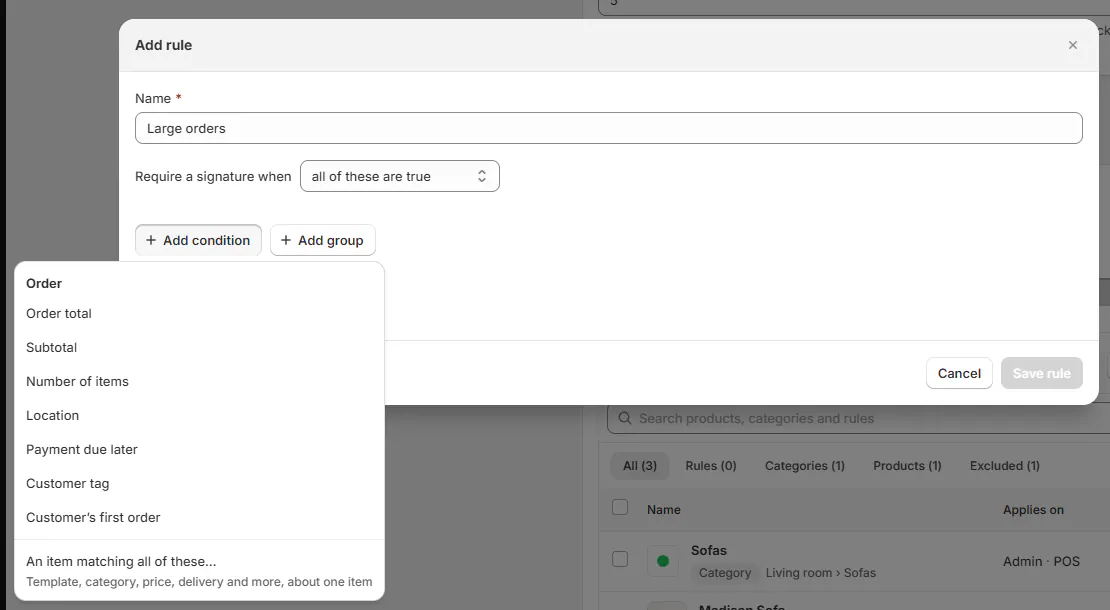
Choose a whole-order condition or conditions about one item.
Order conditions
| Condition | What to compare |
|---|---|
| Order total | Compare an amount with is at least, is under, or is between. |
| Subtotal | Compare the order subtotal with an amount or range. |
| Number of items | Compare the count with is, a minimum, a maximum or a range. |
| Location | Choose locations with is any of or is none of. |
| Payment due later | Choose Yes or No. |
| Customer tag | Use is any of, is none of or contains. |
| Customer’s first order | Choose Yes or No. |
Step 4: Match conditions on one item
Choose An item matching all of these…. The block reads The order contains an item that matches all of these:.
Add conditions for Product template, Shopify product, Category, Vendor, Shopify product type, Shopify product tag, Price each, Made to order, Has options, Delivery method, or Service.
Which items match
The menu marks Product template, Has options and Service as Templates only. Shopify product, Shopify product type and Shopify product tag are Shopify products only.
Made to order covers an item built for the customer, such as a template not sold from stock or a Shopify product whose stock isn’t tracked, and an item ordered new. A service doesn’t count.
Every condition in this block must match the same item. One made-to-order sofa and a different delivered chair do not satisfy a block requiring one item that is both made to order and delivered. Is none of also matches an item without that field.
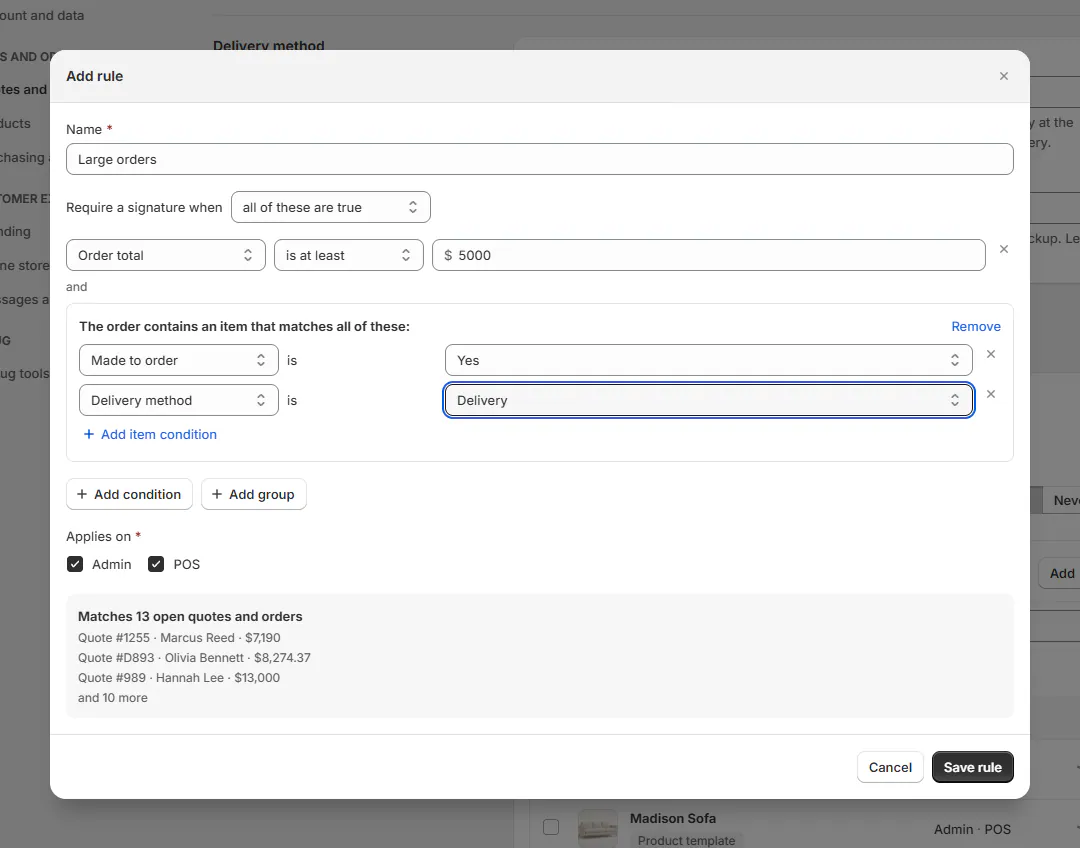
Step 5: Add a group when needed
Use Add group when part of the rule needs its own all-or-any choice. A rule allows one nested group.
Check the whole sentence after adding it. Grouping changes whether one condition is enough or several must all hold.
Preview and save
Step 1: Choose the devices
Under Applies on, tick Admin, POS, or both. A rule needs at least one device.
The device’s overall choice still applies. A signature rule does nothing on a device set to Every order, because every order already needs signing. A deposit rule can raise its Every order percentage.
Step 2: Check the preview
Once the rule is complete, the preview shows Matches 6 open quotes and orders, with up to 3 examples. When more records exist, it says Matches 6 of the 500 most recent open quotes and orders.
Use the examples to check the intended sales. “Open” means not placed in Shopify and not cancelled; a split sale counts once. The preview checks at most 500 newest open records and adds and N more after its 3 examples.
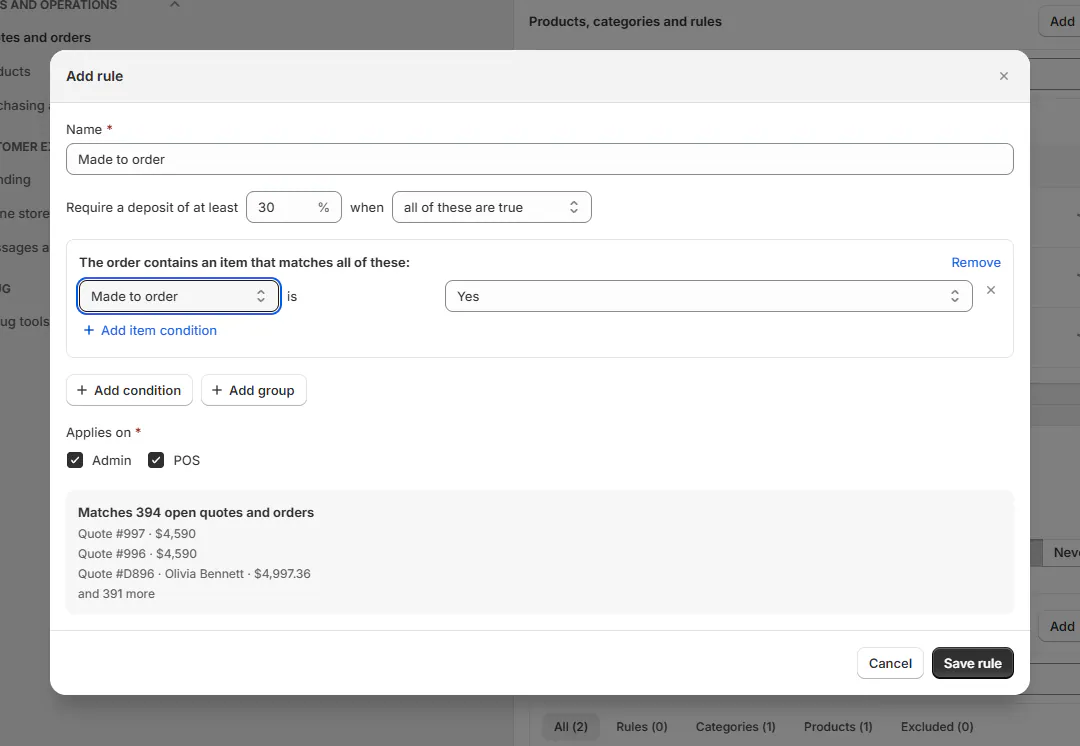
Preview the open records affected before saving. Step 3: Save the complete rule
Click Save rule. Rule added confirms a new rule; Rule saved confirms an edit. Rules save directly without the Defaults page’s save bar.
A greyed Save explains the first missing part: a name, condition, completed value, or device. It also refuses impossible combinations, such as one item costing at least $3,000 and under $500.
Maintain saved rules
Step 1: Edit or duplicate
Open the rule’s ••• menu and choose Edit rule or Duplicate. Duplicate immediately adds [name] (copy), or (copy 2), without opening a dialog. Use Edit rule on that copy to rename it or change its conditions.
A rule appears as a readable sentence on the list. Check that sentence after editing so the list describes your intended requirement.
Step 2: Remove an unwanted rule
From the list menu, choose Remove, review Remove the rule [name]?, then confirm Remove. The confirmation reads [name] removed.
Inside Edit rule, choose Remove rule instead. Remove this rule? offers Remove rule and Keep it; removal confirms Rule removed.
Other rules, product settings, categories and Every order requirements still apply. Removing one rule does not guarantee that an affected order no longer needs a signature or deposit.
What happens next
A matching rule adds its requirement to the order. A signature is needed if any applicable source asks for it. The largest applicable deposit percentage wins; percentages are not added together.
Product exclusions only remove category requirements. They do not cancel a matching rule. The order page names rules in Missing before order placement; POS explains what the order needs without naming the rule.
On POS Create Order, rules are evaluated after the first save. Recheck the created order’s requirement before continuing to payment.
Example: large and made-to-order sales
Example · Harlow & Finch Interiors
Two separate requirements
Nora Ellis adds a signature rule named Large orders: Order total is at least $5,000.
She then adds a deposit rule requiring 30% when An item matching all of these… has Made to order set to Yes.
Olivia Bennett’s Linden Sofa needs the 30% deposit when that item matches. An order of at least $5,000 also needs the signature. If another applicable rule requires 40%, the deposit requirement is 40%.
If something goes wrong
Save rule is greyed
Read its reason and finish the name, condition, values and Applies on.
The name is already used
Give the rule a unique name.
The rule is too large
Use at most 20 conditions, one nested group and 8 conditions per item block. A condition accepts up to 50 values; names allow 80 characters.
The list is full
Each requirement list allows 100 rules. Remove an unwanted rule before adding another.
A rule no longer matches
Check whether it names a deleted category or vendor.
A requirement appears when Shopify cannot be read
Conditions using unavailable customer or Shopify facts count as met, so the requirement is retained.
This rule isn’t being applied
Edit its conditions and save again.
The deposit is higher than the rule
Check the other matching rules, products, categories and Every order minimum.
Was this guide helpful?
Thanks. Tell us what was missing at [email protected].