Set discount limits for roles
Where are you working?
Related guides
- Create and manage rolesTeam and permissions · 6 min
- How roles and permissions workTeam and permissions · 7 min
- Add fees, shipping and discountsQuotes and orders · 7 min
- Set up PIN access on shared iPadsShowroom (POS) · 6 min
A role's Max discount caps discounts and prices staff enter by hand. Your store decides whether a larger discount is blocked or saved and flagged for review.
The limit applies when a quote or order is created or saved, in the app and on POS. Override prices and give discounts still decides whether someone can give discounts at all.
Before you start
Can you edit roles?
You need Create and edit roles. You cannot grant a limit larger than your own or remove it when you have one.
Can this role give discounts?
Tick Override prices and give discounts before setting its limit.
Can you choose the store's response?
Changing the Discount limits card requires the owner or Override prices and give discounts with no limit, plus access to edit Access rules.
Starter roles have no discount limit. Salesperson holds the discount permission; Operations does not. The store owner and Store administrator have no limit.
Set the role and store limits
Step 1: Set a role's Max discount
Open SettingsStaff and rolesRoles and edit the role. With Override prices and give discounts ticked, Max discount appears below it.
Enter 0 to 100; decimals such as 12.5 work. Zero allows no discount. Leave the field blank for No limit. Click Save in the save bar.
Changing only the limit saves without the Save changes to review dialog. Role saved confirms the change.
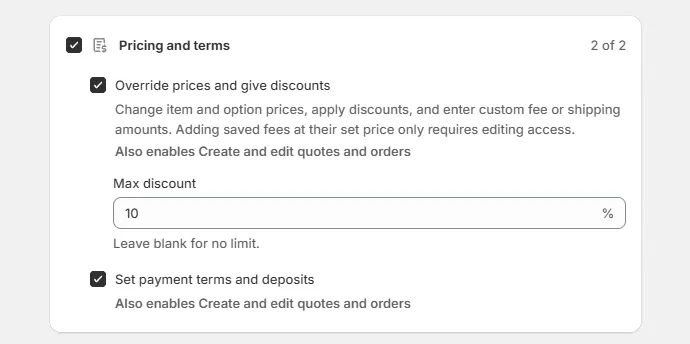
Max discount appears beneath the permission to override prices and give discounts. Step 2: Choose what happens above a limit
Open SettingsStaff and rolesAccess rules and find Discount limits, between People without a role and Point of sale.
Choose Block it, the default, or Allow it and flag it for review. Blocking prevents the save. Allowing saves the discount, records it in Activity and emails people who can approve that amount.
Name who can approve more starts ticked. Turn it off to say “a manager” instead of naming staff. Click Save; Access rules saved confirms the change.
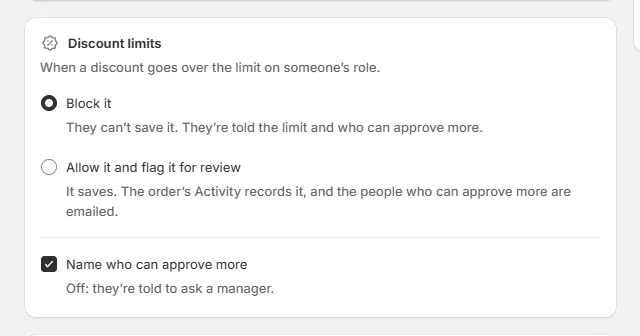
Choose whether a discount above a role's limit can be saved.
What counts toward the limit
| Change | How it is checked |
|---|---|
| Shopify product item discount | Measured against the catalog price, including the price of its options. |
| Price entered below the catalog price | Combines with the item's discount to measure the total percentage off its catalog price. |
| Order discount | Checked when the sale contains at least one Shopify product. An amount becomes a percentage of the products after their item discounts. |
| An existing discount | Unchanged or reduced discounts do not block unrelated edits. Increasing the discount is checked again. |
| A smaller product total | An existing fixed order discount can become a larger percentage after products are removed or reduced. That increase is checked even if the discount amount stays the same. |
Custom products and custom items have no catalog price and are not capped. Shopify's compare-at price does not count. Warranty replacement orders and quotes edited by customers are excluded.
The item and order checks each use their own basis. See Add fees, shipping and discounts for entering a discount and its reason.
What staff see in the app
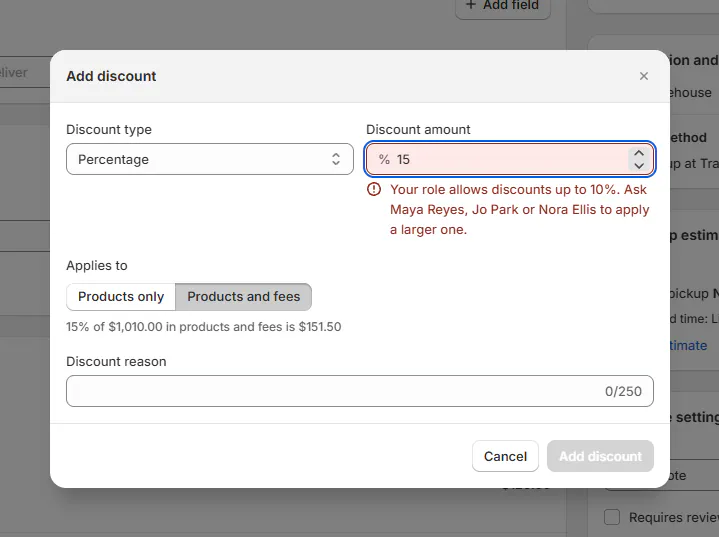
With Block it, a person with a 10% limit trying a larger discount reads: “Your role allows discounts up to 10%. Ask Nora Ellis to apply a larger one.”
In Add discount or Edit discount, the message appears under the amount and Add discount or Save discount stays greyed. An item discount also explains the correction on hover. A price below the permitted catalog price shows the message under the price field.
The page's Save waits too. Its banner identifies a line or order discount over the limit, and auto-save waits until it is corrected. Restore in version history and an Inbox request's Apply follow the same limit.
With Allow it and flag it for review, the app warns instead: “15% is above your 10% limit. It will save, and Nora Ellis will be emailed.” The discount can be saved.
What staff see on the iPad
In a shop using Block it, Apply Discount shows the limit message beside the value, and Apply stays greyed. Lower the discount or ask someone with enough access to apply it.
A price typed below the permitted catalog price is checked when the order saves. If it exceeds the limit, the save is refused with the limit message.
With Allow it and flag it for review, the register does not show the app's warning; the save is still recorded and flagged.
New stores use The account signed in to the register, so that account's discount limit applies by default.
When The staff member signed in with their PIN applies, the PIN holder's limit follows them. The device account's permissions and record access still restrict what they can do. If the person is not identified or not added to OrderPilot, the configured fallback gives view-only access or no access; changes are blocked.
See Shared iPads: staff PINs and what each person can do for register identity.
Who can approve more
The store owner and Store administrator can apply a larger discount. Other staff qualify with Override prices and give discounts and no limit, or a limit high enough for that discount.
People without an assigned role can qualify through the store's default role. Suspended staff cannot.
The message names up to 3 qualifying people. It says “a manager” when names are turned off or nobody qualifies. The named person applies the discount themselves.
Check Activity and email
Step 1: Read the saved discount entry
Open the quote or order's Activity. Discount above limit means the giver exceeded their own limit in a store that allows it. For example: “Discount above limit: 15% off the order (their limit 10%)”.
Larger discount means the giver stayed within their own access but exceeded the lowest role limit in the shop. For example: “Larger discount: 15% off the order (no limit on their role)”.
Several discounts from one save appear together. When roles follow the register PIN, Activity names the person who entered it.
Step 2: Check the review email
When someone exceeds their own limit in an allowing store, the owner and qualifying approvers receive a notice, up to 10 recipients. It names the giver, discount and limit, with a link to the order.
This is an internal notice from the shop's sender, not a customer email or an editable email template. It does not send when shop emails are off or no eligible recipient can be emailed. A Larger discount within the giver's own limit does not send this notice.
Limits on changing limits
A person with a 10% limit can give another role at most 10%. They cannot choose no limit. Ask the owner for a change beyond your own access.
Discount limits is greyed for a person whose own limit prevents changing the store's response. That person also cannot switch Whose role applies to The account signed in to the register, which could lift their limit.
The Store administrator's Max discount is greyed because that role has no limit. Duplicate it to create a narrower role.
What happens next
The saved limit applies when staff create or save quotes and orders. An old discount above the limit does not prevent unrelated changes, but making its effective percentage larger triggers another check.
Review Activity for larger discounts, and use the email notice when your store permits staff to exceed their own limits.
Example: Sam needs a larger discount
Nora Ellis gives Salesperson a 10% Max discount and keeps Block it. Olivia Bennett's quote includes a Shopify product.
Sam Ortiz tries 15% off the order and reads: “Your role allows discounts up to 10%. Ask Nora Ellis to apply a larger one.”
Nora applies the discount. Activity shows Larger discount: 15% off the order (no limit on their role). Sam's role remains capped at 10%.
If something goes wrong
Max discount is missing
Tick Override prices and give discounts on the role.
Store administrator's limit is greyed
Duplicate the role to create a narrower one.
The limit will not save
Enter 0 to 100 or leave it blank for no limit. You cannot grant more than your own limit.
A line is over your discount limit
Lower its discount or raise its entered price within the permitted range. The line explains the limit.
Nobody is named
Name who can approve more is off, or nobody qualifies; the message says “a manager”.
No email arrived
Check that the discount exceeded the giver's own limit, that the store allows it, and that shop emails and eligible recipients are available.
A custom product's discount is not capped
Custom products and custom items have no catalog price for the limit to use.
Was this guide helpful?
Thanks. Tell us what was missing at [email protected].