Find answers with Help and Search Settings
Related guides
- Find your way around OrderPilotGet started · 10 min
- When OrderPilot shows an errorGet started · 6 min
- How Settings is organizedSettings and integrations · 6 min
- Welcome to OrderPilotGet started · 7 min
Use Help to read the guides and questions for the page you are on. Search Settings finds settings, guides and answers together when you know what you want to do.
To find a customer, sale or product, use Home's Find what you’re looking for instead. Find your way around OrderPilot explains that record search.
Read help beside your work
Step 1: Open Help for this page
Click Help in the header. A panel opens on the right with a title such as Help with orders or Help with this quote.
A record can name itself in the title, such as Help with PO-10001. The list follows your current page or Settings tab. On a quote, order or purchase order, the guides most relevant to its current state appear first.
Relevant guides shows up to 4 guides with their kind, reading time and Read here. Kinds are How-to, How it works, Fix a problem, Reference and Walkthrough. Relevant questions shows up to 3 questions. Use Show N more to reveal the rest.
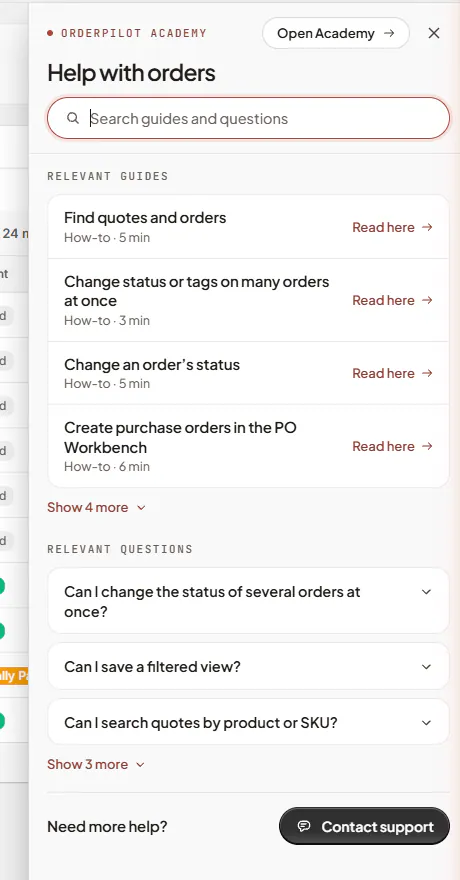
Help starts with guidance for the page you are on. Step 2: Read a guide or answer
Click Read here to read a guide inside the panel. A question opens its first sentence in place. Read the full guide here, or Read the full answer here, opens the rest. POS-only answers are not listed in this panel.
Links inside a guide open the next guide in the same panel. Back returns one guide at a time and names the destination, such as Take a deposit. From the first guide, Back returns to the page's help list.
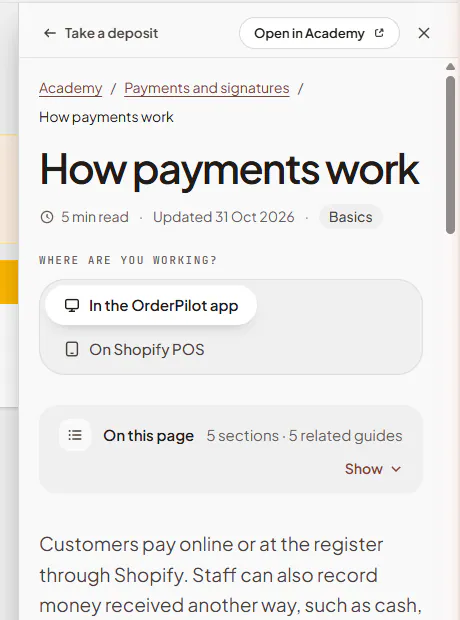
Back returns to the guide you followed the link from. Step 3: Open the full Academy or close Help
Choose Open in Academy to read the current guide full size. Open Academy at the top of the page's help list opens the full training library inside OrderPilot.
Academy also remains in Shopify's sidebar. Home's Get help card offers Academy, plus Copy support email when the support address is available.
Click Help again, use Close help, or press Escape to close the panel. Closing forgets your reading trail; opening Help again starts with the page's guide list.
Search guides, answers and settings
Step 1: Search inside Help
Enter a word or question in Search guides and questions. Results are grouped as Guides, Questions and Settings, with a count for each.
A guide already recommended for your current page has This page beside it. Open a guide or answer in the panel. Open setting takes you to that setting.
Try the job you want to do, such as “take a deposit”, rather than guessing which guide contains it. If nothing matches, shorten the phrase.
Step 2: Search from the header
Click Search Settings to open Search settings and help. In Search settings and guides, enter a word, such as “numbering”, or a question, such as “how do I take a deposit”.
One ranked list mixes settings, guides and answers. The best match is labeled Setting or Academy · followed by its kind, with Open setting, Read guide or Read answer. Each remaining row identifies its kind: Setting, a guide type and reading time, or Question.
Use ↑ and ↓ to highlight a result, then Enter to open it. The highlighted row says Open setting or Read in Help.
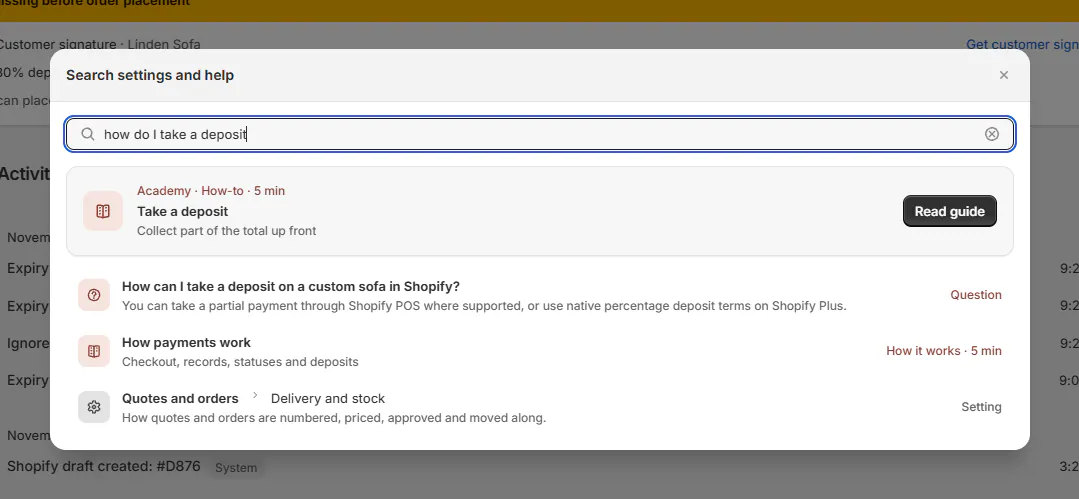
A question can bring a guide or answer above the matching settings. Step 3: Open the matching result
A setting opens its page and scrolls to the relevant tab or section. A guide or answer opens in the Help panel.
View only means you can read the setting but your role cannot change it. See How Settings is organized for the settings map and saving behavior.
Search recognizes older setting names, common wording such as “client” for “customer”, word endings and small spelling mistakes. Longer questions do not need every word to match. If the results miss your meaning, try fewer, more specific words.
Contact support from Help
Step 1: Describe the question or problem
At Need more help?, click Contact support. Choose What’s it about?: A question, Something isn’t working, Ask for a call, Feedback or a feature request, or Account and billing.
Enter Message, up to 4,000 characters. Its prompt is “What are you trying to do, and what happened?” Say what you were trying to do and what happened. For a failed action, add the error ID, record number and approximate time; When OrderPilot shows an error explains where to find the ID.
Sent with the page you’re on shows the page attached to your message. If you opened the form from a guide, Back returns to that guide.
Step 2: Send the message
Click Send. An empty message cannot be sent. Message sent confirms delivery, and Back to help returns to the page's help.
The panel says “We reply by email within 24 hours, 8 am – 6 pm Eastern.” Replies go to your staff email. If the app cannot send, use the support email link beneath the error.
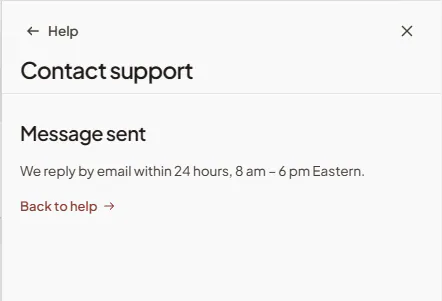
The confirmation appears after the support message sends.
What happens next
Reading Help keeps the work page open behind it. Following a setting result takes you to that Settings page; your role still controls what you can change.
A support message includes the topic, your name and email, store, current page and any guide that was open. The message is sent to support rather than saved in OrderPilot. Keep the error ID and record number when reporting a failed action so support can identify the specific problem.
Example: Sam checks a deposit
Sam Ortiz opens Olivia Bennett's quote and clicks Help. He reads Take a deposit, then follows its link to Collect a payment.
Back names Take a deposit, so Sam can return to the explanation he was reading. He opens Contact support from the panel and writes the question that remains.
After sending, Message sent confirms it reached support. Sam can return to Help while waiting for the email reply.
If something goes wrong
Couldn’t load this page’s guides
Click Try again. Open Academy and support remain available.
Only settings are listed
Guides and answers could not load. Use the available settings results, then try the Academy again.
Nothing matches
Try fewer words or a more specific task. Older setting names also work.
Send is greyed
Enter a message and wait if a send is already in progress.
You’ve sent a few messages in the last few minutes. Try again shortly, or email us.
Wait a few minutes, or use the linked support email.
Keep it under 4,000 characters
Shorten the message before sending.
We couldn’t send this from the app
Use the support email link beneath the error.
Back no longer shows the previous guide
Closing Help clears its reading trail; reopen the guide from the list or search.
Was this guide helpful?
Thanks. Tell us what was missing at [email protected].