Follow up on orders that need attention
Related guides
- Find quotes and ordersQuotes and orders · 7 min
- The quote and order pageQuotes and orders · 12 min
- Email a quote or orderQuotes and orders · 7 min
- Set up your statuses and customer groupsStatuses and workflow · 7 min
- Automate your workflow: events, conditions and actionsStatuses and workflow · 6 min
Find quotes and orders waiting too long, read why they need attention, and take the next step. OrderPilot works out who each record waits on; nobody assigns that party to a status.
A customer reply, question or change request can need you at once. Other records come up after the relevant follow-up time.
Before you start
See and change the record
Viewing needs View quotes and orders. Sending, marking followed up and ignoring need Create and edit quotes and orders, within your change scope.
Send to the right party
Customer reminders need Handle customer messages and change requests with the portal on, or Email customers with it off. Vendor reminders need Send and cancel purchase orders.
Receive replies
Turn on Send customer emails for customer reminders and set up receiving replies so answers can update the wait.
Needs attention is on Orders, Quotes and their record pages in the app. It is not on POS. Home’s greeting line shows the same N need attention count for your person and location and opens that filtered Orders list. It is hidden without View quotes and orders. The Follow-ups card remains available.
Find the record and follow up
Step 1: Find what needs you
Open Orders, or Quotes if your store shows that tab. An orange dot appears before a number that needs attention. Hover over the number to read why.
With the default Needs attention sort, these records come first, longest waiting first. Other sorts order every record by the selected field. Click N need attention at the right of the tabs to show only those records.
The list and tab counts narrow together. Click the link again to show all records.
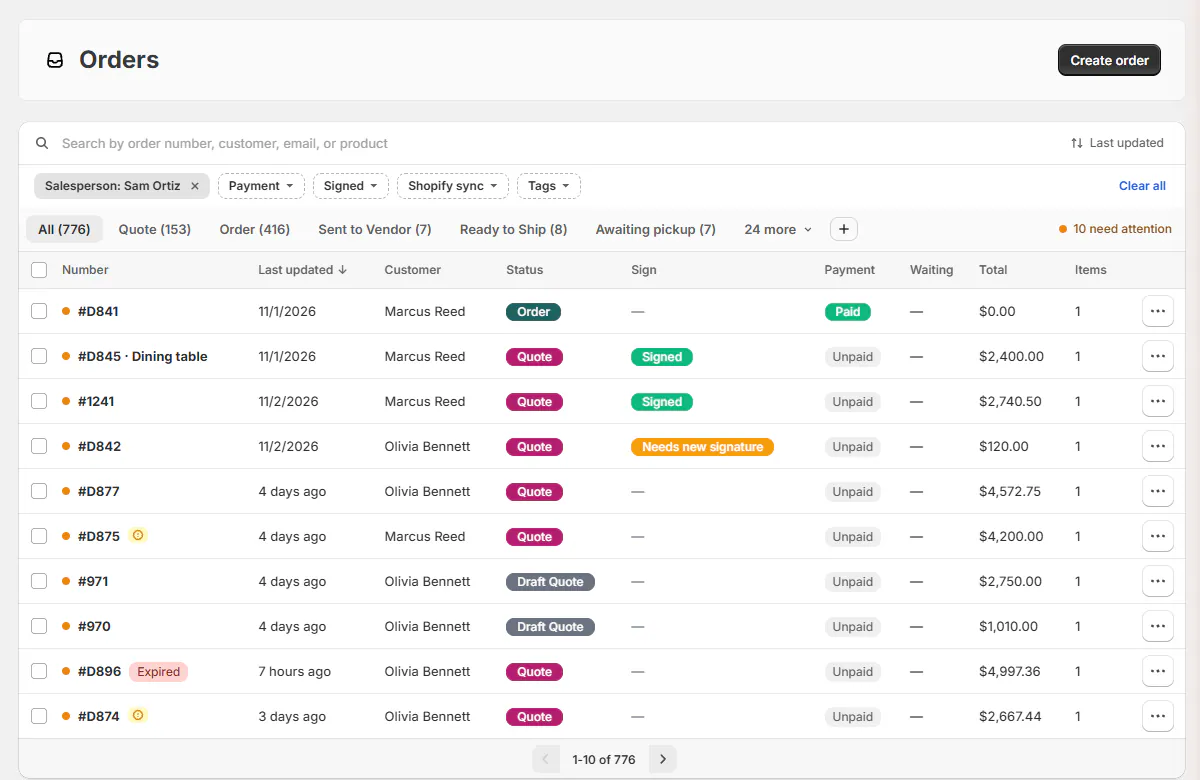
With Needs attention selected, flagged records come first, longest waiting first. 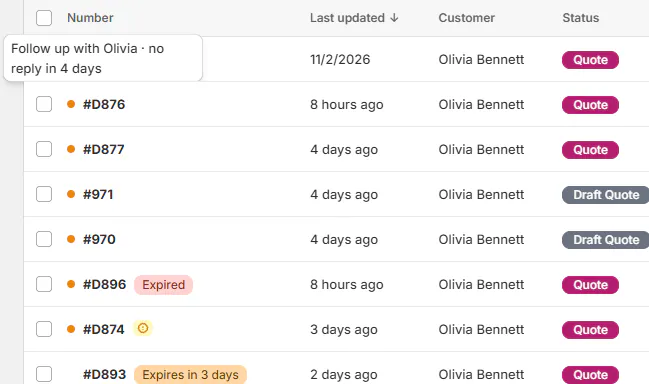
Hover over the number to read why it needs attention. Step 2: Read the banner and next step
Open the record. Its banner above Activity explains the reason, such as Priya hasn't replied in 10 days, with the sent and opened dates and your follow-up time.
It offers Send a reminder, Follow up with vendor, Remind your team, or the action that needs doing, such as Create purchase order.
Other banner actions
Contact Olivia opens Conversation when nothing has been sent to the customer; it sends nothing and records no follow-up. Reply to a vendor appears when they are waiting for your answer. Follow up with vendor uses your shop’s vendor wording.
Without verified email sending, the banner and action list offer Copy sign link or Copy payment link instead of email requests.
Mark as followed up appears when another party is up. It is absent for your own step, work in progress, a stuck sync or a wait on the app. The top-right X ignores the banner; there is no Ignore button.


Step 3: Read the next step
In the action list, a customer’s open change request offers Review changes. The banner calls it Review Olivia’s changes. Both open the Inbox review drawer. A question or unanswered reply offers Reply to Olivia.
Once a follow-up is due and you can take it, the header’s black action button names that step. A greyed button still names the step; hover for its reason and use the arrow to open the list. It follows the customer's own asks and Extend quote, before the status map's steps.
Waiting work remains below, such as Waiting on Olivia. Receive items waits on the vendor while a sent purchase order is within its follow-up time.
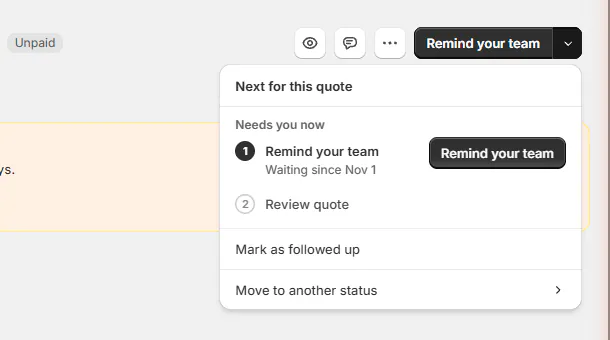
Needs you now leads with the due follow-up. Step 4: Check the message and send
Open the follow-up, check its read-only To line and edit Message. The draft begins with a greeting and uses your store's reminder wording.
Where each reply goes
| Who it goes to | Where the message goes |
|---|---|
| Customer, portal on | A reply in that quote's or order's portal conversation. There is no action link in the reply. An unread reply can trigger the portal's email alert about 10 minutes later. |
| Customer, portal off | A reply in that record's own email thread, with Review and sign or Pay below the message when applicable. |
| Vendor | A reply in the purchase order's own email thread. It does not send the purchase order again. |
| Teammates | An email to everyone who can approve: the account owner, Store administrators and roles with approval permission. |
| Carrier | Nothing is sent. Check the shipment, then use Mark as followed up. |
Step 5: Send the follow-up
Click Send. Sending restarts that party's clock and records Reminder sent, Followed up with Atelier Homeworks, or Reminder sent to your team in Activity.
Following up with the vendor does not restart the customer's clock. If goods have already arrived, use the vendor dialog's Receive items link instead.
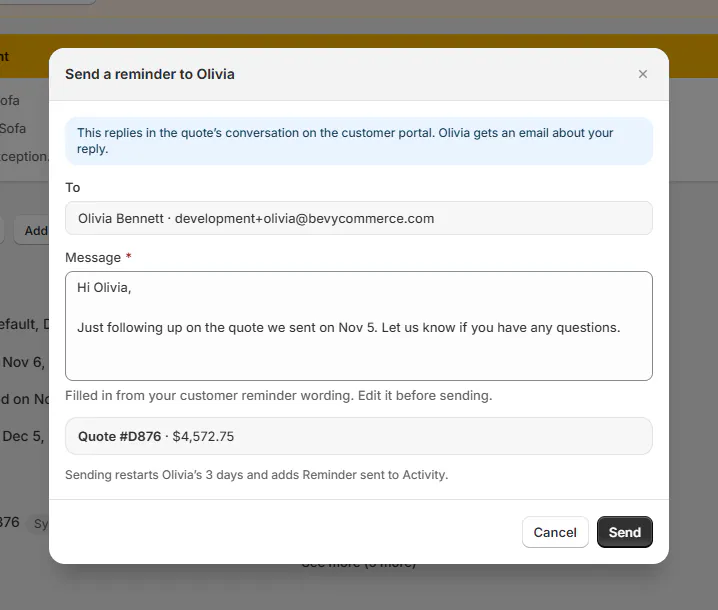
Check the recipients and where the reply goes before sending. 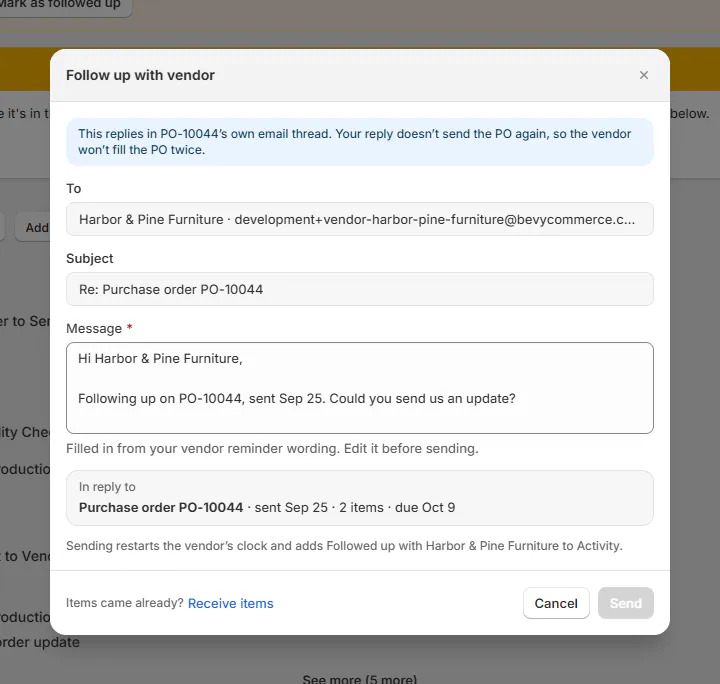
The reminder asks for an update without sending the purchase order again. 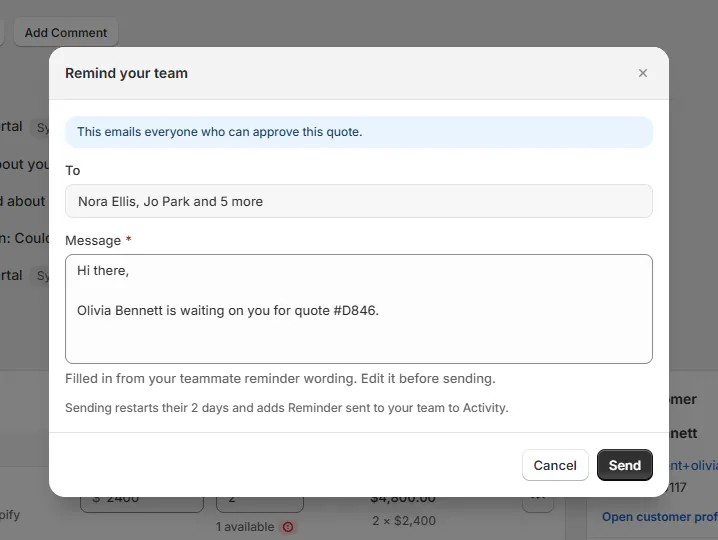
Remind your team sends the review notification again. If an expired quote blocks signing and payment, replies and sends first ask you to extend it. Set and extend quote expiry dates covers that dialog.
Step 6: Record a call or hide the banner
If you called or followed up another way, choose Mark as followed up. Add Note (optional), then confirm Mark as followed up.
Activity keeps the note and the relevant party's clock restarts. This records the follow-up without sending a message.
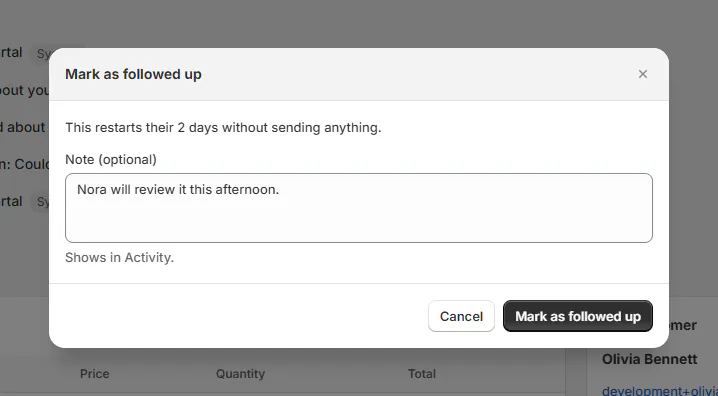
Record a call or another follow-up in Activity. To hide the banner for now, select its X. Its dot and top-of-list position disappear for a few days, or until the reason changes.
Ignoring does not change what needs doing. The action list still offers the same follow-up and Mark as followed up while the banner is hidden.
Choose how long to wait
OrderPilot first checks the last outstanding request sent to the customer, then the status map's next step. Otherwise, it treats the record as your work in progress.
| Waiting on | The clock starts | Default follow-up time |
|---|---|---|
| Customers | When the quote, signature request or payment request is emailed | 3 days on a new store; existing stores keep their saved setting |
| Vendors | When the purchase order is sent | Their lead time, or 14 days when none is set |
| Carriers | When the order ships | Delivery promise, or 10 days when none is set |
| Teammates | When a review is requested | 2 days |
| Us: work in progress | When the record last changed | 3 days, replaced by the status's own days when set |
Days are calendar days in the shop's time zone. A due day starts at midnight. A routine status email or handwritten message does not itself ask the customer to sign or pay.
A Ready for pickup order waits on the customer. An overdue balance can need attention even after delivery or pickup. Failed Shopify syncs, or syncs stuck for 30 minutes, also come up.
A blocked expired quote needs an extension. Closed orders otherwise stop needing attention. Never needs attention excludes a status from this feature.
Step 1: Set your store's times
Go to SettingsQuotes and ordersDefaultsQuotes. Find Needs attention, after Quote expiry and before Saving quotes.
Its table has Waiting on, Follow up after, The clock starts and The follow-up sends. Enter whole days from 1 to 365, or use Their lead time or Delivery promise where offered.
Use the page's Save bar. Changing these settings needs Manage order and quote settings and rechecks open records.
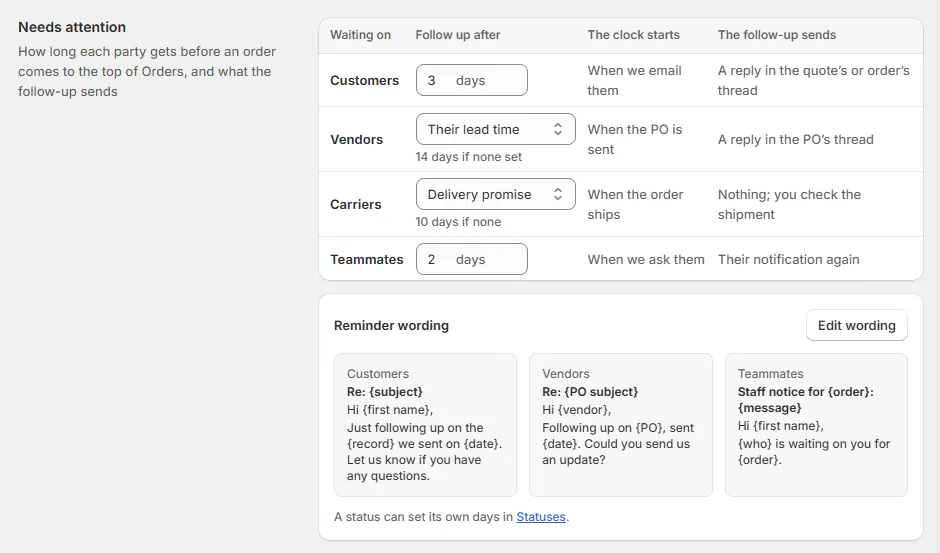
Set a follow-up time for each party. Step 2: Edit the reminder wording
Under Reminder wording, click Edit wording. Write the customer, vendor and teammate reminders; once you change one, Reset to default appears beside it.
Use the placeholders listed under its box, such as
{first name},{record}and{date}for customers. Keep them as shown. Empty reminder text is refused.Click Done to put the wording on the settings page, then save with the page’s Save bar. Staff can still edit each reminder before sending it.
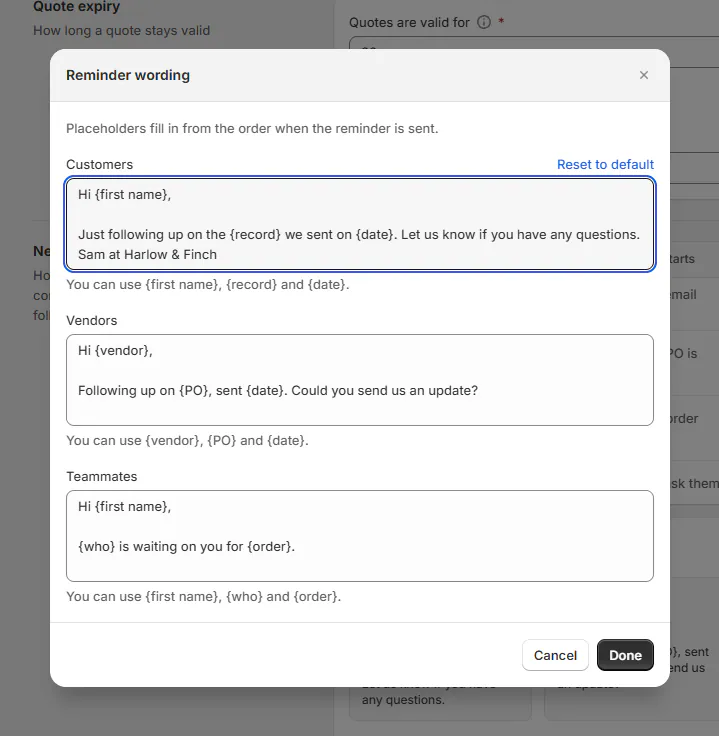
Each audience has its own wording and Reset to default. Step 3: Give one status its own timing
In SettingsQuotes and ordersStatuses, edit the status. Under Needs attention, leave the days blank for normal timing or set Needs attention after … days without a change.
Its days replace the work-in-progress default and add a limit to another party's wait: whichever comes first. A follow-up counts as a change.
Tick Never needs attention to exclude the status. The days field becomes greyed. Save the status; who each order waits on is still worked out per order.
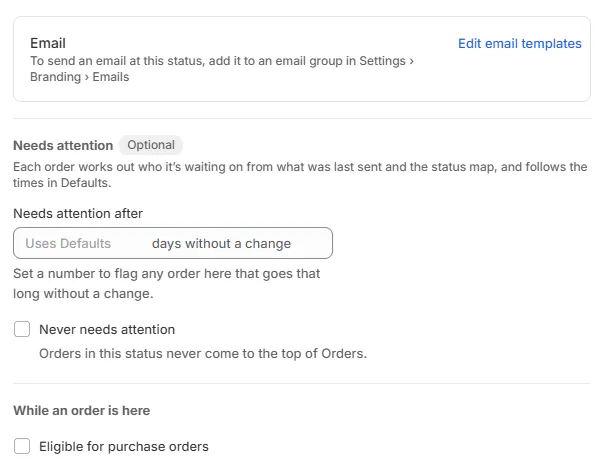
A status can set its own days or never need attention.
Use follow-ups in the status map
Step 1: Choose the event and condition
On a connection, choose When → A follow-up is sent. It counts a Needs attention reminder or Mark as followed up.
Under Only if → Needs attention, Follow-ups sent counts both since the record entered its current status. For example, notify staff after at least 2 follow-ups.
Test and publish the connection before relying on it. Follow-ups are sent only when staff choose Send; this feature does not send automatic reminders.
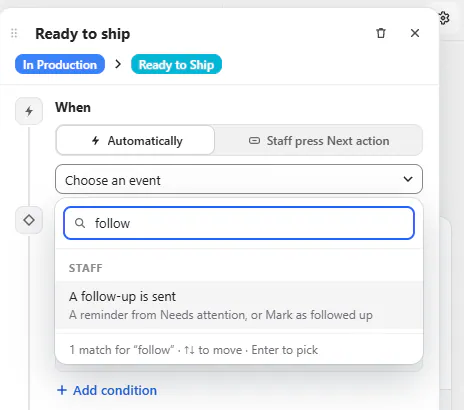
Use the follow-up event for a connection.
What happens next
The record leaves the overdue wait after its follow-up is recorded, until that party is due again. A reply or a changed next step can make different work due.
The quote's ••• → Send follow-up sends a fresh template email. Needs attention reminders reply in the existing thread. The automatic unfinished-quote reminder is another setting.
Example: follow up with customer and vendor
Example · Harlow & Finch Interiors
Restart the clock for the right party
Sam Ortiz sends Priya Shah a reminder on her quote after her customer follow-up time passes.
Later, Atelier Homeworks runs past its lead time on PO-10001. Jo Park checks the purchase order and uses Follow up with vendor to write to Atelier Homeworks.
Jo's reply asks for an update without sending the purchase order again. It restarts the vendor's clock only.
If something goes wrong
Send a reminder is greyed out
Hover for the missing permission or record-access reason.
Emails are turned off for your store, so nothing was sent
Check customer-email sending settings.
Nobody who can approve has an email address we can send to
Check the reviewers' accounts and approval access.
An order never comes up
Check whether its status has Never needs attention ticked.
The banner came back after closing it
A few days passed or its reason changed.
Nothing appears on POS
Use Orders in the app; Needs attention is not on the iPad.
Was this guide helpful?
Thanks. Tell us what was missing at [email protected].