See finished units and set their prices
Related guides
- Stock: what receiving and custom pieces do in ShopifyInventory and costs · 6 min
- Buy for stockPurchasing · 5 min
- Order a new unit or sell from stockInventory and costs · 9 min
- Manage product templatesCatalog · 7 min
Find the finished pieces made from a product template and set what each unit sells for at each store. The template’s Availability card keeps its stock count, vendor and selling price together.
A finished unit already has its configuration. Naming or pricing it does not choose that unit for a customer order; you make that choice on the sale.
Before you start
Has stock arrived?
Finished units come from receiving template configurations. Use Buy for stock to purchase them.
Can you manage the catalog?
Manage the catalog lets you open a unit’s dialog and change its name. Price fields also need Change catalog selling prices.
Which location are you checking?
The app header’s location sets the Availability card’s starting view. Choose the store whose stock you want to inspect.
Units bought from two vendors stay separate, even when their options match. Read the vendor beside the configuration before naming or pricing it.
Find the finished units
Step 1: Open the template
Go to SettingsProductsProduct templates and open the template. Find Availability in the right column, below Sales channels.
The card shows stock at the header’s location, Other locations and On the way when available. A template with no finished stock still shows the card with zero counts.
Step 2: Read the configuration rows
Below the counts, read each finished unit’s configuration, vendor, price and quantity. Template price · $X means no separate selling price is set there.
An empty location says None in stock at followed by its name. An incoming count is separate from stock available now; do not promise an incoming piece as ready to hand over.
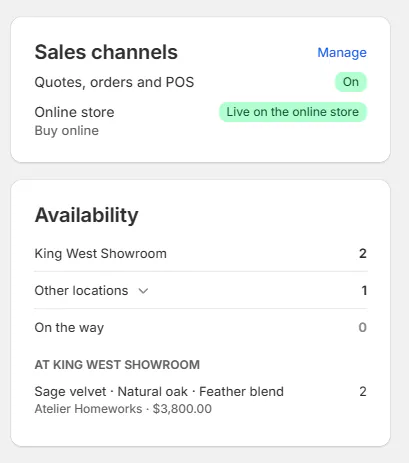
Each row identifies the configuration, vendor, price and available count. Step 3: Check another location
Click Other locations when it has units. Use Search locations, then choose a location holding the configuration you need.
The card shows that location’s units. Back to Showroom, for example, returns to the header’s location.
With All Locations selected in the app header, the first count covers all locations and there is no separate Other locations row.
Name and price a finished unit
Step 1: Open the unit’s dialog
Click the configuration row. The dialog is titled with the unit and shows Name, Vendor, SKU and Price at each location.
Vendor and SKU are read only here. If the row does not open, check Manage the catalog with your administrator.
Step 2: Enter the name
Enter a Name that identifies the finished piece. This name appears on the item when the unit is sold.
Leave Name blank to use the template’s name. For example, Harlow & Finch can name a finished unit “Linden Sofa — Sage Velvet” while keeping Linden Sofa as the template.
Step 3: Set the location prices
Under Price at each location, enter the selling price beside each location holding the unit. Each row also shows its stock count.
Use a price above 0 with a decimal point, such as 3800.00, and no commas. Leave a price blank to sell at the template’s price there.
Greyed price fields need Change catalog selling prices. If the dialog says No location holds this unit now, there are no location price fields to change.
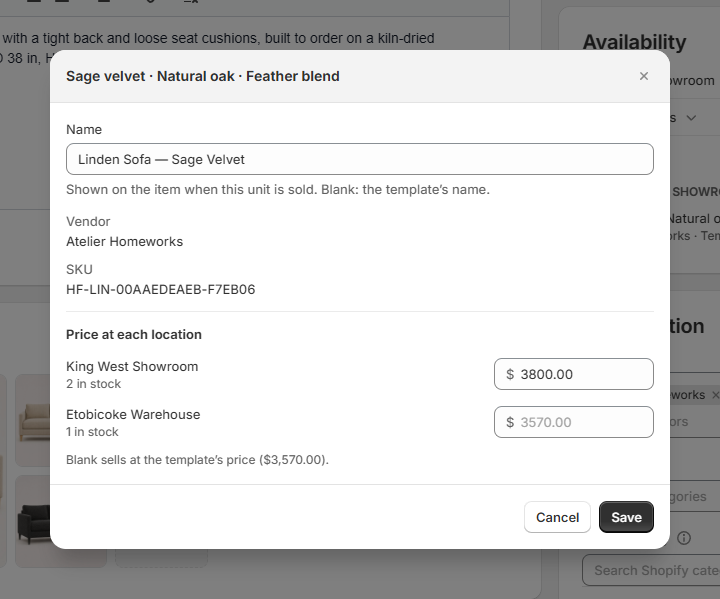
A blank name or price falls back to the template. Step 4: Save and check the card
Click Save. Check the price beside the configuration on Availability. Reopen the row to confirm its saved Name; the card continues to identify the unit by its configuration. Check the other location if you changed its price too.
Use Cancel to leave the dialog without saving your edits.
What happens next
The unit keeps its configuration and vendor, with the name and location prices you saved. A blank price continues to use the template’s selling price.
To sell it, choose the finished unit on the customer’s line. Check its options, source location and quantity before saving the sale.
Example: one configuration at two stores
Example · Harlow & Finch Interiors
Give the showroom unit its own price
Nora Ellis reviews Sage Velvet Linden Sofas with Feather Blend at Harlow & Finch Interiors.
- Open Linden Sofa and read Availability at Showroom.
- Check the unit’s vendor and available quantity.
- Open its row and enter “Linden Sofa — Sage Velvet” as Name.
- Set the Showroom price and leave Warehouse blank to use the template price there.
- Save and check both location views before Sam selects a unit for Olivia Bennett.
If something goes wrong
The card shows no finished units
Check the selected location and whether the template configuration has been received. On the way is not available stock.
A location is missing from the picker
Other locations lists places holding units. Clear the search or check another template.
The row does not open
Ask for Manage the catalog if you need to edit the unit.
The price is greyed out
Ask for Change catalog selling prices.
The price is refused
Enter a number above 0 with a decimal point and no commas, or leave it blank for the template price.
Was this guide helpful?
Thanks. Tell us what was missing at [email protected].