Create and sell extended warranty plans
Where are you working?
Related guides
- How warranty coverage worksWarranty and service · 6 min
- Set up warranty coverageWarranty and service · 7 min
- Check and change warranty on an orderWarranty and service · 5 min
- Set coverage exceptions for options and productsWarranty and service · 5 min
- Require and record serial numbersWarranty and service · 5 min
Sell extra coverage with a product by creating a warranty plan and adding it to the customer's line. The plan adds months to the base coverage and records its own price.
Add plans in the app or on POS before the sale becomes a Shopify order. Plans are never discounted.
Before you start
Understand the base term
Read How warranty coverage works and set up coverage.
Check plan permissions
Creating plans needs Manage shop settings. Costs need View costs to see and Enter costs and charges to change.
Check the sale
Adding a plan needs Create and edit quotes and orders and a record that isn't yet a Shopify order.
Create a plan
Step 1: Open the plan editor
Go to SettingsProductsWarranty plans and click New plan. The editor opens with the plan's name, price, coverage, and unit settings.
Step 2: Enter the commercial terms
Enter Name, Price to the customer, and Cost to you where your access allows. Set Additional coverage (months) from 1 to 1,200.
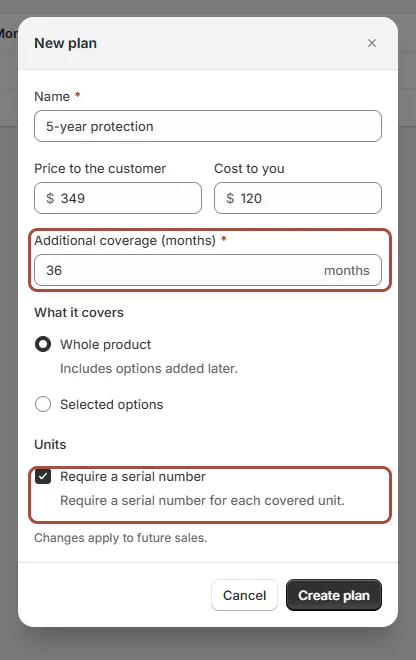
New plan editor for 5-year protection The initial extension is 12 months. Name the plan to match its real coverage: a 5-year total on a 2-year base needs 36 additional months.
Step 3: Choose coverage and create
Under What it covers, choose Whole product or Selected options. Whole product includes options added later. Selected options supports up to 200 choices.
Under Units, tick Require a serial number when needed. Click Create plan. The plan appears with its price, cost where visible, added months, and coverage.
Changes to a plan apply to future sales. A plan already sold keeps the terms recorded for that sale.
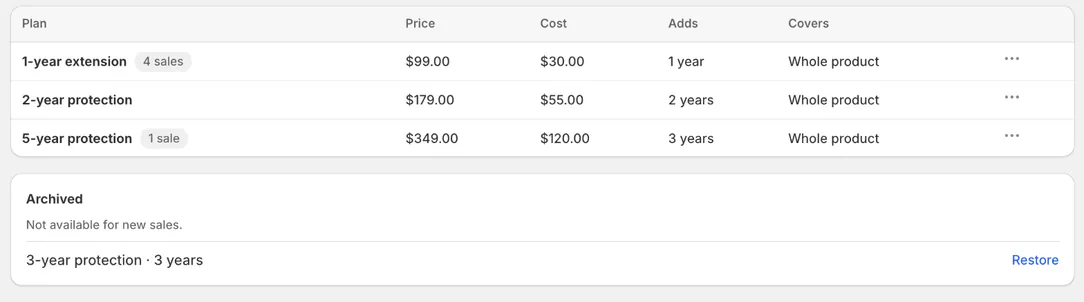
Warranty plans tab with 5-year protection and the Archived card
Sell a plan on a quote or order
Step 1: Review the product line
Open the line menu and choose Review warranty. Check the base term and any exclusions using Warranty on an order.
Step 2: Add the plan
Under Extended warranty, click Add a plan, then Add beside the chosen plan. The plan list opens in place of the review and returns to it. The line shows the plan name, extension, coverage, and price multiplied by quantity.
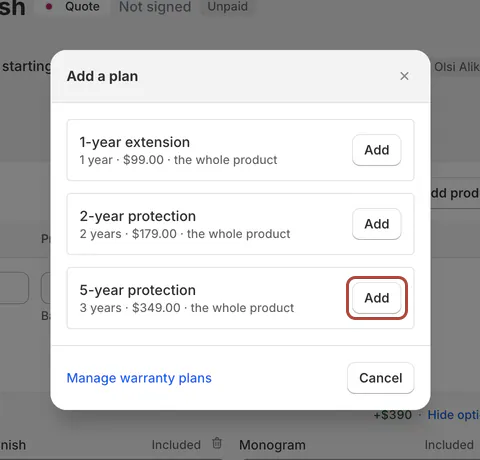
Check what the plan covers before adding it. Step 3: Finish the line review
Click Done. The plan is recorded with the product. Only one plan can be attached to a line.
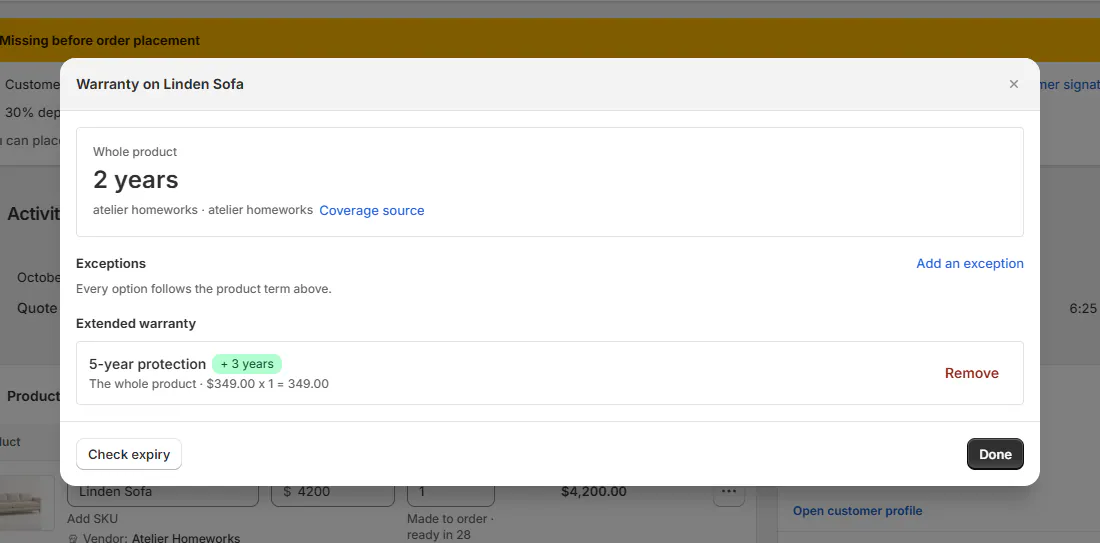
Review warranty with 5-year protection sold and its '+ 3 years' badge. Warning
Excluded options stay excluded
A plan doesn't cover an excluded option unless the authorized order action Allow plan coverage on this order lifts that exclusion. Check before describing the plan to the customer.
Remove a plan before the order is placed
Step 1: Open the sold plan
Return to Review warranty and find the plan under Extended warranty. Check that this is the line and plan the customer wants removed.
Step 2: Remove and finish
Click Remove, then Done. The plan is removed from the editable sale. Once it is a Shopify order, its warranty can no longer be changed this way.
Add protection on POS
Step 1: Find the item’s warranty
Open the saved quote or order and find the item’s Warranty block. It shows the source, Whole product, option terms, and any sold plan.
Tap Add protection. It can also follow No warranty when a plan fits. On-screen edits save before the plan list opens.
The sale must still be a Shopify draft. A record saved only with Save as Draft must be created first. Read-only records and placed Shopify orders cannot add protection.
Step 2: Read the plans and add one
The Add protection screen lists only plans that fit this sale. Read the extra years, what the plan covers, and the price for the item’s quantity.
Tap Add beside the chosen plan. Protection added confirms the change. The order total and Shopify draft update; a signed copy becomes out of date when needed.
Step 3: Check, change or remove the plan
Back on the order, the item’s warranty block shows the plan and Change. Tap Change to choose another plan or Remove to take it off.
Only one plan can be on an item. Adding another replaces it after the new plan is checked. A sold plan remains available to remove even if it has been archived.
For the rest of the screen, see The quote and order screen on the iPad.
Archive, restore or delete a plan
Step 1: Retire a plan from new sales
In Warranty plans, open the row menu and choose Archive. It moves to Archived, marked Not available for new sales.
Step 2: Restore or delete when appropriate
Choose Restore to sell an archived plan again. Delete is available only for a plan never sold. Use Archive when sales already exist.
What happens next
The plan becomes a warranty fee at price multiplied by quantity. It isn't discounted, including by POS discounts, and is included in the Shopify draft. New plan lines are taxable; the plan editor has no tax control.
The admin summary shows Warranty plans separately after Fees and Fee discounts, before Delivery. Percentage fees exclude plan money: % of retail price, % of discounted price, and % of total do not charge on it.
Quote and invoice PDFs, the signing page, and order emails list it under the product. Its added months apply to unit coverage from delivery.
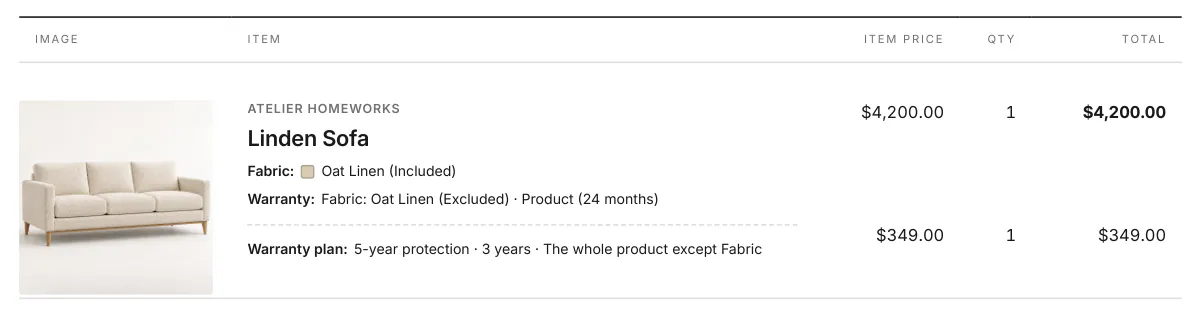
The portal lists purchased plans. Warranty reporting counts order lines with plans and their sales.
The portal shows Until with the plan’s coverage end date, or Starts at delivery when coverage hasn’t begun.
Example: extend Olivia's sofa to 5 years
Example · Harlow & Finch Interiors
Add 36 months to the sofa's base term
Nora Ellis creates Harlow & Finch's 5-year protection plan.
- She sets 36 additional months and Whole product.
- She requires a serial number for each covered unit.
- Sam Ortiz adds the plan to Olivia Bennett's Linden Sofa quote.
- He checks exclusions before explaining the coverage.
- The sofa's 24-month base plus 36 months gives 60 months from delivery.
If something goes wrong
No plans are available
Create a plan or restore an archived one. POS lists only plans that fit the item.
Add protection is missing on POS
Create a record saved with Save as Draft first. Check whether it is already a Shopify order, view-only, or has no fitting plan.
Adding protection is refused
Check Create and edit quotes and orders and access to this record.
Cost is hidden or read-only
Check View costs and Enter costs and charges.
Selected options won't save
Select at least one option or choose Whole product.
The line is locked
Its sale is already a Shopify order, so the warranty cannot be changed here.
Delete is unavailable
The plan has sales. Archive it to stop new sales while preserving existing terms.
Was this guide helpful?
Thanks. Tell us what was missing at [email protected].